---
title: "What's in the Peony Settings Menu"
lang: en
canonical_url: https://www.peony.ink/docs/concepts/settings-menu
description: "Every item in Peony's bottom-left Settings menu: your name, brand card, app theme, visitor notifications, anomaly alerts, domains, webhooks, admins and billing."
---
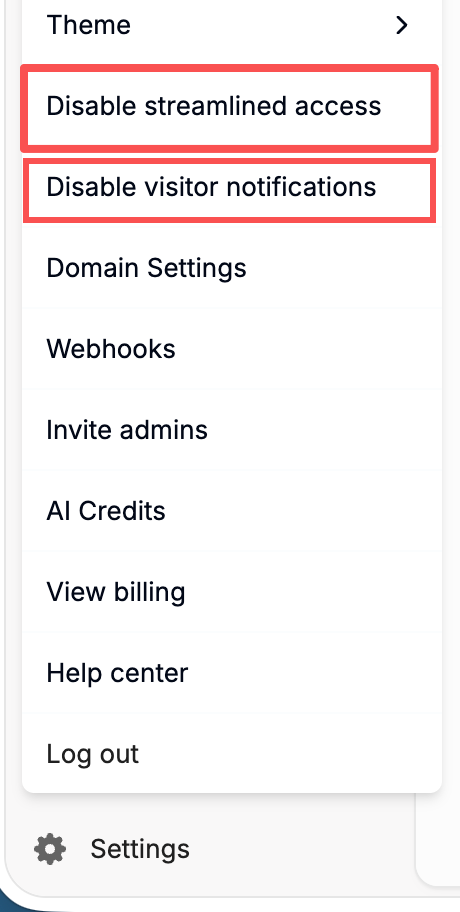
Click **Settings** at the bottom-left of Peony, a virtual data room for fundraising, M&A and due diligence, to open the workspace menu. It holds settings for you and for the whole workspace. It is different from a data room's own **Settings** tab, which holds room-level options such as OneDrive sync and visitor Q&A; see [Two Settings Menus](https://www.peony.ink/docs/concepts/workspaces-data-rooms-links-viewers#two-settings-menus).
 ## Menu Items, Top to Bottom
| Item | What it does | Applies to |
| --- | --- | --- |
| **Your name and email**, with **Edit** | Change the name shown in emails you send. See [Change your name](https://www.peony.ink/docs/getting-started/change-your-name) | You, in this workspace |
| **Upgrade to …** | Move to the next plan. Shown when a higher self-serve plan exists | Workspace |
| **API key settings** | Create and manage API keys. Shown when the API is on for your workspace. See [API & SDKs](https://www.peony.ink/docs/apis-sdks) | Workspace |
| **Brand Card Settings** | The card visitors open from your logo. See [Brand card](https://www.peony.ink/docs/features/branding/brand-card) | Workspace |
| **Theme** | **System**, **Light** or **Dark** for the Peony app. Saved in this browser only; visitors aren't affected. See [Theme and welcome message](https://www.peony.ink/docs/features/branding/theme-and-welcome-message) | You, in this browser |
| **Enable / Disable streamlined access** | Whether verified visitors skip email verification for 7 days. See [Streamlined access](https://www.peony.ink/docs/troubleshooting/streamlined-access-and-notifications#streamlined-access) | Workspace |
| **Enable / Disable visitor notifications** | Whether admins get emails about visitor activity. See [Visitor notifications](https://www.peony.ink/docs/troubleshooting/streamlined-access-and-notifications#visitor-notifications) | Workspace |
| **Enable / Disable anomaly alerts** | Emails about unusual locations and VPN, Tor or proxy access. Enterprise. See [Anomaly alerts](https://www.peony.ink/docs/features/security/visitor-anomaly-alerts) | Workspace |
| **Domain Settings** | Your Peony link name and your own domain. See [Custom Domains](https://www.peony.ink/docs/features/branding/custom-domains) | Workspace |
| **Webhooks** | Send link views and NDA acceptances to your systems or Slack. See [Webhooks](https://www.peony.ink/docs/features/webhooks) | Workspace |
| **Invite admins** | Add teammates as admins. See [Invite your team](https://www.peony.ink/docs/getting-started/invite-your-team) | Workspace |
| **Manage SSO** | Set up or connect single sign-on. Shown when SSO applies to you. See [SAML SSO](https://www.peony.ink/docs/features/security/saml-sso) | Workspace |
| **AI Credits** | See your workspace's AI usage and credits. Shown when AI is on for the workspace. See [AI Q&A](https://www.peony.ink/docs/features/ai/ai-qa) | Workspace |
| **View billing** | Plan, payment method and invoices. See [Invoices and receipts](https://www.peony.ink/docs/account-billing/invoices-and-receipts) | Workspace |
| **Help center** | Opens these docs | |
| **Log out** | Signs you out of Peony | You |
## Reading the Enable and Disable Items
The three switches (streamlined access, visitor notifications, anomaly alerts) name the **action they will take**, not the current state. **Disable visitor notifications** means they're on now; **Enable visitor notifications** means they're off. Clicking one changes it for the whole workspace, and Peony confirms with a short message such as **Visitor notifications disabled.**
## Common Questions
#### Why does the menu say Disable when I want to know if something is on?
Switch items name the action they will take. **Disable visitor notifications** means notifications are on now; **Enable visitor notifications** means they're off.
#### Why don't I see some of these items?
A few items only appear when they apply: **Upgrade** when a higher self-serve plan exists, **API key settings** when the API is on for your workspace, **Manage SSO** when SSO applies to you, and **AI Credits** when AI is on for the workspace.
## Related
- [Two Settings Menus](https://www.peony.ink/docs/concepts/workspaces-data-rooms-links-viewers#two-settings-menus)
- [Change your name](https://www.peony.ink/docs/getting-started/change-your-name)
- [Streamlined access and visitor notifications](https://www.peony.ink/docs/troubleshooting/streamlined-access-and-notifications)
- [Visitor anomaly alerts](https://www.peony.ink/docs/features/security/visitor-anomaly-alerts)
---
_Markdown version of [https://www.peony.ink/docs/concepts/settings-menu](https://www.peony.ink/docs/concepts/settings-menu.md) for AI agents and LLMs; canonical HTML: https://www.peony.ink/docs/concepts/settings-menu. Every page on peony.ink is available as markdown — append `.md` to the URL or request it with `Accept: text/markdown`. More: [llms.txt](https://www.peony.ink/llms.txt)._