---
title: "Set a Data Room's Theme and Welcome Message for Visitors"
lang: en
canonical_url: https://www.peony.ink/docs/features/branding/theme-and-welcome-message
description: "Set the theme (System, Light or Dark) visitors see on a Peony data room link, and add a welcome message on Business+ that greets them when they open it."
---
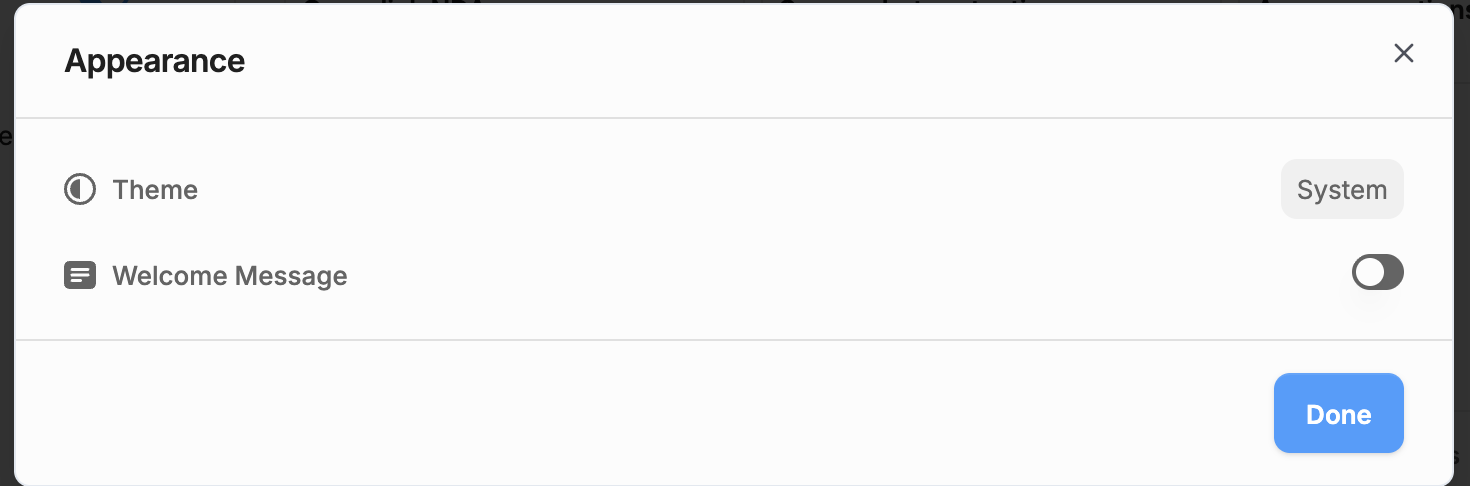
In Peony, a virtual data room for fundraising, M&A and due diligence, each link to a data room has its own **Appearance** settings: a **Theme** for how the room looks to visitors (System, Light or Dark) and an optional **Welcome Message** Business+ that greets them when they open it. Because they are set per link, an investor's link and a buyer's link can greet each group differently.
## Set the Theme and Welcome Message
1. Open the data room, go to its **Permissions** tab and select the group whose link you want to change.
2. Click the **Appearance** card. It reads **Theme only**, or **Custom** once a welcome message is set.
3. Pick a **Theme**: **System** follows each visitor's device setting, **Light** and **Dark** fix the look. New links start on **System**.
4. Turn on **Welcome Message** and type your message in the **Enter welcome message** field.
5. Click **Done**, then save the link.
 ## What Visitors See
When a visitor opens the link, the welcome message appears in a window with your brand card logo, the heading **Greetings!**, your text and a **Let's go** button. It shows on every kind of link: a data room, a folder, a single file or an NDA.
After the visitor closes it, Peony doesn't show it again in that browser for **3 days**. A visitor on another device or browser sees it once more.
Good uses: who the room is for, what's in it, the deadline for indications of interest, and who to contact with questions.
## Your Own App Theme Is Separate
The **Theme** item in the **Settings** menu at the bottom-left (**System**, **Light** or **Dark**) only changes how the Peony app looks to you. It's saved in that browser, and it doesn't change what visitors see. To change the visitor view, use the link's **Appearance** settings above.
## Notes and Limits
- The welcome message is plain text in a single paragraph, up to 10,000 characters. Formatting, links and images aren't rendered.
- On Free, the **Welcome Message** switch shows an upgrade prompt. It needs Business+.
- Theme and welcome message are set per link, so each group of visitors can get its own.
- Your logo, cover image and brand card are set elsewhere; see [Custom Branding](https://www.peony.ink/docs/features/branding/custom-branding).
## Common Questions
#### Does the Theme item in my Settings menu change what visitors see?
Visitors see the theme set in each link's **Appearance** settings. The **Theme** item in the Settings menu changes how the Peony app looks for you, in that browser.
#### How often do visitors see the welcome message?
When they open the link. After a visitor closes it, Peony doesn't show it again in that browser for 3 days.
#### Can I format the welcome message?
The welcome message is plain text in a single paragraph, up to 10,000 characters. Keep it to a few sentences so visitors read it.
## Related
- [Custom Branding](https://www.peony.ink/docs/features/branding/custom-branding)
- [Set up your brand card](https://www.peony.ink/docs/features/branding/brand-card)
- [Permissions and security settings](https://www.peony.ink/docs/getting-started/permissions-and-security-settings)
- [Share a data room link](https://www.peony.ink/docs/getting-started/share-a-data-room-link)
---
_Markdown version of [https://www.peony.ink/docs/features/branding/theme-and-welcome-message](https://www.peony.ink/docs/features/branding/theme-and-welcome-message.md) for AI agents and LLMs; canonical HTML: https://www.peony.ink/docs/features/branding/theme-and-welcome-message. Every page on peony.ink is available as markdown — append `.md` to the URL or request it with `Accept: text/markdown`. More: [llms.txt](https://www.peony.ink/llms.txt)._