---
title: "Change Your Name in Peony and in the Emails You Send"
lang: en
canonical_url: https://www.peony.ink/docs/getting-started/change-your-name
description: "Change your name from Settings > Edit. Invites show it as Your Name via Peony; the \"shared with you\" line uses your company name when one is set."
---
Your name is what visitors and teammates see when Peony emails them on your behalf, for example **Alex Morgan via Peony** in the From line of an invite. If it shows a nickname, an old name or something you typed at sign-up, change it from the **Settings** menu. It takes effect on the next email Peony sends.
## Steps
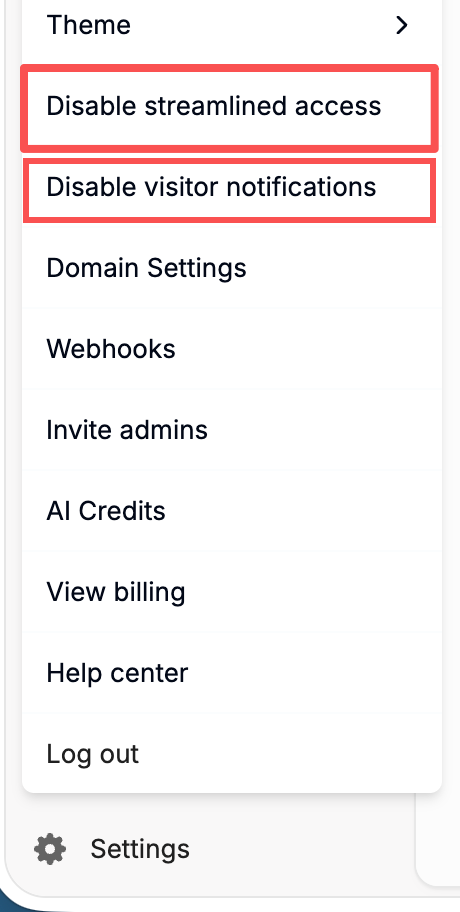
1. Click **Settings** at the bottom-left of Peony. Your name and email sit at the top of the menu.
2. Click **Edit** next to your name. The **Edit user name** dialog opens.
3. Type your name in the **Name** field and click **Save**. Peony confirms with **User name updated.**
 There is one **Name** field for your full name, not separate first and last names. It can't be left empty.
## Where Your Name Appears
| Email | What the recipient sees |
| --- | --- |
| **Invitation to a data room, folder or file** | From line: **Your Name via Peony**. Replies go to your email address |
| **Visitor sign-in email** (the link a visitor clicks to verify their email) | From line: **Your Name via Peony**, using the name of whoever created the link |
| **Visitor verification code** | "*Your Name* has requested that you verify your email before accessing the shared files." |
| **Admin invitation** | "*Your Name* invited you to join their team on Peony" |
| **Q&A assignments to teammates** | "*Your Name* assigned you a Q&A question in …" |
Visitor sign-in emails and verification codes use the name of the admin who **created the link**, not whoever is signed in now. If that admin has left the workspace, Peony uses the oldest active admin's name instead.
## Your Name or Your Company Name?
An invitation's subject and first line read "**… shared** *Project Falcon* **with you**". The name in that sentence is your **company name** when the workspace has one, and your own name when it doesn't. The From line always shows your own name.
So if invites say the wrong company, change the company name, not your user name: click the workspace name at the top of the left sidebar, choose **Edit workspace branding**, edit **Company name** and click **Save**. See [Custom Branding](https://www.peony.ink/docs/features/branding/custom-branding#workspace-logo-and-company-name).
On Deal Team+ you can also replace the invite's subject and body with your own wording; see [Custom invite email](https://www.peony.ink/docs/getting-started/invite-viewers#the-invitation-email). The From line still shows your name.
## Notes and Limits
- Your name is saved **per workspace**. If you belong to several workspaces, change it in each one.
- Emails already delivered keep the old name.
- The sending address doesn't change: invites come from `invite@notification.peony.ink`.
- Link expiry reminders, new-file digests, anomaly alerts and Q&A answers to visitors don't show an admin's name.
## Common Questions
#### Why does the invite email say my company shared the room, not me?
The subject and first line of an invite name your company when the workspace has a company name, and your own name when it doesn't. The From line always shows your name, as **Your Name via Peony**. Change the company name in **Edit workspace branding**.
#### Will changing my name update emails I already sent?
No. Emails already delivered keep the name they were sent with. Every email sent after you save uses the new name.
#### Does my name change in my other workspaces too?
No. Your name is saved per workspace. Change it in each workspace where you want it updated.
## Related
- [What's in the Settings menu](https://www.peony.ink/docs/concepts/settings-menu)
- [Invite viewers](https://www.peony.ink/docs/getting-started/invite-viewers)
- [Custom Branding](https://www.peony.ink/docs/features/branding/custom-branding)
- [Change your email or remove an admin](https://www.peony.ink/docs/account-billing/admin-seats)
---
_Markdown version of [https://www.peony.ink/docs/getting-started/change-your-name](https://www.peony.ink/docs/getting-started/change-your-name.md) for AI agents and LLMs; canonical HTML: https://www.peony.ink/docs/getting-started/change-your-name. Every page on peony.ink is available as markdown — append `.md` to the URL or request it with `Accept: text/markdown`. More: [llms.txt](https://www.peony.ink/llms.txt)._