---
title: "Invite Your Team (Admins vs Viewers)"
lang: en
canonical_url: https://www.peony.ink/docs/getting-started/invite-your-team
description: "Inviting a team admin adds a paid admin. Inviting a viewer is free. Here is the exact distinction so you avoid surprise charges."
---
Peony has two different "invite" flows with very different pricing.
- **Invite admins** — adds a paid admin. $30/month on Business, $52/month on Data Room.
- **Add a viewer** — free and unlimited on every plan, including the free tier.
**Admins** are people on _your team_ who manage data rooms. **Viewers** are _counterparties_ who read the rooms you share. If you just want to send a pitch deck to 20 investors, they are viewers.
Read this before clicking any "Invite" button.
> **Admins and seats are covered in three pages.** [Admins vs viewers](https://www.peony.ink/docs/concepts/admins-vs-viewers) explains who is an admin and who is a visitor, with persona examples and why you might be charged for an extra admin. [Invite your team](https://www.peony.ink/docs/getting-started/invite-your-team) has the steps to invite an admin and fixes for invite problems. [Add or remove admins](https://www.peony.ink/docs/account-billing/admin-seats) covers removing an admin, changing the account email, moving the subscription and how the pro-rated charge works.
## The Full Comparison
Who each role is, what they can do and what they cost, side by side: [the comparison table](https://www.peony.ink/docs/concepts/admins-vs-viewers#the-comparison-table).
## Where Each Invite Flow Lives
There are two different **Settings** surfaces, and people mix them up. **Workspace settings** live at the **bottom-left of the home screen** — that is where you invite admins. The per-data-room **Settings** tab (inside a room) is for room options and does not add admins. Add viewers from inside the data room itself.
### Add a Viewer (free)
- Open the **data room**, go to **Permissions**
- Click **Share securely**
- Open an existing group (or create one), and go to the **Visitors** tab
- Add the viewer's email under **People with access**, then **Save**
- No billing impact
This is the flow you use 95% of the time. There is no "Invite Viewer" button — viewers are always added inside the room's **Visitors** tab. See [Invite Viewers](https://www.peony.ink/docs/getting-started/invite-viewers).

### Invite an Admin (paid)
- Click **Settings** at the **bottom-left of the home screen** (outside any data room), in the navbar user menu
- Choose **Invite admins**
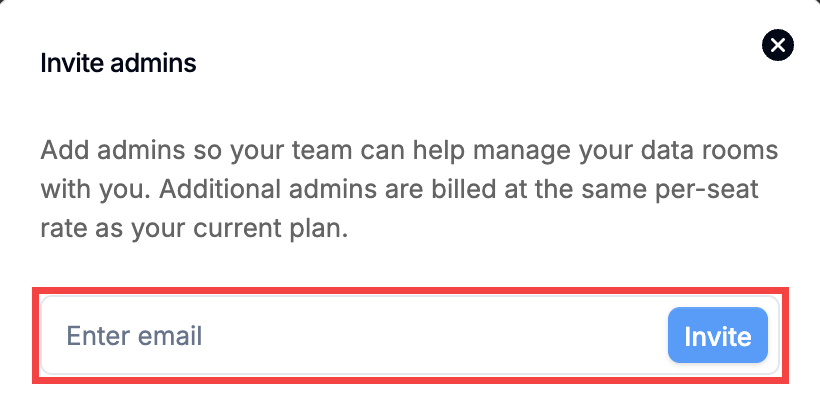
- In the **Invite admins** dialog, enter the email in the **Enter email** field and click **Invite**
- On a paid plan, a pro-rated per-admin charge follows when they accept the invite, not when you send it
There is **no role picker**. Everyone you invite here is an admin by definition — Peony shows "Inviting admin…" then "Admin invited," and you are billed per admin. Use this flow only when a colleague joins your company and needs to help manage rooms.
 ## Persona Examples
Worked examples (a founder sharing with VCs, an M&A advisor with an analyst, a sell-side deal with several buyer firms, a solo consultant) are in [Persona examples](https://www.peony.ink/docs/concepts/admins-vs-viewers#persona-examples). One more case:
**Assistant who uploads files but not billing.** Still an **admin**. There is no "read-only admin" or role tier — everyone invited under **Invite admins** is a full admin and costs one seat.
## "Why Was I Charged for an Extra Admin?"
Someone was added through **Settings > Invite admins** instead of as a viewer. Peony pro-rated the charge for the rest of the billing period. What happened and how to fix it: [The surprise seat charge](https://www.peony.ink/docs/concepts/admins-vs-viewers#the-surprise-seat-charge-scenario).
## Admin Pricing Per Plan
Free includes one admin (you) and every paid plan charges per admin, with viewers always free and unlimited; prices and the Deal Team minimum are in [Plans and Pricing](https://www.peony.ink/docs/account-billing/plans-and-pricing).
## Transfer Account Ownership
To hand the workspace to someone else, or to change your own email address on it, invite the new person or email as an admin and then have them remove the old one; see [Move your subscription to a new account](https://www.peony.ink/docs/account-billing/admin-seats#move-your-subscription-to-a-new-account).
## Common Mistakes
A test admin left in place, a counterparty invited as an admin, or an upgrade prompt read as a viewer limit: see [Common mistakes](https://www.peony.ink/docs/concepts/admins-vs-viewers#common-mistakes).
## Common Questions
#### How do I invite a teammate or add a seat?
Use **Settings → Invite admins** on the home screen — not inside a data room. Enter the email, click **Invite**. Pricing is per admin, and all permissions auto-enable for the new admin.
#### I can't see my list of admins to remove one — the box only autocompletes emails.
Open **Settings → Invite admins**. The email autocomplete dropdown hides the existing admin list; dismiss the dropdown and the admins appear. Hover a name and click the cross to remove them.
#### How do I check how many admin seats I'm billed for?
Open **Settings → Invite admins**. If no one else is listed, you're on a single seat. (A seat you removed can still appear on the prior cycle's Stripe invoice.)
#### My colleague can't accept the admin invite ("Failed to accept invite").
Accepting an admin invite triggers a charge, so a declined, out-of-funds, or 3D-Secure-blocked card will block the seat. Try another card or check with the bank, and support can send a manual invoice if needed.
#### I see "Invite limit reached. Please wait Ns before sending another invite."
You sent a lot of invites in a short time. Wait for the time shown, then invite again. If you need to add more people sooner, contact support.
#### Where does an invited colleague with a Peony account accept?
In the app. They see a **Team Invitation** dialog with **Accept** and **Reject**.
#### Accepting shows a billing or subscription message.
- **Billing changed. Please retry.** Accept again.
- **Cannot add a member while subscription cancellation is being resolved.** A cancellation is still being processed. Try again once it's done, or contact support.
- **This workspace's subscription needs support before adding members.** [Contact support](https://www.peony.ink/docs/troubleshooting/contact-support).
#### We got multiple charges but only signed up for one account — why?
Billing is per admin invited to the workspace, not per data room or per storage. Every admin who accepted and logged in is billed. Remove extras via **Settings → Invite admins**; the next cycle bills only the remaining admins.
#### I want to leave and cancel only myself, not my teammates.
**Downgrade to free** in the Billing dialog affects the whole workspace. To remove only yourself, ask a teammate to remove you via **Settings → Invite admins**. You're billed for your seat through the current cycle.
#### Can I split two data rooms across different teams?
Yes. The founding admin registers first, invites the other admins via **Settings → Invite admins**, then [creates teams](https://www.peony.ink/docs/getting-started/create-a-team) on the left of the main app (for example "founding team" and "branding team"). Put the founding admin in both teams for full access, and restrict each other team to its own workspace via team settings and team members.
#### A colleague I invited as an admin sees "account not found" when they sign in.
They need to create their Peony account first. Ask them to sign up at [app.peony.ink](https://app.peony.ink) with the **same email address** you invited, then sign in. The workspace appears as soon as they're in.
#### Why does the admin invite open the wrong account?
The invite button opens `app.peony.ink`, so it opens whichever account is signed in on that browser. Close any open private windows, open a new one, then sign in with the invited email address. See [An admin invite opens the wrong account](https://www.peony.ink/docs/troubleshooting/admin-invite-opens-wrong-account).
## Next Steps
- [Admins vs Viewers: Who Pays, Who Doesn't](https://www.peony.ink/docs/concepts/admins-vs-viewers)
- [Add or Remove Admins](https://www.peony.ink/docs/account-billing/admin-seats) — removing admins, moving the subscription, charges for removed seats
- [Invite Viewers and Track Who Opened](https://www.peony.ink/docs/getting-started/invite-viewers)
- [Workspaces, Data Rooms, Links, and Viewers](https://www.peony.ink/docs/concepts/workspaces-data-rooms-links-viewers)
---
_Markdown version of [https://www.peony.ink/docs/getting-started/invite-your-team](https://www.peony.ink/docs/getting-started/invite-your-team.md) for AI agents and LLMs; canonical HTML: https://www.peony.ink/docs/getting-started/invite-your-team. Every page on peony.ink is available as markdown — append `.md` to the URL or request it with `Accept: text/markdown`. More: [llms.txt](https://www.peony.ink/llms.txt)._