---
title: "Quick Start: Your First Data Room in 5 Minutes"
lang: en
canonical_url: https://www.peony.ink/docs/getting-started/quick-start
description: "Create a Peony data room, upload files, and share a secure link in under five minutes."
---
Sign up, set your company name, create a room on Business or above, drag in files, toggle the protections you want, and send the link. From the Business plan, AI processing finishes in the background while you configure the rest.
## 1. Sign Up
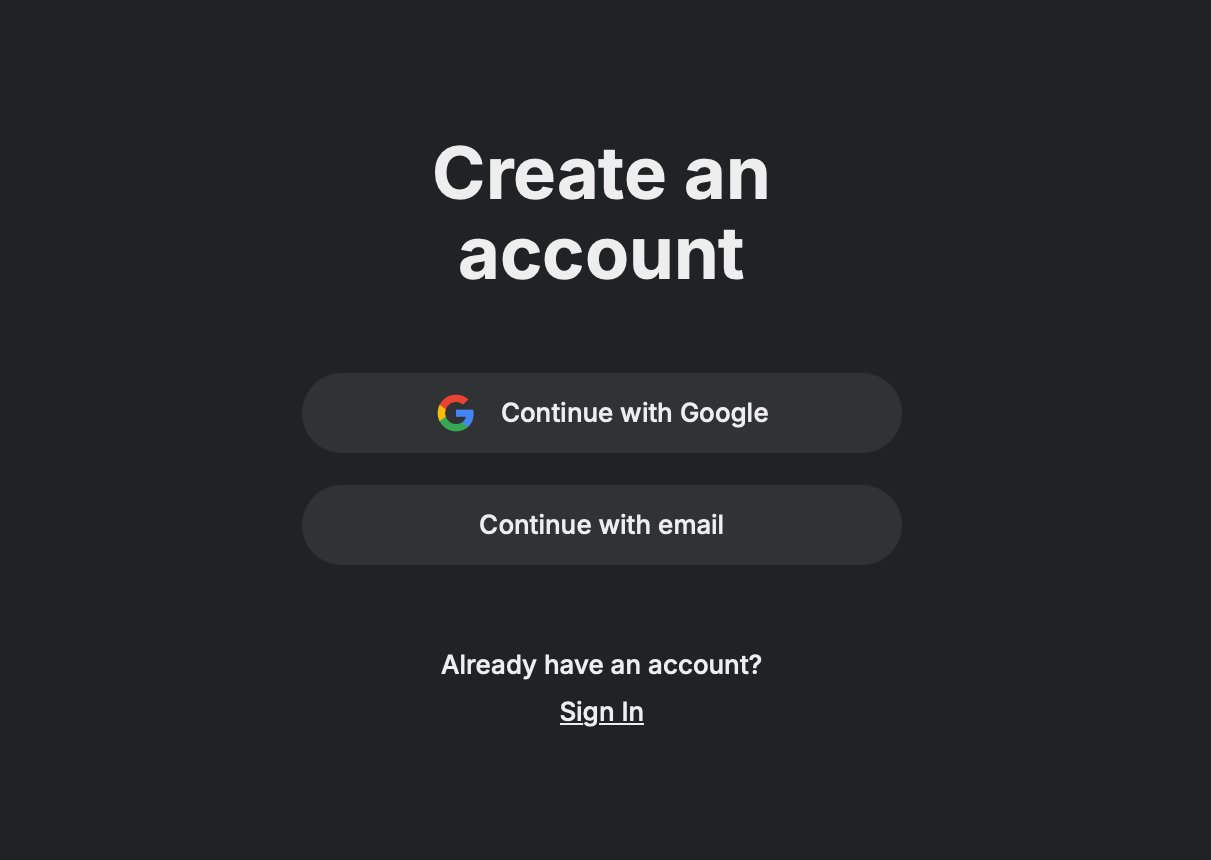
Go to [app.peony.ink](https://app.peony.ink) and click **Continue with Google**, or **Continue with email** and enter your work email. With email, Peony sends you a one-time code (OTP), so there's no password to remember. Your workspace is created on first sign-in. If your company already uses single sign-on with Peony, click **Continue with SSO** and enter your work email. See [SAML SSO](https://www.peony.ink/docs/features/security/saml-sso).
 ### Onboarding
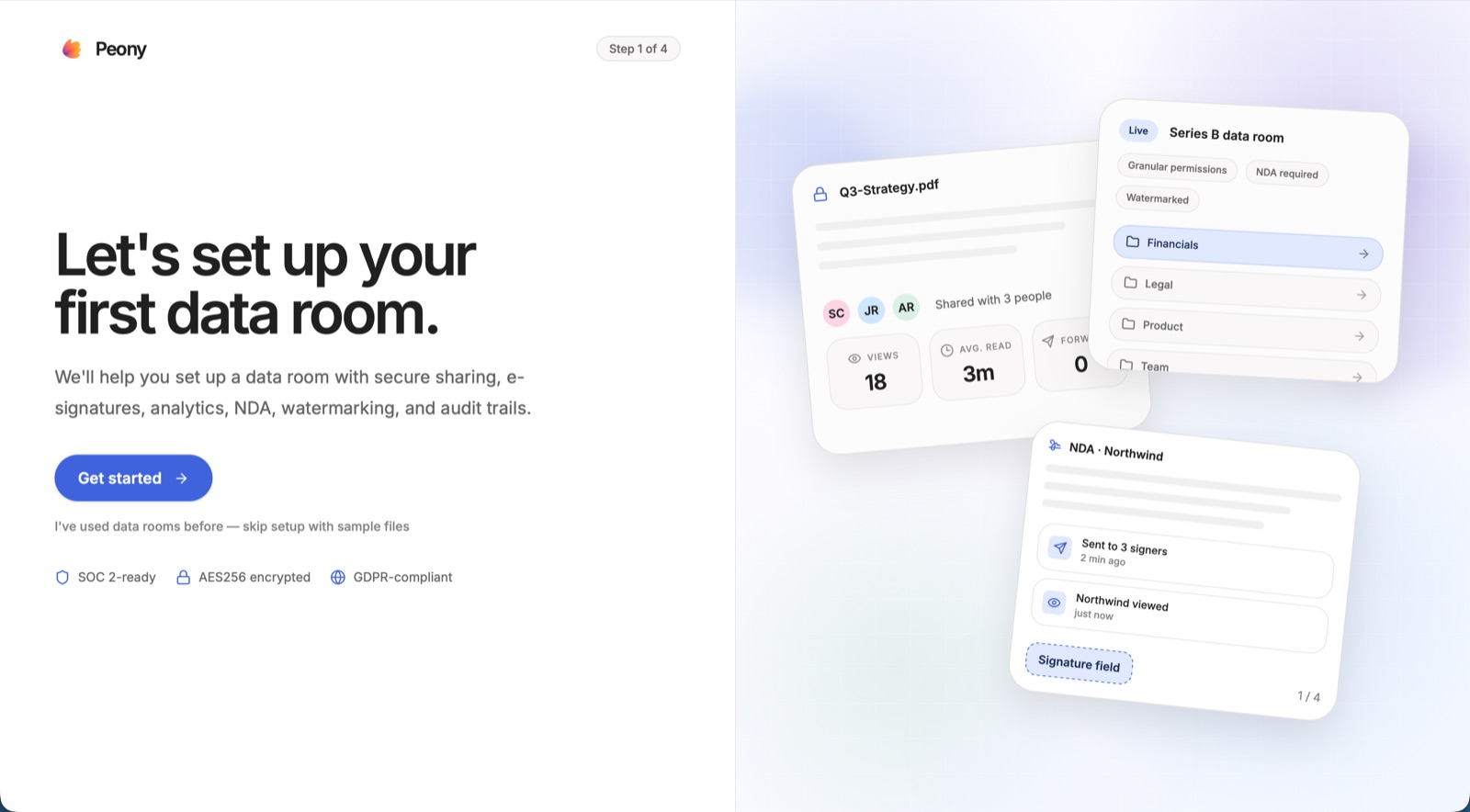
Right after you sign up, a short 4-step setup starts with **Let's set up your first data room**. Click **Get started** to be walked through creating a room with secure sharing, NDA, watermarking and analytics. If you've used data rooms before, click **I've used data rooms before — skip setup with sample files** instead.
 At the end of onboarding, Peony offers the [7-day free trial of the Data Room plan](https://www.peony.ink/docs/account-billing/trial).
Your new workspace starts named **Peony** with a default logo. Click the workspace name at the top of the left navbar to open **Edit workspace branding** and set your **Company name** — editable on every plan. Replacing the logo requires the Business plan or above.
The Free plan lets you [share single files](https://www.peony.ink/docs/getting-started/share-a-single-file) as tracked links. Creating a full **data room** requires Business+ — on Free, creating one opens the upgrade screen.
- [Plans and Pricing](https://www.peony.ink/docs/account-billing/plans-and-pricing) — what each tier includes, side by side
- [How the free trial works](https://www.peony.ink/docs/account-billing/trial) — 7 days of the Data Room plan, no credit card, also started from **Try 7 days for free** on any upgrade screen
## 2. Create a Data Room
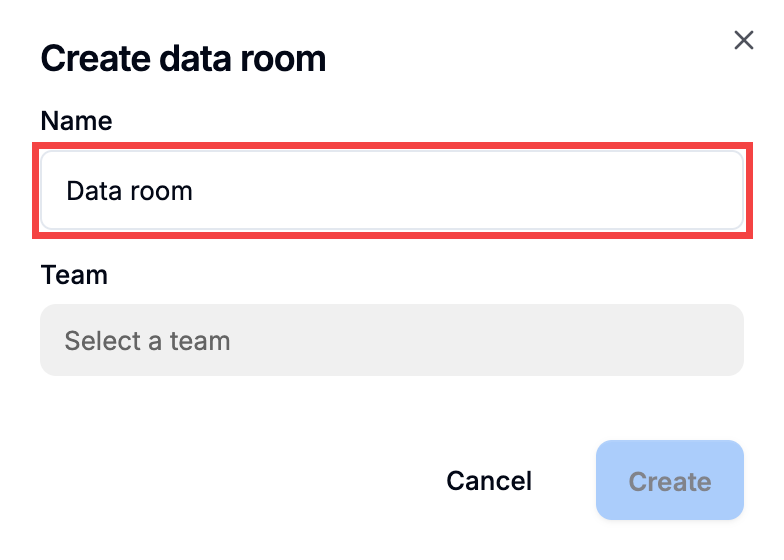
Click **Create new** at the top of the left sidebar and choose **Data room**. What happens next depends on where you are. On a team's own page, Peony creates a room called **Data room** in that team straight away, so rename it afterwards (see [Rename a file, folder or data room](https://www.peony.ink/docs/getting-started/rename-a-file-or-folder)). From any other page, such as the **Data rooms** list, a **Create data room** dialog opens: type a **Name**, pick a **Team**, and click **Create**. The **Data rooms** list (under **Shortcuts**) also has a **Create data room** button at the top right that opens the same dialog. (This action requires the Business plan or above.)
Name it something your counterparty will recognize — "Acme Series A" or "Project Falcon Diligence." The name appears in the viewer's browser tab. You can rename later without breaking the link URL.
If your workspace has branding defaults (logo, cover image), the new room inherits them. Room-level display is controlled from the data room's **Settings** tab — see [Custom Branding](https://www.peony.ink/docs/features/branding/custom-branding) for logo and banner edits. Once the room exists you can also rename it and change its logo and banner right inside the room; the step-by-step is in [Custom Branding: Name, logo and banner inside a specific room](https://www.peony.ink/docs/features/branding/custom-branding#name-logo-and-banner-inside-a-specific-room).
 ## 3. Upload Files
Drag and drop files — or a whole folder — into the room. Peony accepts PDFs, Word, Excel, PowerPoint, images and HTML on every plan. **Video and audio uploads require the Business plan** (on Free these are rejected). Folder structure is preserved on folder upload.
If a folder uploads fewer files than you expected, that's usually macOS hidden files (like `.DS_Store`) that Peony skips by design — re-upload and choose "only the missing ones" to merge. For large-file or video upload errors, see [Upload failed: 1 file could not be uploaded](https://www.peony.ink/docs/troubleshooting/file-could-not-be-uploaded).
From the **Business** plan, Peony processes your documents in the background so AI document Q&A can answer from what's inside them. Keep going: you can configure the link while it runs. The per-group **AI document Q&A** toggle lets viewers ask questions inside the room. **Auto-indexing**, which numbers your files and folders, is a **Data Room** tier feature. The **Search** box is separate: it finds files and folders by name, not by what's inside them.
## 4. Configure the Link
Click **Share securely** in your data room. A new room has no groups yet — click **Create new group** to create your first shareable group, then set who can see it and how it's protected. (This opens the link/permissions editor, not a "copy link" shortcut.)
- Share securely
- Create new group
- Visitors
- Document permissions
- Security cards
- Save
The link editor has a **Security control** card grid, with a **Permissions** table below it:
- **Security control** (card grid) — **Email-gated access**, **Password protection**, **Expiry**, **Dynamic watermark** (Data Room tier), **One-click NDA**, **Screenshot protection**, **Access questions** (Data Room tier — click the card to set the questions viewers must answer), **AI document Q&A** (the in-room AI Q&A toggle, available from Business), and **Appearance** (theme and an optional welcome message for this group). Click any card to open it and set its inner toggle — for example, **Password protection** opens a **Secure password** toggle and **Expiry** opens an **Auto-expiry timer**.
- **Permissions** (the table below the grid) — per-folder and per-file control over what this group can view, download, or upload; granular per-file overrides are Data Room tier.
[Typical fundraise stack](https://www.peony.ink/docs/concepts/access-control-layers#recommended-stacks-by-use-case): dynamic watermark plus screenshot protection, with downloads turned off in the Permissions table. For live M&A, add a **One-click NDA**.
An upgrade pop-up when you save usually means a higher-tier control is switched on; see [why a higher-tier feature triggers an upgrade prompt](https://www.peony.ink/docs/getting-started/permissions-and-security-settings#the-security-controls-both-modes).
Full walkthrough of access modes, security controls, and per-folder permissions: [Permission & Security Settings](https://www.peony.ink/docs/getting-started/permissions-and-security-settings).
## 5. Share the Link
Copy the link and send it — email, Slack, LinkedIn, whatever.
{/* SCREENSHOT: "Copy access link" button with the URL visible */}
The moment a viewer opens the link, their activity shows up in the **Analytics** tab — pages read, dwell time, exact file order. Click into any viewer's name to see their full activity timeline, location, device, total view time, and downloads. You can also create a separate link per counterparty (using email access, domain gating, or plain links) to isolate their analytics cleanly.
Your data room sidebar has more tabs than just Analytics:
| Tab | What's there | Plan |
| --- | --- | --- |
| **Documents** | The file tree. | — |
| **Analytics** | Per-viewer activity. | — |
| **[Audit trail](https://www.peony.ink/docs/features/analytics/audit-trail)** | A compliance event log. | Data Room+ |
| **[Q&A](https://www.peony.ink/docs/features/collaboration/visitor-qa)** | The investor Q&A module; you can enable or disable it per room from **Settings**. | Data Room+ |
| **Permissions** | Groups and their link settings. | — |
| **Settings** | Room-level toggles: **[Index documents](https://www.peony.ink/docs/features/ai/ai-auto-indexing)** Data Room+, **Visitor Q&A** Data Room+, **Show cover image**, **Show logo**, and **New file notifications** Deal Team+ | Per toggle |
The room's **Settings** tab is not your workspace settings; see [Two Settings Menus](https://www.peony.ink/docs/concepts/workspaces-data-rooms-links-viewers#two-settings-menus).
## Common Mistakes
- **Trying to create a data room on Free.** Full data rooms require Business or above. Free supports single-file tracked links.
- **One link for all investors.** Per-viewer analytics still work (click into each name), but separate links make it easier to filter, revoke, and watermark per counterparty.
- **Forgetting to toggle protections.** The default link is open. Turn on dynamic watermark and screenshot protection from the link's **Security control** cards.
- **Expecting AI features on Free.** The **AI document Q&A** toggle that lets viewers ask questions inside the room is available from Business, and auto-indexing, which numbers files and folders, from Data Room. Neither runs on Free.
- **Using "Invite Team" when you meant "Invite Viewer".** Team invites add paid admins. Viewer invites are free. See [Invite Your Team](https://www.peony.ink/docs/getting-started/invite-your-team).
## Common Questions
#### I'm on the Free plan and everything asks me to upgrade — what's included?
Sharing a single file as a tracked link works on Free; full data rooms require Business or above. The full list is in [What's on the Free plan](https://www.peony.ink/docs/account-billing/plans-and-pricing#whats-on-the-free-plan).
#### Can I rename my workspace or company name later?
Yes, on any plan. Click the workspace name at the top of the left navbar to open **Edit workspace branding** and edit the **Company name**. It shows next to your logo and in the subject of the invitations you send. The From line of those emails reads **Your Name via Peony**; change your own name from **Settings** > **Edit**. See [Change your name](https://www.peony.ink/docs/getting-started/change-your-name).
#### Do I get charged per viewer, per click, or for storage?
No. Billing is per admin seat only. There are no viewer or click charges, there are no size fees (storage is unlimited from the Data Room plan), and external viewers never need a Peony account.
#### My uploaded folder shows fewer files than the original — did some fail?
Usually not. macOS counts hidden files (like `.DS_Store`) that Peony skips by design. Re-upload the same folder and choose "only the missing ones" to merge just the skipped items. For genuine upload failures, see [Upload failed: 1 file could not be uploaded](https://www.peony.ink/docs/troubleshooting/file-could-not-be-uploaded).
#### Can I sign up with a personal email?
Yes. You can sign up with a personal or a business email, but a business email is recommended so your team, billing and share links carry your company's identity. If you started with a personal address, you can move the workspace to a work address later. See [Move Your Subscription to a New Account](https://www.peony.ink/docs/account-billing/admin-seats#move-your-subscription-to-a-new-account).
#### Can I manage my data rooms from a phone or tablet?
Visitors can open and read rooms on phones and tablets. Setting up rooms — uploading, permissions, links — works best on a laptop or desktop browser, so do setup there.
## Next Steps
- [Upload and Organize Files](https://www.peony.ink/docs/getting-started/upload-and-organize-files) — folders, supported types and upload limits
- [Custom Branding](https://www.peony.ink/docs/features/branding/custom-branding) — logo, brand colors, cover image, brand card and theme
- [Share a Data Room Link](https://www.peony.ink/docs/getting-started/share-a-data-room-link) — the whole sharing flow, start to finish
- [Permission & Security Settings](https://www.peony.ink/docs/getting-started/permissions-and-security-settings) — access modes and every security control
- [Access Control Layers](https://www.peony.ink/docs/concepts/access-control-layers) — what each protection does, and its limits
---
_Markdown version of [https://www.peony.ink/docs/getting-started/quick-start](https://www.peony.ink/docs/getting-started/quick-start.md) for AI agents and LLMs; canonical HTML: https://www.peony.ink/docs/getting-started/quick-start. Every page on peony.ink is available as markdown — append `.md` to the URL or request it with `Accept: text/markdown`. More: [llms.txt](https://www.peony.ink/llms.txt)._