
How to Send Tax Documents Securely in 2026: CPA, Client & IRS Guide

Co-founder and CEO at Peony. I built the data room platform with a background in document security, file systems, and AI. Founded Peony in 2021 in San Francisco.
You're about to send something that carries real consequences — W-2s, 1099s, K-1s, bank statements, ID scans, payroll reports. You want your CPA (or client, or attorney, or finance lead) to get it fast, but you do not want those files living forever in random inboxes or shared drives. You're right to pause.
The IRS and FTC both expect professional-grade safeguards for taxpayer data, and a surprising number of 2024-2025 incidents came from plain old email mishaps and mis-sharing — not "hackers in hoodies." According to Verizon's 2025 Data Breach Investigations Report, email-based document leaks remain one of the top vectors for financial data exposure, and tax season predictably spikes reported incidents by 30-40% between January and April.
I'm Deqian, I build Peony — the secure document sharing platform I wish existed when I was trying to send my own tax documents to my CPA. My cofounder and I started Peony because every existing tool either made secure sharing unusable (enterprise VDRs) or made it unsafe-by-default (Dropbox, Google Drive, email attachments). Tax documents are the exact use case where that gap hurts most — the data is high-consequence, the workflow is seasonal, and most people don't want to become IT experts to file their taxes. Below is the playbook I actually recommend, with real workflows for CPAs, tax firms, payroll managers, startup finance leads, and individual filers.
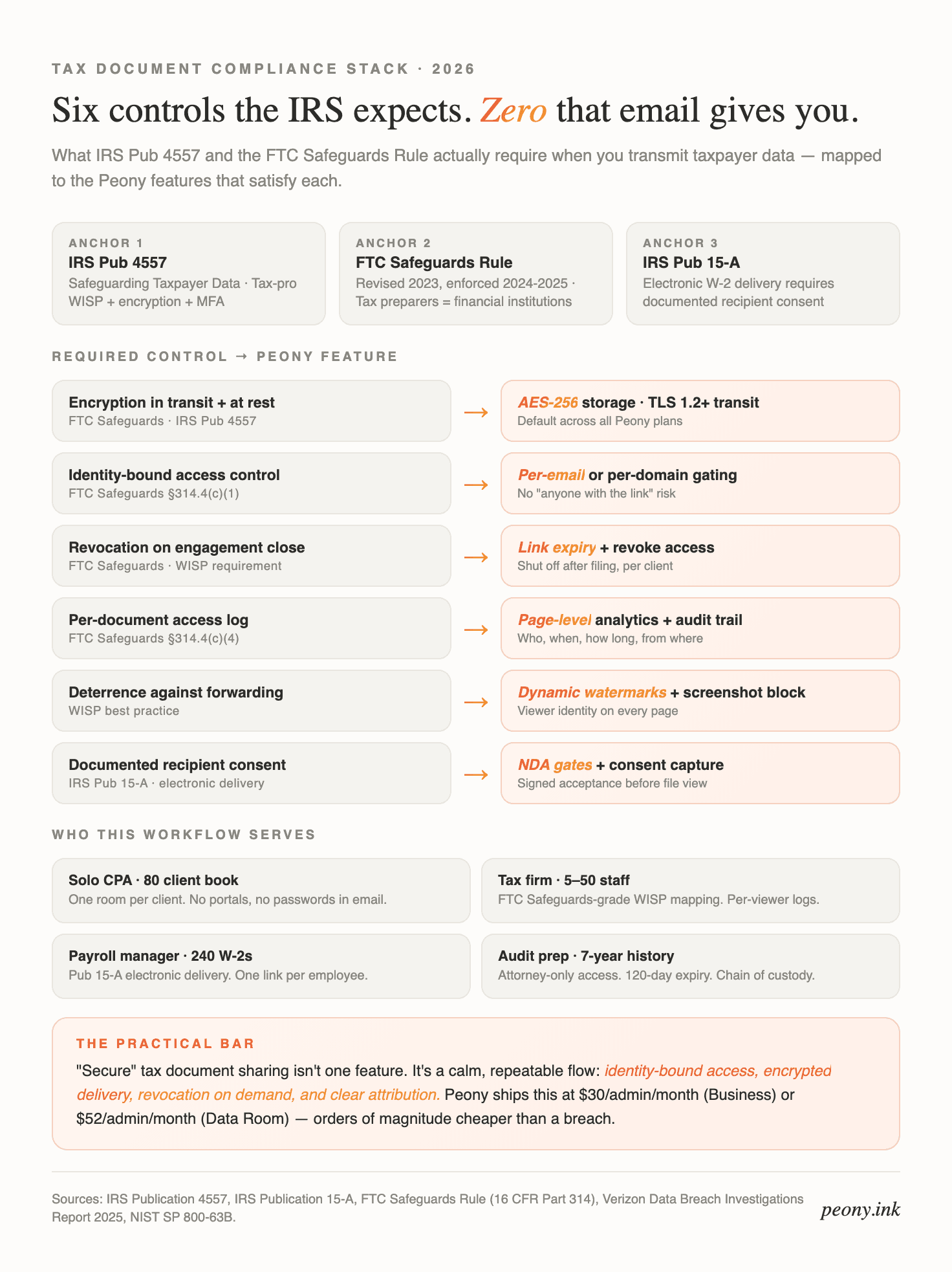
The six controls IRS Pub 4557 and the FTC Safeguards Rule actually require, and the Peony features that satisfy each. Use this as your Written Information Security Plan (WISP) checklist.
1) Why the stakes actually matter (beyond "being careful")
Tax files contain the keys to a person's financial identity: SSN, date of birth, employer, income, addresses, dependents, bank routing information. Once an attachment lands in a recipient's inbox, it is trivially forwarded, archived, or synced to devices you will never see — personal iCloud, work OneDrive, third-party email backup tools, their spouse's mailbox.
Regulators explicitly push firms to encrypt transmissions and control access. The IRS requires password-protected or encrypted documents when you email them directly. The FTC Safeguards Rule mandates that financial institutions (which explicitly includes tax preparers) implement a written information security program with encryption for sensitive customer information.
If you're a founder, finance lead, or individual filer, this is not about paranoia. It's table stakes: protect people, meet expectations, avoid the reputation hit and regulatory fines that come from a sloppy leak.
2) What "secure enough" must actually do in 2026
Think in bundles, not features. Your workflow needs to cover:
-
Gatekeeping: Only named people (or trusted domains) can open. No "anyone with the link" for sensitive files. See our guide on access control best practices.
-
Confidentiality in transit and at rest: Modern encryption. TLS 1.2+ in transit. AES-256 at rest. (Native tools like Microsoft 365 provide message encryption; PDFs can be encrypted with AES-256 using Acrobat or Adobe alternatives.)
-
No raw attachments by default: Email should carry the notification, not the payload. See our secure email sending guide.
-
Revocation and expiry: You can turn access off or let it expire. This is essential for document lifecycle management and for regulatory compliance.
-
Attribution and logging: You can reasonably tell who viewed what, when. Page-level analytics give you the record the FTC Safeguards Rule expects you to keep.
-
Deterrence: Watermarking with viewer identity and screenshot protection reduce casual leaks. (Gmail Confidential adds sharing friction but is not end-to-end encrypted — don't overtrust it.)
-
Usable for normal people: If the flow is painful, recipients route around it — screenshots, photos of their screen, forwarding to "one quick friend who's good with computers." The best security is the security people actually follow.
That's the bar. The next sections show you which specific workflow matches which scenario.
3) Which scenario are you? (decision framework)
Different tax-document senders need different workflows. Pick your row:
You are an individual filer sending documents to your CPA — your CPA should send you a secure link; upload your W-2, 1099s, mortgage 1098, and brokerage statements into it. If your CPA only accepts email, ZIP your documents with a long passphrase, text the passphrase separately, and never reuse it next year.
You are a solo CPA or bookkeeper — one secure link per client, identity-bound access, view-and-upload permissions. Avoid shared portals with logins; clients don't remember passwords in April. Peony Business at $30/admin/month handles this cleanly across your client book. See the accounting solution page for firm-specific features.
You are a mid-sized tax firm (5-50 staff) under the FTC Safeguards Rule — you need a Written Information Security Plan, per-document access logs, link expiry, and revocation. Peony Business at $30/admin/month ships with all four; per-viewer dynamic watermarks come on the Data Room plan ($52/admin/month). Document your WISP around the tool, not around "we use email carefully." The accounting and tax firm workflow maps each Safeguards Rule control to the feature that satisfies it.
You are a startup finance lead handling your founders' and employees' W-2s, 1099s, and K-1s — identity-bound access per employee, no shared folders, audit log of who opened what. Peony Business handles 200+ per-employee rooms from one admin dashboard. The startup data room solution pairs tax-doc workflow with fundraising-ready structure.
You are a payroll manager distributing W-2s at scale — one room per employee, IRS-compliant electronic delivery consent on file, delivery receipts for compliance. Page-level analytics give you the receipt record.
You are preparing for an IRS audit — your attorney needs access to a 7-year history of tax documents with chain-of-custody logs. Set up a Peony room with AI auto-indexing, attorney-only access, 120-day link expiry, and dynamic watermarks. Revoke when the audit closes. The legal solution page covers counsel-led workflows and privilege-aware access control.
You are sending a single K-1 or 1099 to one trusted recipient — Gmail Confidential Mode is acceptable for low-stakes tax correspondence. For anything containing SSN or bank account numbers, use a proper secure link.
4) The role × situation matrix (what protection each actually needs)
| Scenario | Encryption | Identity gate | Watermark | Revoke | Log |
|---|---|---|---|---|---|
| Individual to CPA | TLS + AES-256 | Yes | Optional | On filing | Optional |
| Solo CPA book | TLS + AES-256 | Yes | Yes | Yes | Required |
| Tax firm (FTC Safeguards) | TLS + AES-256 | Yes | Yes | Yes | Required |
| Startup finance | TLS + AES-256 | Yes | Yes | Yes | Required |
| Payroll W-2 mass delivery | TLS + AES-256 | Yes | Optional | Yes | Required |
| IRS audit | TLS + AES-256 | Yes | Yes | Yes | Required |
| Light K-1 correspondence | TLS | Yes | No | No | Optional |
Rows where the requirement is bold are non-negotiable under IRS Pub 4557 and the FTC Safeguards Rule. The rest are strong hygiene.
5) How to send tax documents securely with Peony (step-by-step)
Peony provides secure document sharing with AES-256 encryption, dynamic watermarks, granular access controls, and complete audit trails. The model is simple: email is the doorbell, Peony is the vault.
Step 1 — Collect and stage
Upload your tax files (PDFs, spreadsheets, ID images) into a Peony room — for example, "2025 Taxes – Smith Family" or "CPA – Q1 Compliance Docs." Keep each relationship in its own room so access is clean. AI auto-indexing will organize mixed file types into logical folders in about 3 minutes — faster than you can do it manually and without the inevitable "why is this W-2 in the 1099 folder" cleanup later.
Step 2 — Define who gets in
Grant access to specific email addresses (your CPA's team) or approved domains (their firm). This identity-bound gate replaces risky one-size passwords that always end up pasted in the same email thread. See password protection options for additional layers.
Step 3 — Set protective defaults
- View-only for external recipients.
- Downloads off unless there is a clear business reason (e.g., your CPA needs to run it through their tax software).
- Optional expiry so access naturally ends after filing — most firms use April 30 for the year's engagement plus 90 days buffer.
Step 4 — Add dynamic watermarking and screenshot deterrence
Peony displays per-viewer watermarks — name, email, timestamp — across every page and blocks or logs screenshot attempts. If something leaks, it is attributable to a specific viewer. Strong behavioral deterrence, not just theater. The watermarking guide explains the mechanics, and the same protection applies to preventing PDF forwarding.
Step 5 — Share a single secure link
Send one Peony link in your email: "Here's the secure link to this year's tax packet." The link always points to the current set — no risky attachments, no version chaos, no "which PDF is the final one" at 11pm. This mirrors the approach in our secure file sharing best practices guide.
Step 6 — Update, monitor, revoke
- Replace or add documents without changing the link.
- See who accessed what and when via page-level analytics.
- Revoke an individual, a domain, or the entire room after filing and close-out.
This hits every requirement from the FTC Safeguards Rule and IRS Pub 4557 with minimal friction. No "but my client isn't tech-savvy" edge cases — clients don't need to register for anything, remember passwords, or figure out what encryption means.
6) Other methods if you can't use Peony
If for some reason (firm policy, client preference, one-off use) you can't run the Peony workflow, there are four fallbacks that meet the bar with varying trade-offs.
Method A — Encrypted email in Microsoft 365 ("Encrypt" / "Do Not Forward")
In Outlook, choose Options → Encrypt or Do Not Forward to send protected messages. Recipients can be restricted from forwarding and printing, and content is encrypted. Good for Microsoft-centric orgs and some external recipients. Caveat: compatibility and UX vary for non-M365 users; a Gmail recipient gets a web-viewer experience that feels off-brand. Microsoft's documentation covers the setup.
Method B — Properly password-protected PDFs (AES-256)
Use Adobe Acrobat: All tools → Protect a PDF → Encrypt with Password. Share the password out-of-band (phone or SMS). Strong at-rest protection; weak on control — recipients can still share file plus password, and you cannot revoke after send. See our password protect PDF guide. For spreadsheet-specific protection, see Excel file protection.
Method C — Encrypted archives (ZIP or 7z with AES-256)
Bundle documents into an encrypted archive and send the password separately. This is a common CPA workflow. Same caveats as password-PDFs: once opened, you lose visibility. See our password-protect-zip guide for the mechanics, and multiple PDFs protection for batch workflows.
Method D — Client portals or secure firm upload links
Many CPA firms run portals, and the IRS offers Secure Messaging for specific use cases. Use these if they are offered. They centralize access and logging. Check scope and limits — IRS Secure Messaging only accepts certain forms and is not a universal inbox replacement.
Two caution flags:
- Gmail Confidential Mode adds sharing friction but is not true end-to-end encryption. Treat it as light protection, not a vault.
- NIST password guidance favors long, unique passphrases over quirky complexity. Use length and uniqueness for any secrets you set. Your birthday is not a password.
7) Practical setup tips (the small habits that prevent big problems)
-
Adopt one rule: If we would be uncomfortable seeing these tax files forwarded, we don't send them as attachments. We use a secure link. Full stop. The IRS itself requires encryption or passwording when you email them, so mirror that standard with everyone.
-
Standardize your email copy. "Sharing via a secure link so you always see the latest version and we keep your data properly protected on our side." Reads as professional, not paranoid.
-
Kill "anyone with the link" in your cloud drives for anything in the Tax folder. Use "specific people" and expiry everywhere sensitive data lives. Our secure file sharing guide covers the access-control mechanics.
-
Share secrets out-of-band. If you must use passwords on PDFs or ZIPs, send the password by phone or SMS — not in the same email thread. Covered in email security best practices.
-
Review access after filing. Once returns are accepted and books are closed, revoke external access and archive the room. Quiet hygiene beats frantic cleanup in August.
-
Stay aligned with guidance. IRS Pub. 4557 lays out baseline safeguards and points to FTC Safeguards Rule obligations for firms handling taxpayer data. If you're a tax pro or finance shop, keep your Written Information Security Plan current.
-
Get electronic delivery consent in writing. Before sending W-2s or 1099s electronically, IRS Pub 15-A requires documented employee or recipient consent. Auditors will ask.
8) What this looks like across a full tax season
For a tax firm: roll out Peony Business at the start of January, one room per client. Your staff uploads prepared returns for client review. Clients upload source documents (W-2, 1099s, 1098s, K-1s, brokerage statements, ID) into the same room. Every document carries a per-viewer watermark. Your page analytics dashboard tells you which clients have reviewed returns for signature versus which ones are ignoring you three days out from April 15. After filing, link expiry kicks in and access auto-revokes. Your WISP documentation maps clean to IRS Pub 4557 and FTC Safeguards Rule. Zero passwords pasted in emails. Zero "wrong W-2 to wrong client" incidents. For the general, non-tax version of this workflow, see how to collect documents from clients securely; to get returns and engagement letters signed in the same room, see e-signing customer agreements at scale.
For a startup finance team: one room per employee for W-2s, one room per contractor for 1099s, one room per investor for K-1s. Admin dashboard shows opens and downloads. Access revokes after the year closes. Your auditor asks for the delivery record, you hand them the log export.
For an individual filer: one link from your CPA, one link back. No accounts, no passwords, no "did I attach the right PDF" anxiety. Your SSN, bank info, and brokerage statements never touch a raw email attachment.
9) Bottom line
"Secure" tax document sharing is not one magic feature. It is a calm, repeatable flow: identity-bound access, encrypted delivery, no raw attachments by default, revocation on demand, and clear attribution. Peony gives you that flow out of the box at $30/admin/month (Business) or $52/admin/month (Data Room) — less than one hour of your accountant's billable time, and orders of magnitude cheaper than a data breach.
The underlying platform isn't tax-specific — it's the same data room infrastructure people use for fundraising, M&A, due diligence, and board communications. Tax is one of the cleanest use cases because the compliance requirements map one-to-one onto existing features: AES-256 security, NDA gates, page-level analytics, dynamic watermarks, link expiry, revoke access, and screenshot protection. Set up a room at peony.ink in under 5 minutes, invite your CPA or client, and the rest follows.
When you can't use Peony, pick one of the four fallback methods above and apply the same principles. The goal is not paranoia. It is a workflow your staff, your clients, and you yourself will actually use — every week of tax season and every week after.
FAQ
I'm a solo CPA handling 80 client returns this tax season — what's the fastest secure workflow that my less-tech-savvy clients will actually use?
For a solo CPA running 80 returns, the workflow that clients actually use has three properties: one link per client (not a shared portal with logins), view/upload permissions on that link, and no password-protected ZIP archives that end up with the password pasted in the email. Using Peony, you create one data room per client ("2025 Tax Packet — Smith Family"), grant access to their email address only, and they get a single link to both view what you've prepared and upload source documents. No login screen, no password-in-email, no support calls at 8pm. On your end, page-level analytics tell you which clients have actually opened the returns you sent for signature versus which ones are ignoring you three days before the deadline, so you can chase the right ones. Peony Business is $30/admin/month — considerably less than an hour of your billable time — and handles all 80 client relationships from one dashboard. That matters in tax season when the bottleneck is not document security but how many client calls you avoid.
I run a 20-person tax firm and our current workflow is Dropbox + password-protected PDFs — what are we getting wrong under the FTC Safeguards Rule?
Under the FTC Safeguards Rule (revised 2023, enforced aggressively in 2024-2025), tax preparers are classified as financial institutions and must have a written information security program covering access controls, encryption in transit and at rest, logging and monitoring, and incident response. A Dropbox folder with a password-protected PDF is technically encryption at rest, but it fails on four fronts: no per-document access logs, no revocation after the engagement ends, no watermarking to deter forwarding, and no unique access controls per client. IRS Publication 4557 explicitly requires a Written Information Security Plan (WISP) and mirrors the FTC requirements. The practical gap: if a client forwards your Dropbox link to their spouse and the spouse forwards it further, you have no record, no ability to revoke, and no way to tell regulators what happened. Peony Business at $30/admin/month gives you page-level analytics, link expiry, and revoke access, with per-viewer dynamic watermarks on the Data Room plan ($52/admin/month) — the exact controls the Safeguards Rule specifies, in a workflow your staff can use without IT training.
My startup's finance lead asked for my W-2, 1099s, and bank statements to do payroll reconciliation — is email with a password-protected PDF actually enough?
Password-protected PDFs are better than raw attachments but fail three practical tests. First: if you email the password in the same thread (or 10 minutes later), you've defeated the purpose. Second: once the recipient opens the PDF, the file exists unencrypted on their machine, their backups, and any synced cloud drive — you have no way to revoke it. Third: the password is often the recipient's date of birth or the last four of SSN, which is discoverable. A sturdier workflow: send the finance lead a Peony link, grant access to their work email only, set it to view-only (no download), and revoke access after the reconciliation is done. Their finance tool can pull the PDF printout they need without the PDF ever leaving your control. If you must use a password-protected PDF, share the password out-of-band — phone or SMS — and use a long passphrase, not your birthday. NIST SP 800-63B explicitly favors length and uniqueness over quirky complexity.
I'm about to get audited by the IRS and my attorney needs my full 7-year tax history plus source documents — how do I share 200+ files without creating a permanent leak risk?
Audits are exactly the scenario where Dropbox folders end careers. You need three things: identity-bound access so only your attorney's team can open (not "anyone with the link"), revocation so you can shut everything off when the audit closes, and per-document viewing logs in case opposing counsel later questions chain of custody. Upload the 200+ files into a Peony room (the AI auto-indexing will sort them into year-by-year folders in about 3 minutes instead of you spending half a day on structure), grant access to your attorney's email plus any paralegals they name, set link expiry to 120 days (or whatever your audit timeline is), and enable dynamic watermarks with viewer identity so every page carries a trace if anything is printed or screenshotted. Page-level analytics also give you a legitimate record of what your attorney actually reviewed, which can matter if fee disputes arise later. When the audit closes, revoke access and archive the room. Your attorney can request re-access if needed — this is how engagement hygiene should work, not "I'll delete the Dropbox someday."
Gmail offers a "Confidential Mode" — isn't that enough for sending my K-1 to my CPA?
Gmail Confidential Mode is light protection, not a vault. It adds three frictions: recipients can't forward, copy, or download via the Gmail interface; it supports SMS passcodes; and the message expires on a set date. But three things break it. First: Confidential Mode is not end-to-end encrypted — Google can read the message, and so can any provider serving the recipient's mailbox if they use Gmail's federated protocol. Second: a recipient can take a screenshot or photo of their screen, and Confidential Mode has no detection. Third: attachments in Confidential Mode are not protected against screen-scraping plugins or accessibility readers that can extract text. For a K-1 going to your CPA, Confidential Mode is fine as a light layer on low-sensitivity routing. For anything that contains SSN, bank account numbers, or documents tied to a named beneficiary, use Peony — NDA-gated links, dynamic watermarks with viewer identity, and screenshot protection that both blocks and logs capture attempts. The practical rule: Confidential Mode for light tax correspondence, Peony for anything containing financial identity data.
I'm a payroll manager sending 240 W-2s to employees this January — what's the compliant and humane workflow that doesn't require every employee to register for a new tool?
Mass W-2 distribution needs a workflow that (1) delivers the right form to the right employee without mixing them up, (2) creates an auditable record of receipt for payroll compliance, and (3) doesn't force employees into a new tool with a login page. The IRS allows electronic delivery of W-2s with employee consent under Publication 15-A. Using Peony, you create one room per employee, name each with the employee's ID, grant access to their work email or personal email on file, and upload the specific W-2. Each employee gets a single link and sees only their own form — no login required, no password handling, no "wrong W-2 sent to wrong person" risk. Page-level analytics give you the delivery receipt payroll compliance wants: who opened, when, from which country or region. Peony Business at $30/admin/month handles 240 employees from one admin dashboard. Separately: make sure you have documented employee consent to electronic delivery on file — the IRS requires it, and auditors will ask.
I'm an individual filing jointly, sharing 20+ documents with my CPA — what's the simplest secure workflow that doesn't require me to become an IT person?
The simplest workflow for an individual filer: your CPA sends you one Peony link, you click it, you upload your W-2, 1099s, mortgage 1098, brokerage statements, K-1s, and anything else they requested, and you're done. No login, no password. Your CPA sees each document as you upload it, reviews in place, and messages you through the room if anything is missing. When the return is filed, your CPA revokes access and archives the room. You never had to create an account, forget a password, or figure out what encryption means. If your CPA doesn't use a tool like this and insists on email, the second-best workflow is: zip your documents with a long passphrase (AES-256 via 7-Zip on Windows or Keka on Mac), send the zip as an attachment, and text the passphrase to your CPA separately. Avoid the common mistake of pasting the passphrase into the same email — that defeats the encryption entirely. And never use "anyone with the link" cloud sharing for tax documents.
What does the IRS actually require for electronic transmission of tax documents in 2026, and how do I know my workflow meets the bar?
The IRS baseline for electronic tax document transmission comes from three sources. IRS Publication 4557 "Safeguarding Taxpayer Data" sets the requirement for tax professionals: encrypt emails with taxpayer data, use strong passwords or multi-factor authentication on systems that handle returns, keep a Written Information Security Plan (WISP), train staff, and maintain incident response procedures. The FTC Safeguards Rule (for firms earning $1,000+/year preparing returns) requires encryption in transit and at rest, access controls, regular monitoring, logging, and a designated qualified individual overseeing security. IRS Pub 15-A covers employer W-2 electronic delivery requirements. Your workflow meets the bar if: (1) transmission is encrypted (TLS 1.2+), (2) storage is encrypted (AES-256), (3) access is identity-bound and revocable, (4) there's a per-document access log, (5) you have a documented incident response plan, and (6) clients or employees have consented to electronic delivery. Peony covers items 1-5 out of the box with AES-256 security, page-level analytics, and revoke access. Item 6 is on you: keep consent records signed and filed.
Related Resources
- How to Securely Send Documents via Email
- How to Send Personal Information via Email
- Secure File Sharing Best Practices
- How to Password Protect Excel Files
- How to Password Protect ZIP Files
- How to Password Protect Multiple PDFs
- How to Password Protect PDF Without Adobe
- How to Prevent PDF Forwarding
- Document Security Software
- Dynamic Watermarking Complete Guide
- Virtual Data Rooms for Accounting Firms
- Pricing
- Peony Security Features
- IRS Publication 4557: Safeguarding Taxpayer Data
- FTC Safeguards Rule Guide
- Verizon Data Breach Investigations Report
- NIST SP 800-63B Password Guidelines