
How to Share Files Securely in 2026 (7 Methods I Actually Trust)

Co-founder and CEO at Peony. I built the data room platform with a background in document security, file systems, and AI. Founded Peony in 2021 in San Francisco.
Last updated: March 2026
I run Peony, a data room company, so I think about secure file sharing roughly every working hour. But before I built anything, I was on the other side of the problem — sharing cap tables over email, dropping investor decks into Google Drive folders set to "anyone with the link," and hoping nobody forwarded things they shouldn't.
Here is the honest truth: most file leaks are not hacking. They are human. Verizon's 2024 Data Breach Investigations Report found that roughly 68% of breaches involve a human element — misdirected emails, misconfigured sharing settings, stolen credentials, or social engineering. And the IBM Cost of a Data Breach Report puts the average cost at $4.88 million per incident, with compromised credentials as the leading initial attack vector.
Those numbers are not abstract. If you are sharing financials, contracts, board materials, HR records, or M&A documents, you need a system that does more than "encrypt and hope." You need visibility, control, and the ability to close the door after someone walks through it.
TL;DR: The best free method for secure file sharing is 7-Zip with AES-256 encryption — genuinely secure and open-source. The best method for business use (investor decks, legal docs, due diligence, client deliverables) is a secure data room like Peony — the only platform that combines password-gated links, per-page view analytics, dynamic watermarking, screenshot protection, and instant access revocation starting at $0. When the average data breach costs $4.88 million and two-thirds involve human error, the ROI on proper document security is not optional.
Quick guide — pick the method that matches your stakes:
- Need full control over who sees what, with tracking and revocation? → Peony Data Room (free, $0) — Method 1
- Want real encryption where even your cloud provider cannot read files? → 7-Zip with AES-256 — Method 2
- Need encrypted cloud sync for personal files? → Cryptomator — Method 3
- Sharing a single PDF or Office file? → Password-protect the file itself — Method 4
- Using Google Drive or OneDrive already? → Harden your cloud drive settings — Method 5
- One-off transfer, maximum encryption? → End-to-end encrypted transfer tools — Method 6
- Absolutely must send via email? → Encrypted ZIP over email — Method 7
How documents actually get leaked (and why it matters)
Before the methods, it helps to understand what you are defending against. Most leaks are not cinematic hacking — they are boring and human.
Misdirected emails and risky attachments
Auto-complete picks the wrong "Alex," you attach a contract and press Send. Healthcare and privacy regulators repeatedly highlight misdirected emails as a leading cause of reportable data breaches. Once a file is attached, it lives in multiple mailboxes and backups. You cannot revoke or update it. Email attachments also carry hidden metadata, lack strong encryption by default, and cannot be centrally controlled after sending.
"Anyone with the link" misconfiguration
Cloud drives are powerful but easy to misconfigure. Folders left on "anyone with the link" effectively become public — you are just betting nobody guesses or forwards the URL. Real-world incidents show years-long exposure from this single setting. Without identity-bound access, you lose control over who can view your files.
Over-broad internal access and link sprawl
Shared drives with "everyone in the company" access stay that way even as people change roles or leave. Links get dropped into Slack threads, Jira tickets, wikis, and forwarded emails until nobody remembers who can see what.
No audit trail or deterrence
Without data classification, DLP policies, or audit logs, you often do not notice when something is overshared. Files are rarely watermarked, so screenshots and re-uploads leave no trace. The core risk is not "cloud versus on-prem." It is: how casually are files allowed to escape, and how blind are you once they do?
What secure file sharing actually requires in 2026
"Secure" is not a marketing adjective — it is a checklist. A grown-up secure file sharing solution needs to deliver:
- Identity-based access — share with specific people or domains, not just a link. Support partners on any email system without forcing account creation.
- Least privilege by default — view-only unless someone truly needs to download. Restrict forwarding, copying, and mass export for sensitive docs.
- Encryption in transit and at rest — AES-256 for data at rest, TLS for data in transit. This is baseline, not a differentiator.
- Centralised, revocable sharing — one secure link per project or room, with all files inside. Revoke individuals, groups, or entire rooms without touching ten different threads.
- Deterrence against quiet leaks — dynamic watermarking that stamps each view with the viewer's identity, and screenshot protection that blocks or degrades common screen-capture paths.
- Visibility and audit trail — who opened what, when, and from where, with enough history for compliance, incident response, and basic sanity checks via page-level analytics.
- Low friction for recipients — click a link, pass a simple gate (email, maybe passcode), and be inside. No 45-minute onboarding.
7 methods to share files securely
Method 1: Use a secure data room (Peony)
For business use cases — fundraising, M&A due diligence, legal transactions, client proposals, real estate deals — this is where I landed after trying everything else. The core problem with other methods is the same blind spot: once someone has the file or link, you lose visibility and control.
We learned this the hard way with a client engagement. We sent a consulting firm a folder of due diligence documents — restricted access, named recipients only. A month later, a partner at a completely different firm quoted specific figures from one of our financial models in a cold email. Someone had downloaded the files, renamed them, and circulated them outside our view. We had no logs, no watermarks, no way to trace the chain or shut it down after the fact.
That is when we built Peony. The difference is fundamental — you go from hoping recipients respect your trust to knowing exactly who opened each page and being able to cut access the moment something looks wrong.
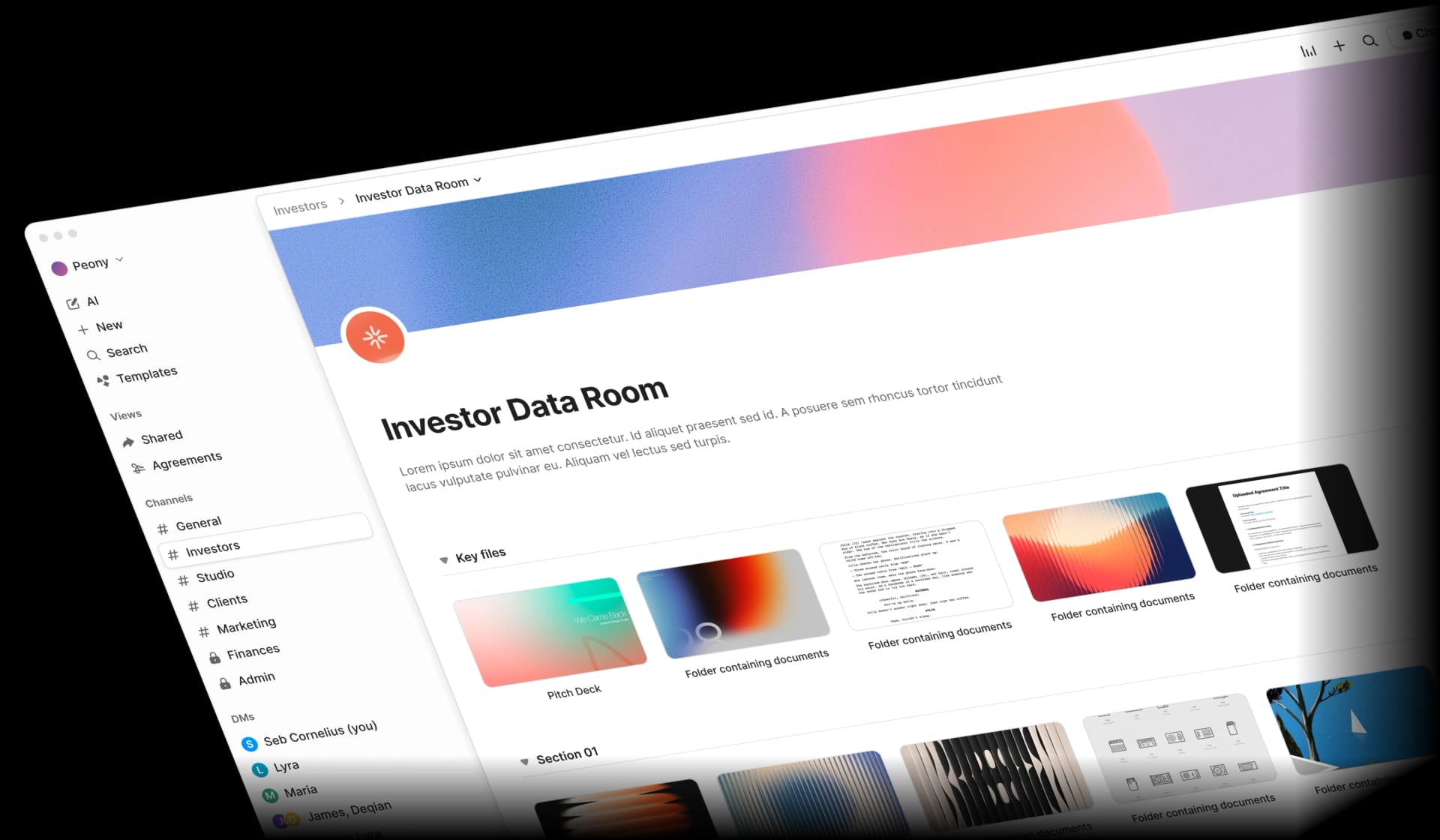
How to do it:
- Create a room in Peony — name it for the context (e.g., "Series A Data Room," "Client - ACME Engagement," "Board Materials Q1 2026").
- Upload all relevant documents — PDFs, Word, Excel, slides, ZIPs, images. Peony encrypts content at rest with AES-256 and protects it in transit with TLS.
- Configure access — add recipients by email address or domain (e.g.,
@fund.com) using identity-bound links. Set default permissions to view-only. Disable downloads for sensitive docs. - Enable security layers — turn on dynamic watermarking (viewer's identity stamped on every page), screenshot protection (blocks common capture paths), and optionally require an NDA/agreement gate before viewing.
- Add a password — set a password on the room or link and share it through a separate channel (SMS, phone call, secure messenger) rather than in the same email as the link.
- Share one secure link — your email says: "Here is a secure link to your documents. Access is restricted on our side." If you update files, replace them inside the room — the link stays the same. If the relationship ends, revoke access once and you are done.
- Monitor engagement — page-level analytics show who opened which files, when, how long they viewed each page, and which sections they engaged with. You can set link expiry for automatic cutoff.
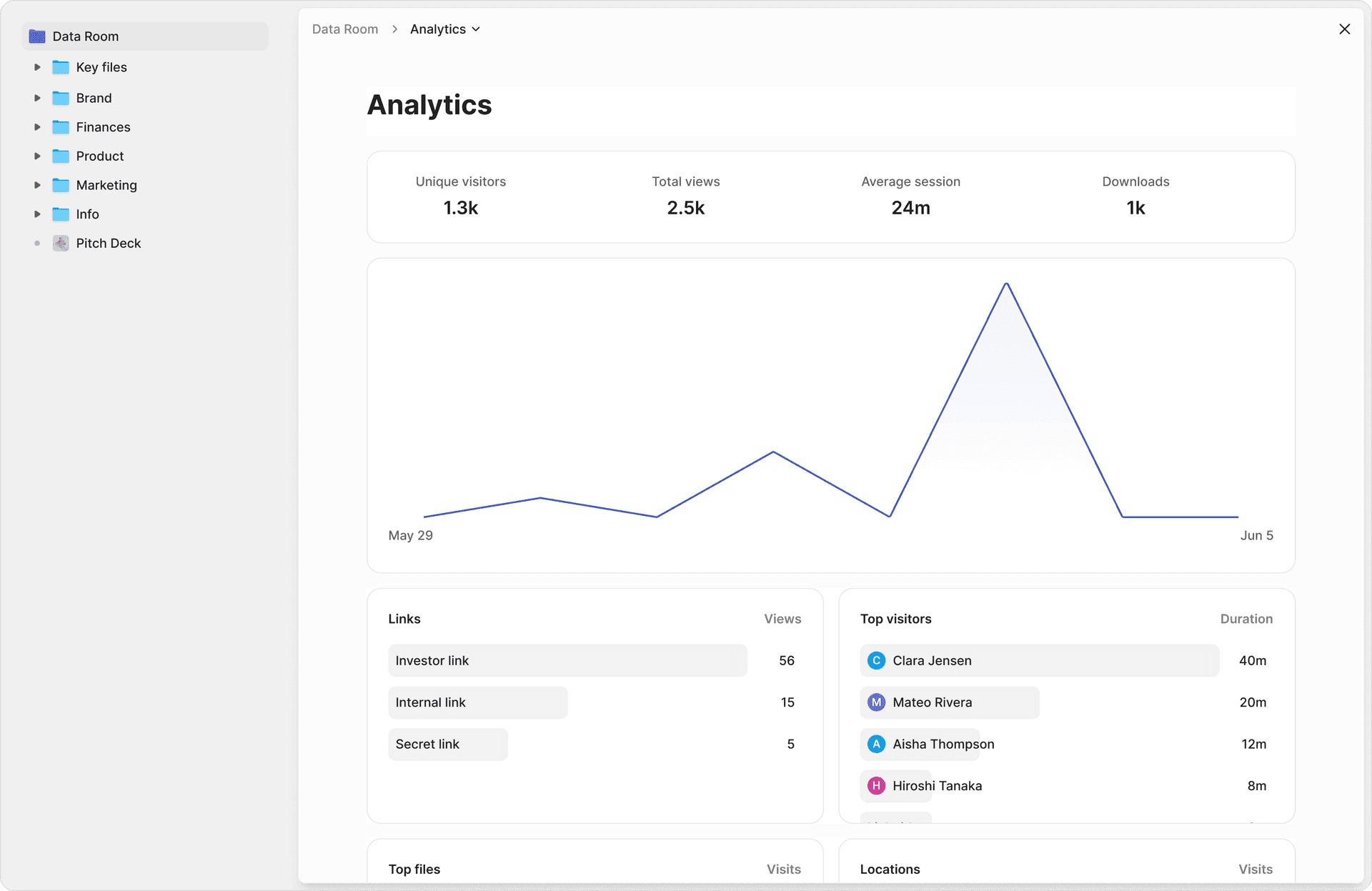
Pros: All-in-one security (encryption, password gates, watermarks, screenshot protection, NDA gates, 2FA, personalised links). Full audit trail with per-page analytics. Instant revocation. Recipients view in browser — no installs needed. Custom branding for a professional experience. AI-powered organisation sets up a data room in under 5 minutes.
Cons: Requires a platform account (free tier available). Overkill for non-sensitive internal files.
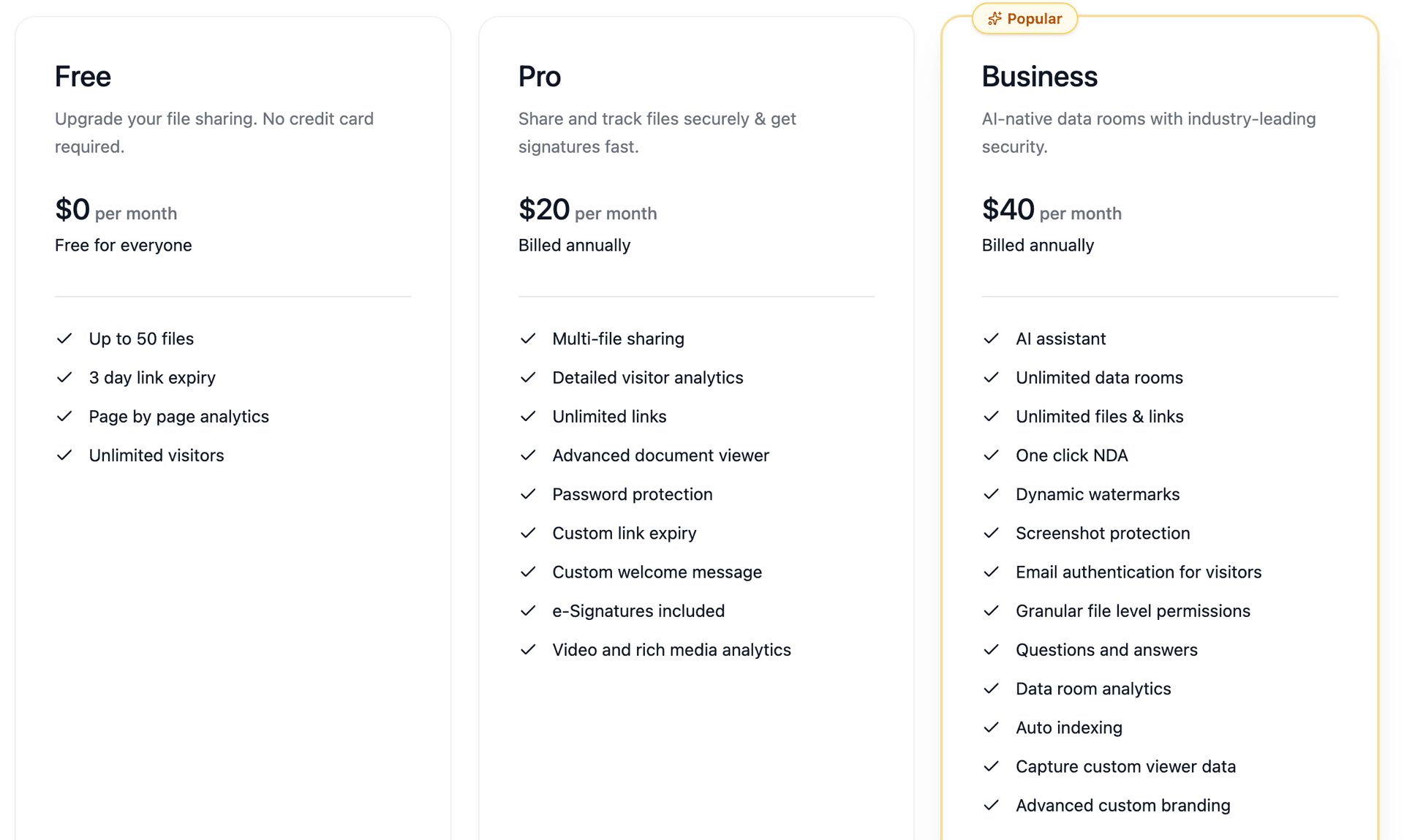
Best for: Fundraising decks and investor data rooms, M&A due diligence, private equity deal flow, venture capital portfolio management, legal transactions, accounting and audit files, client proposals, board materials, and anything where a leak has real consequences. Peony starts free ($0, 2 GB) with Pro at $20/admin/month and Business at $40/admin/month.
Method 2: Encrypt files with 7-Zip (free)
This is the strongest free option for personal encryption — files become genuinely unreadable without a password, even to your cloud provider.
How to do it:
- Select files or folders, right-click, choose 7-Zip then Add to archive
- Choose .7z format (required for header encryption)
- Set encryption to AES-256
- Enter a strong password (12+ characters, unique)
- Check "Encrypt file names" — critical, prevents viewing the file list without the password
- Upload the .7z archive to your cloud storage or share via any channel
- Share the password through a separate channel (call, text, different messaging app)
I use 7-Zip for personal backups and one-off file transfers where I need actual encryption. The learning curve is minimal — install, right-click, set a password. It works.
Pros: Free, open-source. AES-256 encryption — files are genuinely unreadable without the password. Cloud providers cannot access contents. Cross-platform (Windows, Linux, macOS via 7-Zip ports).
Cons: Recipients need 7-Zip or a compatible extractor. No preview — must download to open. No view tracking, no access revocation once downloaded. Must re-encrypt and re-upload for any file changes. Not practical for ongoing collaboration.
Best for: One-off transfers of confidential files where you need genuine encryption but do not need tracking or revocation. For ongoing document sharing with audit trails, Peony is better suited.
Method 3: Use Cryptomator for encrypted cloud storage (free)
Cryptomator creates an encrypted "vault" in your cloud drive sync directory. Files are automatically encrypted before syncing — only changed files sync, not the full container.
I tested Cryptomator for about three months. It is genuinely great for protecting your own cloud files — medical records, tax documents, personal financial data. The desktop app is smooth. But the moment you try to share an encrypted vault with someone else, the experience falls apart.
How to do it:
- Install Cryptomator (free on desktop)
- Create a vault inside your Google Drive, OneDrive, or Dropbox sync folder
- Set a strong vault password
- Move sensitive files into the vault — they encrypt automatically before syncing
- File names are obfuscated in cloud storage
Pros: Free on desktop, open-source. AES-256 encryption. File names obfuscated in cloud storage. Only changed files sync.
Cons: Fundamentally a single-user tool. You cannot share an encrypted vault with another person without giving them your vault password and requiring them to install Cryptomator. No preview, no analytics, no collaboration. Mobile apps are paid.
Best for: Protecting your own files stored in cloud drives from provider access or breaches. Not designed for sharing with others. If you need secure sharing with external parties, Peony handles both encryption and controlled access.
Note: Boxcryptor, a previously popular cloud encryption tool, was acquired by Dropbox in late 2022. Free accounts were deactivated in January 2023. Cryptomator is the recommended open-source replacement.
Method 4: Password-protect individual files
Password-protect files at the application level before sharing. Straightforward for single files.
How to do it:
For PDFs:
- Adobe Acrobat: File, then Protect, then Encrypt with Password
- Free alternatives: SmallPDF, iLovePDF (online tools)
- Microsoft Word: Save As, then PDF, then Options, then Encrypt with password
For Office files (Word, Excel, PowerPoint):
- File, then Info, then Protect Document, then Encrypt with Password
Pros: Files stay encrypted wherever they are stored. Recipients can use standard PDF readers or Office apps. No special software needed for the recipient.
Cons: Only works file-by-file, not for folders. No analytics or view tracking. Must manage passwords separately for each file. We tried this approach for investor updates once — managing different passwords for different investors across multiple files became unworkable within two weeks. For a better approach, see our guides on password-protecting PDFs without Adobe and protecting Word documents from editing and copying.
Best for: Single-file handoffs where the recipient is already known and trusted. For multi-document sharing with audit trails, Peony's data rooms are more practical.
Method 5: Harden your existing cloud drive settings
If you are already using Google Drive, OneDrive, or Dropbox, you can raise your baseline significantly without changing platforms.
How to do it:
- Switch everything sensitive to "Restricted" sharing — only people you explicitly add by email can access. Never use "anyone with the link" for files that matter.
- Disable download/copy/print for viewers — in Google Drive, uncheck "Viewers and commenters can see the option to download, print, and copy." Similar options exist in OneDrive and Dropbox.
- Enable MFA everywhere — require two-factor authentication for all accounts in your organisation. This is the single biggest security improvement most teams can make.
- Use DLP and sensitivity labels (if available) — Google Workspace Enterprise and Microsoft 365 E5 include Data Loss Prevention rules that warn or block risky sharing patterns.
- Set link expiration dates (Workspace/365 paid plans) — access should have an end date. Fundraising rounds close, projects wrap up, client engagements end.
- Audit sharing quarterly — review who has access to which folders and revoke stale permissions. Every single time we do this, we find shares that should have been closed months ago.
Pros: Free (settings are built-in). No additional tools needed. Incremental improvements to your existing workflow.
Cons: No password gates on links. Limited or no per-page analytics. No watermarking. Download restrictions are easily circumvented (screenshots, screen recordings). Google retains encryption keys (can decrypt if required by law). For details on OneDrive security specifically, see our OneDrive security analysis.
Best for: Low- to medium-sensitivity internal sharing. A necessary baseline, but not sufficient for investor decks, due diligence materials, or legal documents where Peony's audit trails and watermarking are needed.
Method 6: Use end-to-end encrypted transfer tools
For one-off transfers where you need maximum encryption and do not need ongoing collaboration, end-to-end encrypted (E2EE) file-transfer services encrypt files on the client before upload. The provider never holds the decryption key.
How to do it:
- Choose an E2EE transfer service (several exist — look for zero-knowledge architecture and open-source audits)
- Upload your file — it encrypts locally in your browser before transfer
- Share the generated link with your recipient
- Set a password and expiry if supported
- The recipient downloads and decrypts in their browser
Pros: Strong confidentiality — providers cannot access your files. Often free for small files. No account required for recipients in many cases.
Cons: Usually limited to one-off transfers, not ongoing relationships. Weaker on access management, collaboration, and audit trails compared to a data room. No watermarking or screenshot protection. File size limits on free tiers. Once downloaded, you lose all control.
Best for: One-time transfers of highly confidential files where you trust the recipient but want zero-knowledge encryption in transit. For ongoing document sharing with tracking, Peony's data rooms provide both encryption and long-term access control.
Method 7: Encrypted ZIP over email (last resort)
If you absolutely must send via email and no other method is available, this is better than a naked attachment — but only barely.
How to do it:
- Put documents into a password-protected ZIP (use 7-Zip with AES-256) or create a password-protected PDF
- Email the encrypted file as an attachment
- Send the password through a completely different channel — phone call, text message, or different messaging app. Never put the password in the same email thread.
This aligns with long-standing security guidance: keep the content and the secret separate. NIST's digital identity guidelines recommend long, unique passphrases over complex character requirements.
Pros: Better than naked attachments. Works with any email system. No additional platforms needed.
Cons: Once the file is downloaded and decrypted, you have zero control. No view tracking. No revocation. Files multiply across mailboxes, forwards, and backups. Recipients need extraction software. For a detailed walkthrough, see our guide on how to securely send documents via email.
Best for: Regulated industries where portal-based sharing is not yet available and email is the only option. Even then, explore Peony's free tier first — a single secure link is almost always better than an encrypted attachment.
Comparison table: all methods side by side
| Feature | Peony Data Room (Secure Platform) | 7-Zip Encryption | Cryptomator | PDF/Office Password | Hardened Cloud Drive | E2EE Transfer | Encrypted ZIP Email |
|---|---|---|---|---|---|---|---|
| Password gate on link | Yes | N/A (archive password) | N/A (vault password) | Yes (per file) | No | Some | N/A |
| Encryption | AES-256 + TLS | AES-256 (you hold keys) | AES-256 (you hold keys) | Varies by tool | AES-256 (provider holds keys) | E2EE (zero-knowledge) | AES-256 (you hold keys) |
| Browser preview | Yes | No (must download) | No (must install) | No (encrypted files) | Yes | Some | No (must download) |
| Per-page view analytics | Yes | None | None | None | Limited (paid plans) | None | None |
| Download prevention | Yes | N/A (must download) | N/A | N/A | Partial (disables button) | N/A | N/A |
| Dynamic watermarking | Yes | No | No | No | No | No | No |
| Screenshot protection | Yes | No | No | No | No | No | No |
| Link expiration | Yes | No | No | No | Paid plans only | Some | No |
| Access revocation | Yes (instant) | No (once downloaded) | No | No (once downloaded) | Yes (remove user) | No (once downloaded) | No |
| NDA / agreement gate | Yes | No | No | No | No | No | No |
| Recipient ease of use | Easy (browser) | Medium (needs 7-Zip) | Hard (needs app) | Easy | Easy (needs account) | Easy (browser) | Medium (needs extractor) |
| Cost | $0 - $40/admin/mo | Free | Free (desktop) | Free - paid | Free - $22+/user/mo | Free - paid | Free |
Secure file sharing by the numbers
These statistics frame why defaults are not enough — specifically for file sharing scenarios:
- $4.88 million — average cost of a data breach in 2024, with compromised credentials as the leading initial attack vector. Even a single misdirected file share can trigger a reportable breach. (IBM Cost of a Data Breach Report)
- 68% of breaches involve a human element — misdirected emails, misconfigured sharing settings, stolen credentials, and social engineering. The problem is not "hackers" — it is the way we share files every day. (Verizon 2024 DBIR)
- 709,533 — average number of publicly exposed cloud assets containing sensitive data per company. Most are not intentional shares — they are the accumulated result of "anyone with the link" defaults nobody audits. (DoControl, 2024)
- 40.2% — percentage of Google Drive files containing sensitive information across 6.5 million files scanned. Nearly half your cloud files may contain data that should not be openly shared. (Metomic, 2023)
- 22% — percentage of external cloud shares using open "anyone with the link" access, turning private files into effectively public ones. (DoControl, 2024)
- 194 days — average time to identify a data breach. By the time you discover a leaked file, it may have been circulating for over six months. (IBM Cost of a Data Breach Report)
The first number — 709,533 exposed assets per company — is what keeps me up at night. These are not intentional shares. They are years of permission creep that nobody audits.
Practical tips to make secure sharing your default
Most leaks come from habit, not from sophisticated attacks. These habits give you most of the benefit:
Make "no sensitive attachments" a house rule. If a document involves money, identity data, legal risk, or confidential business information, it goes through a secure link — never as an email attachment. This single rule prevents the most common leak vector.
Standardise on "one secure room per relationship." Investors, top clients, key vendors, board members — each gets a Peony room and one secure link. Everyone on your team knows "this is where we share sensitive files with X." No more scattered attachments across ten email threads.
Classify your documents. Decide what is Public, Internal, Confidential, or Restricted. Only the last two categories need your strictest sharing flows. Do not over-engineer protection for a shared team folder — save the security layers for what actually matters.
Ban "anyone with the link" for high-risk material. It is repeatedly identified as one of the most common, avoidable causes of cloud data leaks. If you catch yourself reaching for it out of convenience, that document probably needs a secure sharing link instead.
Send passwords on a separate channel. Whether you use Peony's password protection, 7-Zip, or encrypted PDFs — never email the password in the same thread as the link. Use a phone call, text, or different messaging app.
Set expiry dates on everything external. Fundraising rounds close, RFPs expire, client engagements wrap up. Access should expire with them. Use link expiry to automate this.
Turn on watermarking for sensitive content. Dynamic watermarks — the viewer's email stamped on every page — do not prevent screenshots, but they make leaks attributable. That alone changes behaviour. We have noticed investors handle watermarked documents noticeably more carefully than unmarked ones.
Review access quarterly. Once a quarter, take 20 minutes to audit: who has access to which rooms and documents? Revoke stale permissions. Every time we do this, we find at least a few shares that should have been closed months ago.
Bottom line
Secure file sharing in 2026 is not about one perfect tool — it is about matching the security to the stakes.
- Low-sensitivity internal files → Harden your cloud drive settings (free) — Method 5
- Personal file encryption or one-off transfers → 7-Zip with AES-256 (free) — Method 2
- Single PDF or Office file handoff → Password-protect the file itself (free) — Method 4
- Investor decks, due diligence, legal docs, client deliverables — anything where a leak has consequences → Peony (password gates, watermarks, per-page analytics, instant revocation) — Method 1
If you are evaluating platforms for a larger team, see our top 10 enterprise file sharing solutions for a scored comparison of features, compliance, and pricing across enterprise-grade tools.
The important thing is not achieving perfection. It is building a system where sensitive documents do not casually escape, and where, if something does go wrong, you are not completely blind. If you let Peony sit between your important files and the outside world, you get that system with far less stress than bolting it together yourself.
If you have been relying on encrypted ZIPs, hardened cloud drive settings, or password-protected PDFs and want to stop choosing between security and visibility, try Peony for free. You get every method discussed in this guide — AES-256 encryption, password gates, identity-bound access, dynamic watermarking, screenshot protection, and per-page analytics — in a single link your recipients open in their browser.
FAQ
What is the most secure way to share files in 2026?
The most secure way to share files is through a virtual data room like Peony that combines AES-256 encryption, identity-bound access, password-gated links, dynamic watermarking, screenshot protection, and per-page view analytics. Unlike email attachments or cloud drive links, Peony gives you full visibility into who accessed your files and lets you revoke access instantly.
Is email a secure way to share sensitive documents?
No. Email attachments create uncontrolled copies in multiple mailboxes, backups, and forwarded threads with no way to revoke access or track who viewed them. For sensitive documents — financials, contracts, investor updates — use a secure sharing platform like Peony that provides encrypted links, access controls, and audit trails instead of attachments. See our guide on how to securely send documents via email for detailed alternatives.
What is the difference between secure file sharing and regular file sharing?
Regular file sharing (email attachments, open cloud links) prioritises convenience with no access controls, tracking, or revocation. Secure file sharing through platforms like Peony adds identity-based access, encryption, password gates, watermarking, view analytics, and instant revocation — giving you control over who sees your documents and what they can do with them.
Can you track who viewed a shared file?
Most cloud drives and email provide little to no view tracking. Peony's analytics show exactly who opened your files, when, how long they spent on each page, and which sections they engaged with — critical for fundraising, due diligence, and client proposals where knowing engagement levels directly informs your next move.
How do I share files securely with people outside my organisation?
Use Peony: upload files to a data room, add recipients by email address using identity-bound links, set view-only permissions, enable watermarking, and share a single password-protected link. Recipients view files in their browser without installing anything or creating an account. For more guidance, see our guide on sharing confidential documents securely.
Is Google Drive secure enough for investor decks and legal documents?
Google Drive provides encryption and basic access control, but lacks password-gated links, dynamic watermarking, per-page view analytics, NDA gates, and granular audit trails. For investor decks, due diligence documents, and legal files that require controlled external sharing, most professionals use a dedicated data room platform like Peony that provides these features — starting free. See also our Google Drive password protection guide for detailed workarounds.
What encryption should I use for secure file sharing?
AES-256 encryption is the industry standard for data at rest, and TLS 1.2 or higher for data in transit. Peony uses both by default. If you need to encrypt files yourself before sharing, 7-Zip with AES-256 and encrypted file names is the strongest free option — but it lacks view tracking and access revocation that Peony provides.
How do I prevent someone from forwarding or leaking shared files?
No method can completely prevent a determined leaker, but you can make leaks traceable and costly. Peony combines dynamic watermarking (viewer identity stamped on every page), screenshot protection, download restrictions, and per-page analytics to deter leaks and identify the source if one occurs. See our screenshot protection guide for more details.
What is a virtual data room and do I need one for secure file sharing?
A virtual data room (VDR) is a secure platform for sharing confidential documents with controlled access, audit trails, and compliance features — commonly used in M&A, fundraising, private equity, and legal transactions. If you share investor decks, legal documents, M&A materials, or client deliverables, a VDR like Peony gives you the security, tracking, and control that cloud drives and email cannot match. Learn more in our virtual data room guide.
How much does secure file sharing cost?
It ranges from free to thousands per month. 7-Zip encryption is free but provides no tracking. Enterprise VDRs can exceed $1,000 per month. Peony starts free ($0, 2 GB) with Pro at $20/admin/month and Business at $40/admin/month — making data-room-grade security accessible to startups and lean teams. See our virtual data room cost guide and pricing page for a full breakdown.
Related Resources
- How to Securely Send Documents via Email
- How to Share Confidential Documents Securely
- How to Password Protect a Google Drive Folder
- How to Protect PDF from Screenshots
- What Is a Virtual Data Room?
- Virtual Data Room Cost Guide
- Top 10 Secure File Sharing Tools
- How to Password Protect Google Docs
- How to Password Protect Multiple PDFs at Once
- Due Diligence Data Room Guide
- How to Password Protect Videos
- Peony Data Rooms
- Peony Security Features
- Pricing
You might also like
Apr 7, 2026
How to Prevent PDF Forwarding in 2026 (7 Methods — Only 1 Tracks Who Leaked)
Mar 17, 2026
How to Password Protect a Google Drive Folder in 2026 (7 Methods That Actually Work)
Mar 21, 2026
How to Protect PDFs from Screenshots in 2026 (6 Methods Worth Using)