
Enterprise VDR features.Without enterprise pricing
Pick Ideals if you're a mid-market PE or M&A team that values its 175,000-company track record and 5-time G2 Leader recognition with conservative buyers. Pick Peony if you're a boutique advisor or lean dealmaker who wants modern AI features — auto-indexing, AI-powered Q&A, page-level analytics, screenshot protection — at $52/admin/month on the Data Room plan with the same 24/7 support coverage across US, Europe, and Asia-Pacific, instead of Ideals' $15K to $30K per project.Set up in under 5 minutes. No sales call required.
No credit card required

Peony vs Ideals — at a glance
- Price: Peony Data Room is $52/admin/month ($624/year). Ideals charges $15,000–$30,000+ per project on quote-based annual contracts — enterprise-tier sticker for every mandate.
- Features: Peony bundles AI document chat, dynamic per-viewer watermarks, screenshot protection, page-by-page analytics, NDA gating, and built-in e-signatures. Ideals is a sales-led legacy VDR with no AI features and basic access logs.
- Setup: Peony is live in under 5 minutes via self-serve checkout — no credit card required. Ideals requires a sales call, vendor onboarding, and days-to-weeks of account provisioning.
What we found when we tested Ideals
We tested Ideals in 2026. Ideals is a long-established mid-market VDR with a deep feature set, but the same age that makes it stable also makes it feel its age:
- Annual contracts and quote-based pricing. Ideals does not publish list pricing. Deals are quote-based and typically annual; multi-deal teams pay tens of thousands of dollars per year for what Peony Data Room gives you for $624/year.
- Interface feels dated. The viewer and dashboard haven't had a major refresh in years — clicks, modals, and table density all feel like a decade-old SaaS rather than a 2026 product.
- Q&A module is restrictive. A common Capterra complaint: posted questions and answers cannot be edited after submission. Peony’s Smart Q&A allows full editing and structured review before publish.
How does Peony compare to Ideals?
Peony matches Ideals on every core security feature and adds AI capabilities Ideals lacks — at $52/admin/month versus Ideals' $15K–$30K per project. Ideals is the legacy sales-led enterprise VDR; Peony is the modern self-serve alternative built for boutique and mid-market deal teams.
Ideals is a legacy enterprise VDR built for large M&A deals. Peony is a modern virtual data room that delivers the same security with better analytics, AI features, and transparent pricing.
| Feature |  Peony Peony | Ideals |
|---|---|---|
| Full-feature plan | $52/admin/mo (Data Room) | $15K–$30K/project |
| Self-serve signup | Instant | Sales call required |
| Page-by-page analytics | Included | Basic tracking |
| AI document chat | Included | Not available |
| Screenshot protection | Included | Not available |
| Dynamic watermarks | Included | Available |
| NDA gating | Built-in | Available |
| E-signatures | Built-in | Third-party integration |
| Transparent pricing | Per-admin, public | Custom quotes only |
| Setup time | Under 5 minutes | Days to weeks |
Why do teams switch from Ideals to Peony?
Teams switch because Peony is live in under 5 minutes via self-serve signup, costs $52/admin/month instead of $15K–$30K per project, and bundles AI document Q&A, page-level analytics, and screenshot protection that Ideals does not offer.
Ideals built a solid enterprise VDR. But modern deal teams need faster setup, transparent pricing, and AI-powered features that legacy platforms cannot match.
Instant setup
Ideals requires a sales call and multi-day onboarding. Peony lets you create a branded data room in under 5 minutes with self-serve signup — no procurement process needed.
Transparent pricing
Ideals charges $15K–$30K per project with custom quotes. Peony starts free and scales to $30–$64/admin/month — no surprises, no sales calls, no per-page fees.
AI document chat
Peony lets recipients chat with your documents and get instant answers 24/7. Ideals has no AI capabilities — reviewers must read through every page manually.
Page-level analytics
Ideals shows basic access logs. Peony tracks every page view, time spent per page, and scroll depth — so you know exactly which sections matter to each reviewer.
How much does Peony cost vs Ideals?
Peony is free to start, then $30/admin/month (Business) or $52/admin/month (Data Room — $624/year). Ideals charges $15,000–$30,000 per project on quote-based annual contracts with no free tier and no self-serve signup.
Peony gives you a complete virtual data room with analytics, security, and e-signatures — at a fraction of what Ideals charges for a single project.

Peony
Free
$0
Per-page analytics
Business
$30/admin/mo
Up to 3 data rooms per admin
Data Room
$52/admin/mo
Unlimited rooms & storage
Analytics on every plan. Business adds e-signatures, AI document Q&A, screenshot protection, watermarks, and Simple NDA gating. Data Room adds unlimited rooms, Advanced NDA gating, auto-indexing, and Screenshield.
Ideals
Per-page pricing
Custom
Charged per page uploaded
Flat-fee projects
$15K–$30K/project
Typical mid-market deal
Enterprise
Custom
Contact sales
No free tier. No self-serve signup. Pricing requires a sales call.
When should you choose Peony vs Ideals?
Choose Ideals if you're a large enterprise with dedicated procurement, multi-billion-dollar transactions, and a preference for sales-led contracts. Choose Peony if you're a boutique advisor, startup, or mid-market team that wants modern AI features, self-serve setup in under 5 minutes, and transparent per-admin pricing.
Ideals works for large enterprises with dedicated procurement teams. Peony is the better choice for teams that want enterprise security without enterprise complexity.
Choose Ideals when you need
A legacy VDR vendor your board already has a contract with
A dedicated account manager for multi-billion dollar transactions
Deep integrations with enterprise tools like SAP or Oracle
Budget is not a concern and you prefer sales-led procurement
Choose Peony when you need
A secure data room for fundraising, M&A, or due diligence
Page-by-page analytics to see what reviewers actually read
AI document chat so deal teams get answers instantly
Screenshot protection, watermarks, NDA gating, and link expiry
Transparent per-admin pricing with no surprises or sales calls
A free tier to start immediately — set up in under 5 minutes
What does Peony offer that Ideals doesn't?
Peony adds AI document Q&A, page-by-page analytics with scroll depth and time-per-page, screenshot protection, and built-in e-signatures — all bundled at the Business tier ($30/admin/mo) with no enterprise upgrade. Ideals is a traditional file repository with basic access logs and no AI capabilities.
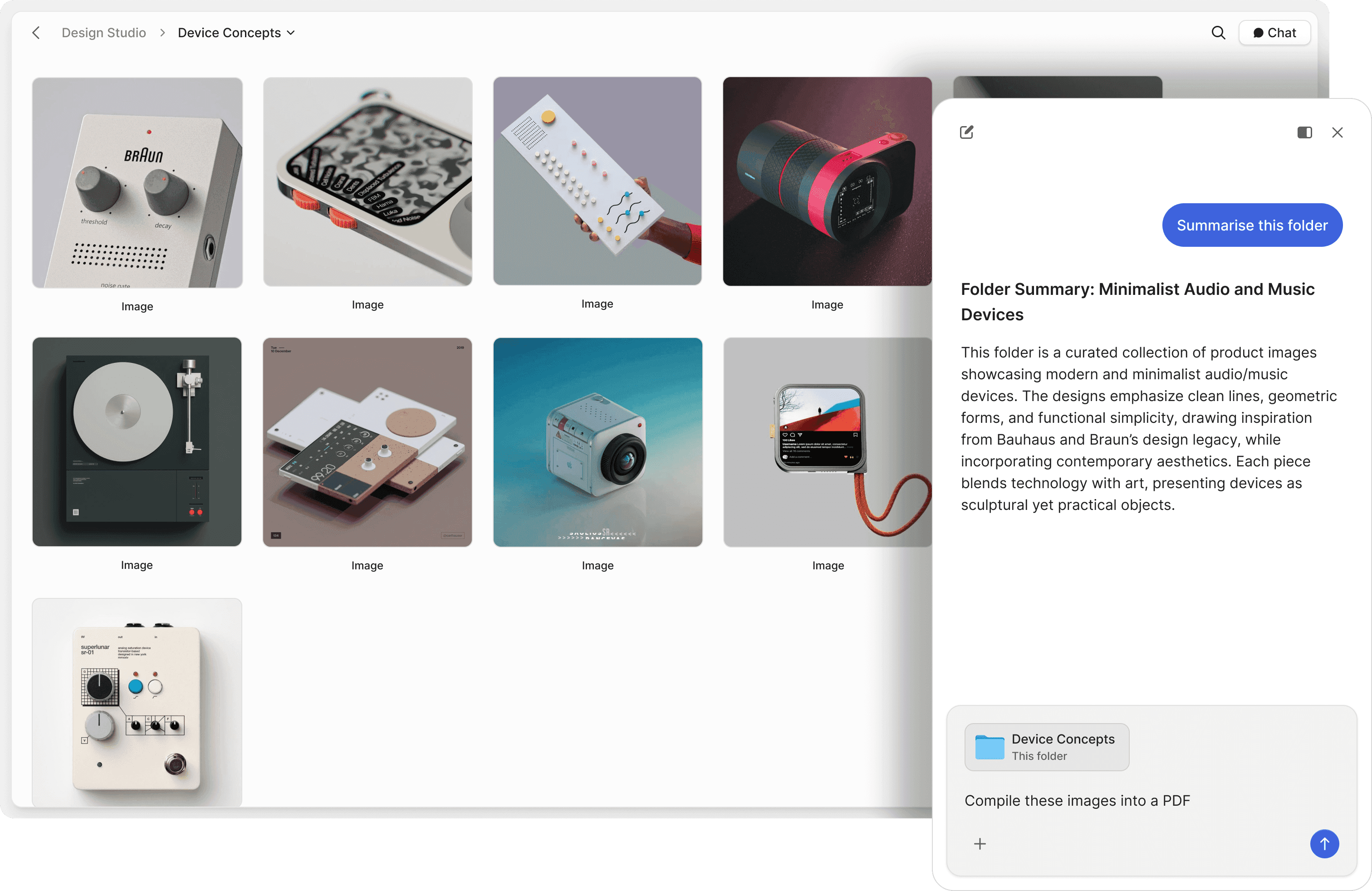
Let recipients chat with your documents
Ideals is a traditional file repository — reviewers must read every page manually. Peony adds AI document chat so deal teams can ask questions about your financials, contracts, or projections and get instant, cited answers 24/7.
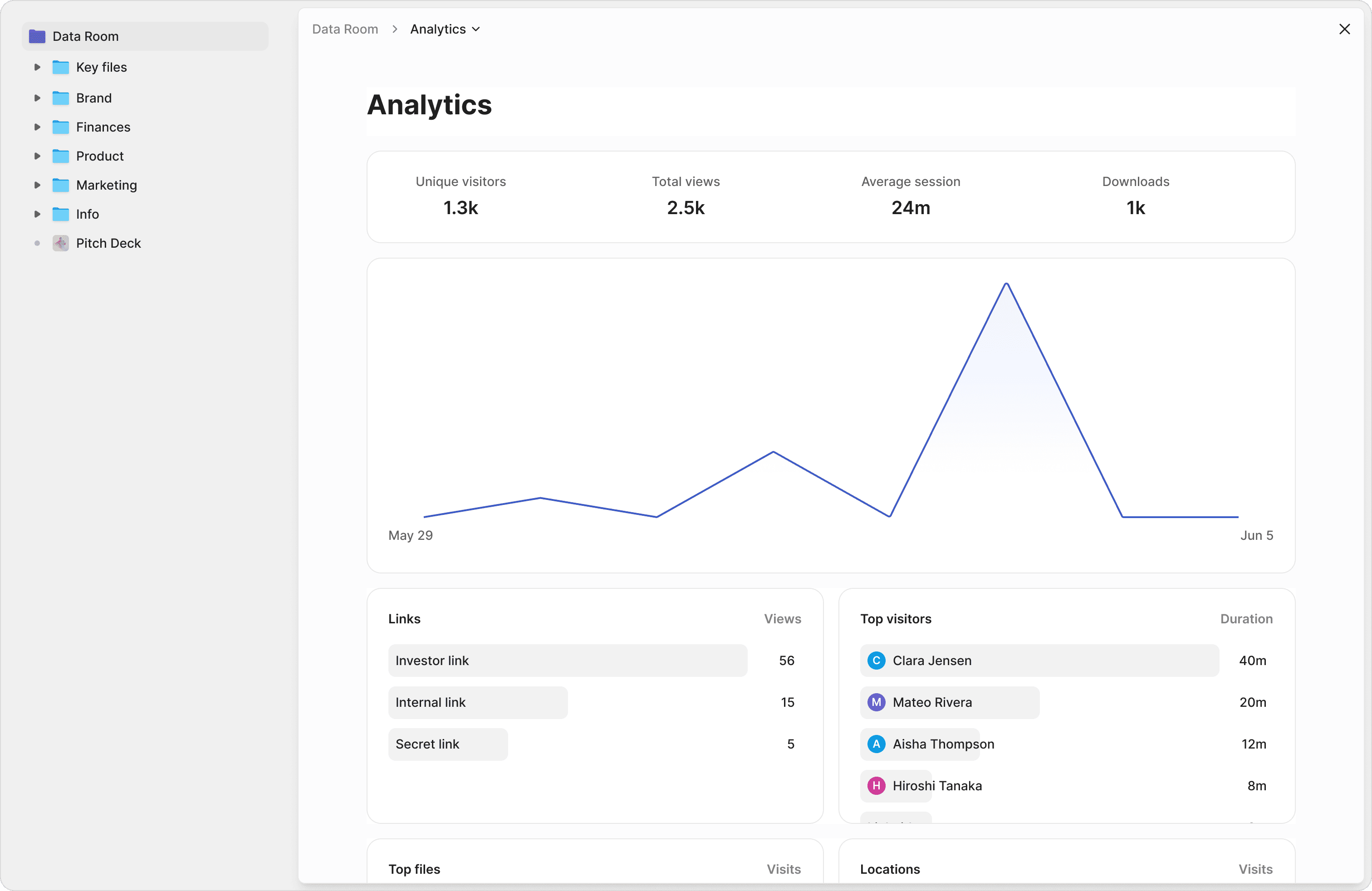
Know exactly what your reviewers focus on
Ideals provides basic access logs — who logged in and when. Peony tracks every page view, time spent per page, scroll depth, and visitor details. Understand which sections of your deal book matter most to each counterparty.
Same enterprise security, modern approach
Peony matches Ideals on the security features that matter — dynamic watermarks, NDA gating, granular permissions, and 2FA — then goes further with screenshot protection and AI-powered leak detection that Ideals does not offer.
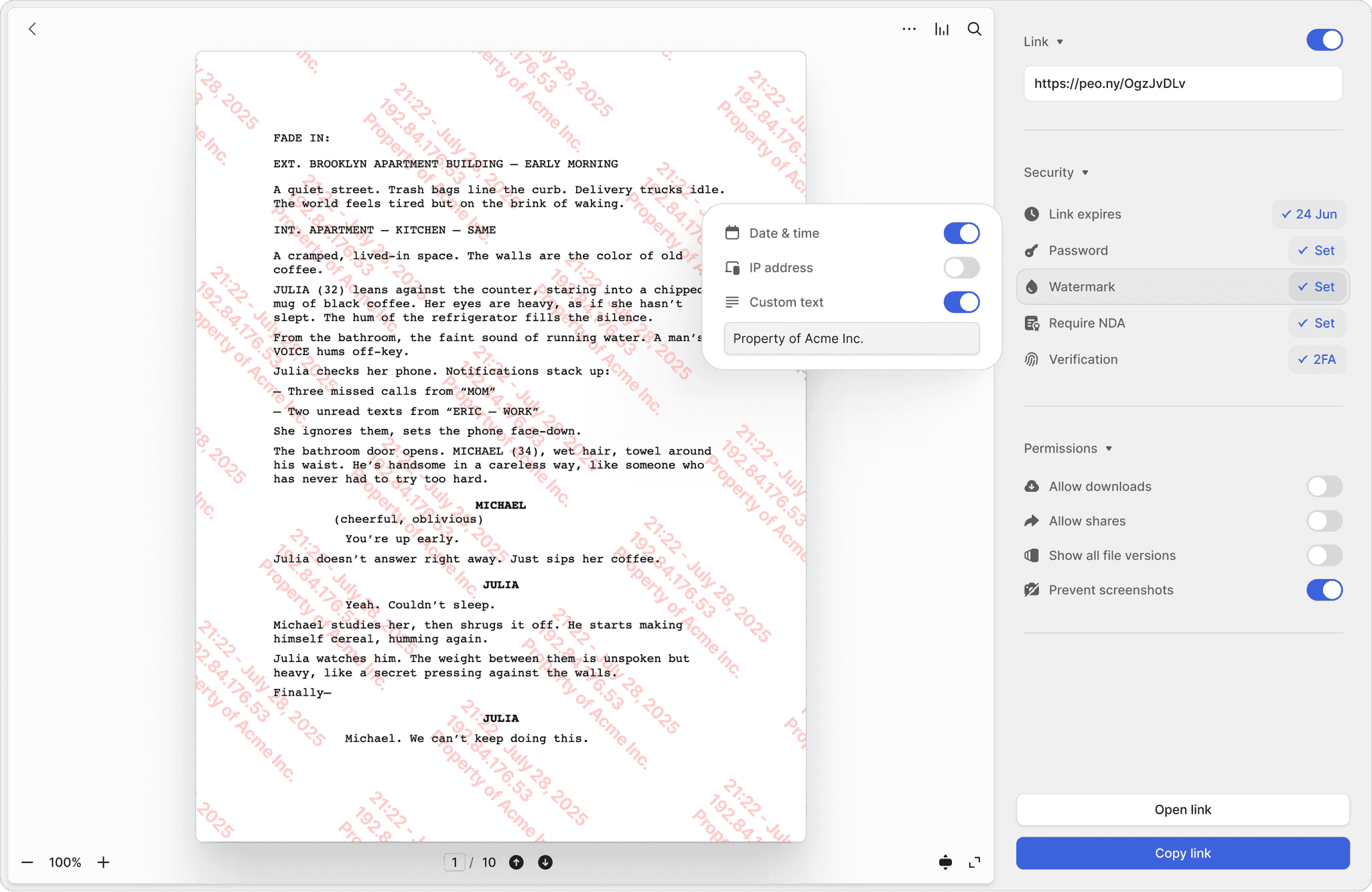
Screenshot protection
Block screen captures of sensitive deal documents. Ideals does not offer screenshot protection — once a document is viewed, it can be captured freely.
Dynamic watermarks
Every page stamped with the viewer's identity and timestamp. If a document leaks, you know exactly who shared it. Both Peony and Ideals support watermarks, but Peony includes them on the Business plan at $30/admin/mo — no enterprise tier required.
NDA-gated access
Require reviewers to sign an NDA before accessing documents. Peony includes built-in e-signatures so NDA gating is seamless — no third-party integration needed like with Ideals.
"We'd been searching for a solution like Peony for ages, and it has completely transformed our workflows. What used to take hours every week is now effortless — Peony saves us so much time."

Akash Ghavalkar
Co-founder & COO, Third Space
What do Ideals reviewers say on Capterra?
Verified Capterra reviewers consistently flag three issues with Ideals: high pricing on long-running projects, a restrictive Q&A module that the answering team finds clunky, and workflow regressions like the inability to rename folders after a recent version. Verbatim quotes from verified Ideals reviews on Capterra. The criticisms below are theirs, not ours.
Pricing for long projects
“It is still a pricey solution especially if you need to run a project on a longer period (eg fundraising).”
Q&A module
“The Excel viewer is a little bit poor and the Q&A module should be improved for the answering team.”
Workflow regressions
“Renaming folders is not anymore supported in the last version. Why?”
What do Peony reviewers say?
Verified Capterra reviewers consistently call out Peony's modern experience, strong access controls, useful document-activity visibility, fantastic support, and great value for the money. Verbatim quotes from verified Peony reviews.
Value & modern experience
“Excellent value and customer experience — all key features at a fraction of the price, with a modern experience.”
Modern & intuitive
“Modern and intuitive” with “strong access controls” and “useful visibility into document activity.”
Support & ease of use
“Fantastic support” and “great value for the money”; “really easy to use.”
Frequently asked questions
I'm at a boutique advisory firm running 4 sell-side mandates — how does Peony compare to Ideals for M&A due diligence?
Peony offers a modern data room with page-by-page analytics on every plan — so sell-side advisors can see exactly which diligence materials each bidder reviewed. The Business plan ($30/admin/mo) adds screenshot protection, AI document Q&A, and e-signatures; dynamic watermarks arrive on the Data Room plan ($52/admin/mo). The Data Room plan ($52/admin/mo) adds unlimited data rooms, Advanced NDA gating, AI room generation with completeness scoring, basic Q&A, auto-indexing with OCR and full-text search, and unlimited storage — with no per-bidder, per-page, or per-link limits. Ideals is an enterprise VDR that typically costs $15K-$30K per project with no free tier, no self-serve option, and no comparable AI capabilities. Boutique advisory teams like Third Space have switched from legacy VDRs to Peony for faster deal workflows and a more intuitive experience.
We currently use Ideals for all our M&A diligence across 6 deals a year — can Peony replace it?
Yes. Peony provides full-featured data rooms with NDA gating (Basic click-to-accept gate plus Advanced NDA where both your sell-side team and bidders can view and download a copy of the signed NDA), granular per-bidder permissions, dynamic watermarks, and full audit trails — all the core features needed for M&A due diligence, on the Data Room plan ($52/admin/mo). For permanently blacking out sensitive financials before sharing with buyer counsel, Peony's Deal Team plan ($64/admin/mo) adds Advanced Redaction. Peony also adds AI document Q&A so bidders can query CIMs and financial models instantly, Smart Q&A where counterparties submit diligence questions and AI drafts responses for your sell-side team to review before publishing, and AI Rooms that score your data room completeness and flag missing diligence materials. Michael Hui, Managing Director at Piton Partners, describes Peony as a standout for data rooms and gated file sharing — intuitive, secure, and beautifully designed, with AI that actually adds value.
Our boutique M&A firm pays $20,000 per project to Ideals — how does Peony pricing compare?
Peony starts free ($0) with per-page analytics. Business is $30 per admin per month and adds screenshot protection, Simple NDA gating, e-signatures, AI document Q&A, and up to 3 data rooms per admin. Data Room is $52 per admin per month (unlimited storage) and adds unlimited data rooms, dynamic watermarks, Advanced NDA gating, AI room generation, auto-indexing, and Screenshield — with unlimited links and no per-bidder fees. Ideals uses per-page or flat-fee pricing, typically $15,000-$30,000 per project, with additional charges for storage overages and premium features. For a boutique advisory firm running multiple mandates, Peony's transparent per-admin pricing means no surprise costs, no sales calls to get started, and no per-bidder or per-page fees regardless of how many counterparties access the room.
I'm sharing confidential financials with 18 bidders on a competitive process — does Peony match Ideals on security?
Every Peony plan includes AES-256 encryption at rest, TLS 1.3 in transit, SOC 2 Type II-ready, GDPR, CCPA, and HIPAA compliance, two-factor authentication, link expiry, revoke access, and per-page analytics. Business ($30/admin/mo) adds screenshot protection, Simple NDA gating, and e-signatures for NDAs and engagement letters. Data Room ($52/admin/mo) adds Advanced NDA gating, dynamic watermarks, Screenshield, and granular permissions; Deal Team ($64/admin/mo) adds Advanced Redaction for blacking out sensitive deal terms before sharing with counterparties — security depth that Ideals does not match, giving M&A advisors and transactional lawyers the controls they need for confidential transactions.
My team just won a mandate and needs a data room live in 48 hours — how quickly can we set up Peony vs Ideals?
Peony lets you create a fully branded data room in under 5 minutes with self-serve signup — drag and drop your CIMs, financial models, and diligence materials, configure security settings, and share a single link. No sales call, no onboarding process, and no training required. Ideals typically requires contacting their sales team, going through vendor onboarding, and waiting for account provisioning, which can take days or weeks. Peony's intuitive interface means your deal team, buyer counsel, and counterparties can navigate the data room without any training.
My team is running a process with 15 bidders and my MD wants engagement data weekly — does Peony offer better bidder analytics than Ideals?
Peony goes far beyond Ideals with page-by-page analytics that show exactly which pages each bidder reviewed, how long they spent on each CIM section or financial model, their scroll depth, and total viewing time — with no per-bidder tracking limits. Peony also provides real-time notifications so sell-side advisors know the moment a buyer opens the data room, plus bidder-level breakdowns so you can gauge engagement and prioritize follow-up across every counterparty in your process.
Our 6-person boutique IB handles $50M-$300M mandates — can we use Peony for live deals?
Absolutely. Peony is used by boutique investment banks, M&A advisors, PE sponsors, and mid-market deal teams for sell-side mandates, buy-side diligence, and fundraising. Peony's data rooms include NDA gating, granular per-bidder permissions, dynamic watermarks, controlled redaction (on the Deal Team plan), full audit trails, built-in e-signatures, and AI document Q&A — all the features mid-market investment bankers need to run a live process, at transparent pricing that works for every deal size. Michael Hui, Managing Director at Piton Partners, describes Peony as a standout for data rooms and gated file sharing — intuitive, secure, and beautifully designed, with AI that actually adds value.
We spend 8+ hours per week answering repetitive buyer questions on Ideals — what AI features does Peony offer that Ideals lacks?
Peony includes four AI capabilities that Ideals does not offer: AI document Q&A for instant answers from CIMs, financial models, and diligence materials, threaded Q&A where counterparties submit diligence questions and AI drafts answers from your deal materials for your sell-side team to review before publishing, AI Rooms that automatically score data room completeness and flag missing diligence materials with suggested folder templates, and auto-indexing with automatic document classification, OCR, and full-text search across every file in the room. AI document Q&A starts on the Business plan ($30/admin/mo), and AI room generation, auto-indexing, and threaded Q&A are included on the Data Room plan ($52/admin/mo) — not sold as add-ons. For a structured 4-step workflow that routes questions to a named answer coordinator with multi-role approval, Peony's Deal Team plan ($64/admin/mo) adds the Advanced Q&A module.
Our firm has been on Ideals for 4 years — do M&A advisors and transactional lawyers actually switch to Peony?
Yes. M&A advisors and transactional lawyers switch from Ideals to Peony for four key reasons: a more intuitive UX that requires zero training for both sell-side deal teams and buyer counsel, faster setup that takes under 5 minutes instead of days or weeks of onboarding, a leaner and more efficient platform purpose-built for mid-market mandates without enterprise bloat, and dramatically more affordable transparent pricing starting free versus $15K or more per project. Akash Ghavalkar, Co-founder and COO of Third Space, said Peony has completely transformed their workflows and saves them hours every week. Most advisory teams complete their migration in a single session — no procurement process, no vendor onboarding, and no multi-week implementation.
We invite 20+ bidders plus their counsel to each data room — does Peony charge per-viewer or per-page fees like Ideals?
No. Peony has no per-bidder, per-page, per-link, or per-deal fees on any plan. You pay a simple per-admin monthly price — Free ($0), Business ($30/admin/month), or Data Room ($52/admin/month). Business includes screenshot protection, Simple NDA gating, AI document Q&A, and up to 3 data rooms per admin; Data Room adds dynamic watermarks, unlimited data rooms, Advanced NDA gating, and unlimited links — so you can invite every bidder and their counsel without worrying about access fees. Ideals and other legacy VDRs typically charge per-page upload fees, storage overages, and per-user access fees that can push a single deal to $15,000 or more.
Compare other data room providers
Looking for the best data room for private equity? Read our complete PE data room comparison, or explore our PE data room solutions.
How does Peony deliver enterprise data room features without enterprise pricing?
By bundling AI document Q&A, screenshot protection, dynamic watermarks, Simple NDA gating, and built-in e-signatures into a $30/admin/month Business plan — no sales call, no procurement. Start free today. No credit card required. Set up in under 5 minutes.
No credit card required