
Best Online Document Editors (Only 1 Tracks Readers) in 2026

Co-founder at Peony — I built the data room platform, with a background in document security, file systems, and AI.
Connect with me on LinkedIn! I want to help you :)Last updated: March 2026
I run Peony, a secure data room platform. I have tested, broken, and rebuilt document workflows for startups, M&A deals, and fundraises for years now. So when someone asks me "what's the best online document editor?" I always give the same two-part answer: pick the editor that matches how you write, then pick the sharing layer that matches how you distribute.
An online document editor is a browser-based tool that lets you create, edit, and collaborate on text documents without installing desktop software. Google Docs, Microsoft Word for the web, and Notion are the most widely used. But here is the gap most guides skip: not one of them tells you who actually read the final version you shared externally. That blind spot is exactly why I built Peony.
TL;DR — The document management system market will reach $9.74 billion in 2026 (Fortune Business Insights). Google Docs alone has over 1 billion monthly active users. Yet the average data breach still costs $4.44 million globally (IBM, 2025), and third-party breaches jumped from 15% to 30% of all incidents (Verizon DBIR, 2025). Editing is a solved problem. Knowing what happens after you hit share is not.
Quick Comparison Table
| Editor | Best For | Starting Price | Real-Time Co-editing | External Sharing Analytics |
|---|---|---|---|---|
| Google Docs | Fast real-time collaboration | Free (Workspace from $7/user/mo) | Yes | No |
| Microsoft Word (Web) | Format-critical professional docs | Free (M365 from $6/user/mo) | Yes | No |
| Notion | Wiki-style knowledge bases | Free (Plus $12/user/mo) | Yes | No |
| Zoho Writer | Zoho-first businesses | From $3/user/mo | Yes | No |
| Dropbox Paper | Lightweight team notes | Free with Dropbox plan | Yes | No |
| ONLYOFFICE DocSpace | Self-hosted deployment flexibility | Free Startup plan ($20/admin/mo Business) | Yes | No |
| Quip | Salesforce-centric teams | From $12/user/mo | Yes | No |
| Evernote | Capture, research, retrieval | Free (Starter $14.99/mo) | Limited | No |
| LibreOffice (Online) | Cost-sensitive, open-source editing | Free (Collabora from ~$23/mo) | Via Collabora | No |
| Peony | Secure sharing + reader tracking | Free tier (Pro $20/mo) | No (sharing layer) | Yes — per-page |
The pattern is clear: every editor above answers "can we write together?" but none answers "did the investor actually read page 7 of our deck?" That second question is what Peony's page-level analytics solve.
The 10 Editors (and 1 Sharing Layer), Reviewed
1. Google Docs — Best for Real-Time Collaboration
I have used Google Docs almost daily for over eight years. For speed of collaboration, nothing touches it. You share a link, three people start typing, comments fly back and forth, and the document is done before anyone opens a calendar invite.
What it does well:
- Instantaneous co-editing with cursor presence for every collaborator
- Comments, suggestions mode, and version history that actually works
- Deep integration with the rest of the Google ecosystem (Drive, Sheets, Slides, Meet)
- Free for personal use; Workspace plans start at $7/user/month with admin controls
Where teams get burned: The moment you share a Google Doc externally — with an investor, a client, a vendor — you lose control. "Anyone with the link can view" is a convenience setting, not a security posture. You get no analytics on whether the recipient opened it, which sections they read, or whether they forwarded it. For internal drafts, Google Docs is unbeatable. For anything leaving your organization, pair it with a secure sharing layer.
Pricing (March 2026): Free for personal accounts. Google Workspace Business Starter is $7/user/month (annual), Business Standard is $14/user/month.
2. Microsoft Word for the Web — Best for Format-Critical Documents
Word in the browser has come a long way. If your counterpart expects a .docx and your formatting needs to survive the round-trip, this is still the safest bet. Track Changes remains the gold standard for legal and contract workflows.
What it does well:
- Near-perfect fidelity with desktop Word — fonts, margins, headers, footers all render correctly
- Track Changes and co-authoring now work smoothly in the browser
- Microsoft 365 business plans bundle compliance, DLP, and admin controls
- The web editor is free with a Microsoft account; business plans from $6/user/month
Where teams get burned: Microsoft's security stack is excellent for internal governance. But when you export a Word doc to PDF and email it to a prospect, the same blind spot appears: no per-page analytics, no screenshot protection, no way to revoke access after sending. The document becomes a static file you can never take back.
Pricing (March 2026): Web editor free with a Microsoft account. M365 Business Basic at $6/user/month (increasing to $7 in July 2026), Business Standard at $12.50/user/month (increasing to $14 in July 2026).
3. Notion — Best for Wiki-Style Knowledge Bases
Notion is where internal documentation goes to thrive. The cross-linking, databases, and nested page structure make it perfect for product specs, onboarding manuals, and company wikis. I have seen teams try to use Notion as a data room for investors — and it always creates more problems than it solves.
What it does well:
- Flexible block-based editor that handles docs, databases, kanban boards, and calendars
- Cross-linking between pages creates a true knowledge graph
- Templates and AI features (now included in Business plan and above)
- Free for personal use; Plus at $12/user/month, Business at $24/user/month
Where teams get burned: External sharing in Notion is fragile for sensitive documents. "Share to web" pages can be indexed by search engines if misconfigured. There is no per-viewer tracking, no dynamic watermarking, and no screenshot protection. I have written a separate guide on sharing Notion securely and another on building a Notion data room — both conclude the same thing: great for internal, risky for external.
Pricing (March 2026): Free personal plan. Plus at $12/user/month (annual). Business at $24/user/month (annual) includes Notion AI.
4. Zoho Writer — Best for Zoho-First Businesses
If your company already runs on Zoho CRM, Zoho Projects, and Zoho Mail, Writer is the obvious document editor. The integration density within the Zoho ecosystem is genuinely impressive — mail merge from CRM contacts, workflow automations, and document signing all connect natively.
What it does well:
- Tight integration with Zoho's 45+ business apps
- Collaborative editing with real-time cursor tracking
- Built-in e-signatures and mail merge
- Extremely affordable at $3/user/month for teams
Where it falls short: Outside the Zoho ecosystem, Writer feels isolated. Sharing with external collaborators who do not use Zoho adds friction. The editor itself is capable, but the value proposition drops sharply if you are not already a Zoho shop.
Pricing (March 2026): Free for individuals. Team plans from $3/user/month (annual).
5. Dropbox Paper — Best for Lightweight Team Notes
Paper is simple, pleasant, and declining. Dropbox discontinued the mobile and desktop Paper apps in October 2025, leaving only the web version at paper.dropbox.com. That is not a great signal for long-term investment in the platform.
What it does well:
- Clean, distraction-free writing experience
- Good for meeting notes, project briefs, and internal memos
- Included free with any Dropbox plan
Where it falls short: With mobile and desktop apps gone, Paper is now web-only. Dropbox is clearly investing its engineering resources elsewhere. For teams building a long-term documentation workflow, I would look at Notion or Google Docs instead. For external sharing, Dropbox's native link sharing has no per-page analytics or screenshot protection.
Pricing (March 2026): Included with Dropbox plans (Plus from $11.99/month, Business from $15/user/month). Paper itself has no separate cost.
6. ONLYOFFICE DocSpace — Best for Self-Hosted Flexibility
When I tested ONLYOFFICE DocSpace, the "rooms" concept clicked immediately. You create a collaboration room, invite users, and the permissions are scoped to that room. For organizations that want to self-host their document editing environment — healthcare, legal, government — this is one of the few credible options.
What it does well:
- Room-based collaboration with granular permissions
- Strong compatibility with Microsoft Office formats (.docx, .xlsx, .pptx)
- Self-hosted options for full data sovereignty (lifetime license from $6,550)
- Free cloud Startup plan with up to 12 rooms and unlimited users
Where it falls short: The cloud version is less polished than Google Docs or Notion. Real-time co-editing works but feels a step behind. The primary value is deployment flexibility and format fidelity, not collaboration speed. No external sharing analytics.
Pricing (March 2026): Free Startup plan (12 rooms). Business plan at $20/admin/month. Self-hosted lifetime license from $6,550. Open-source community edition free under AGPL v.3.
7. Quip — Best for Salesforce-Centric Teams
Quip lives inside the Salesforce ecosystem. If your team's daily workflow revolves around Salesforce opportunities, accounts, and reports, Quip lets you embed live CRM data directly into documents. Outside that context, it is hard to justify.
What it does well:
- Live Salesforce data embedded in documents (opportunity fields, account data, reports)
- Spreadsheets and documents in a single canvas
- Strong mobile experience for field sales teams
Where it falls short: Quip without Salesforce is an average document editor at a premium price. There is limited traction outside the Salesforce ecosystem, and external sharing is basic. If your team is not deeply invested in Salesforce, Google Docs or Notion will serve you better for less money.
Pricing (March 2026): Starter at $12/user/month. Quip for Salesforce requires a Salesforce license plus additional per-user fees.
8. Evernote — Best for Capture and Retrieval
Evernote is not really a document editor — it is a capture system. Clipping web pages, scanning handwritten notes, organizing research, and retrieving information across notebooks is where it excels. The recent plan restructuring (Personal and Professional replaced by Starter and Advanced) has frustrated long-time users, but the core capture workflow remains strong.
What it does well:
- Web clipper that saves articles, screenshots, and selections with original formatting
- Powerful search across text, handwriting, and images
- Cross-device sync for capturing ideas anywhere
Where it falls short: The new Starter plan is restrictive: 1,000 notes, 20 notebooks, 3 devices. Real-time co-editing is limited compared to Google Docs or Notion. Evernote is a personal productivity tool, not a team document platform. For sharing captured research externally with analytics and access control, you would need a separate layer like Peony.
Pricing (March 2026): Free plan available. Starter at $14.99/month ($99/year). Advanced at $24.99/month ($249.99/year).
9. LibreOffice (Online via Collabora) — Best for Open-Source and Cost-Sensitive Teams
LibreOffice itself is a desktop suite. For online collaboration, you need Collabora Online (the commercially supported browser-based version of LibreOffice) or a self-hosted instance. The format compatibility with Microsoft Office is good but not perfect — complex formatting, macros, and embedded objects sometimes break.
What it does well:
- Completely free and open-source desktop editor
- Strong compatibility with .docx, .xlsx, .pptx formats
- No vendor lock-in — your files are standard ODF or Microsoft formats
- Collabora Online adds browser-based editing and real-time collaboration
Where it falls short: Setting up Collabora Online requires technical expertise or a hosted provider. The collaboration experience is functional but noticeably behind Google Docs. There are no built-in external sharing analytics, watermarking, or access controls for shared documents.
Pricing (March 2026): LibreOffice desktop is free. Collabora Online starts from approximately $23/month for hosted plans. Collabora Online Development Edition (CODE) is free for individuals and small teams.
10. Peony — The Secure Sharing Layer for When the Doc Leaves Your Team
This is where I need to be honest about what Peony is and is not. Peony is not a document editor. You will not draft your next blog post or product spec inside Peony. What Peony does is solve the problem that every editor above ignores: what happens after you share the document externally?
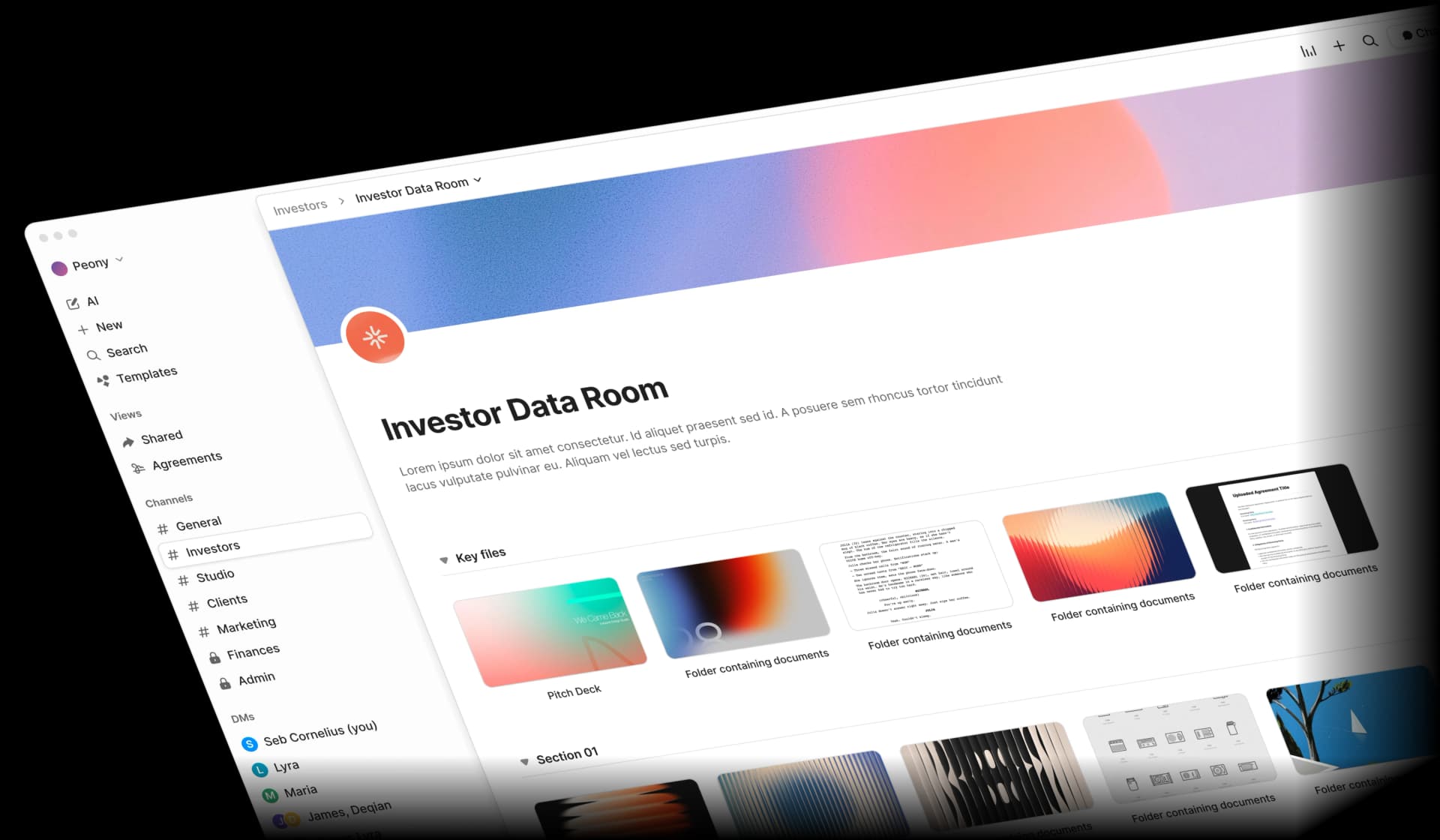
When you send a pitch deck to investors, a proposal to a client, or diligence documents to a buyer, the editing phase is over. The sharing phase begins. And that phase needs different tools:
- Page-level analytics — See exactly which pages each reviewer read and how long they spent on each one. Not just "opened" — actual engagement data that tells you whether the investor read your financial projections or skipped straight to the team slide.
- Screenshot protection — Blocks screenshot attempts and logs them. Most editors let anyone screenshot your confidential document without you ever knowing.
- Dynamic watermarks — The viewer's identity is baked into every rendered frame. If a leaked image surfaces, you can trace it to the exact viewer.
- NDA gates — Require a signed NDA before the recipient can access a single page. No honor system, no separate DocuSign workflow.
- AI auto-indexing — Upload hundreds of documents and Peony organizes them into a structured index in under 3 minutes. Competitors take days.
- Built-in e-signatures — AI-powered field detection means you do not need a separate signing tool.
- AI document extraction — Ask natural-language questions across every document in a room and get cited answers with exact page numbers.
- AI redaction — AI identifies PII, financial data, and sensitive terms and suggests redactions before you share.
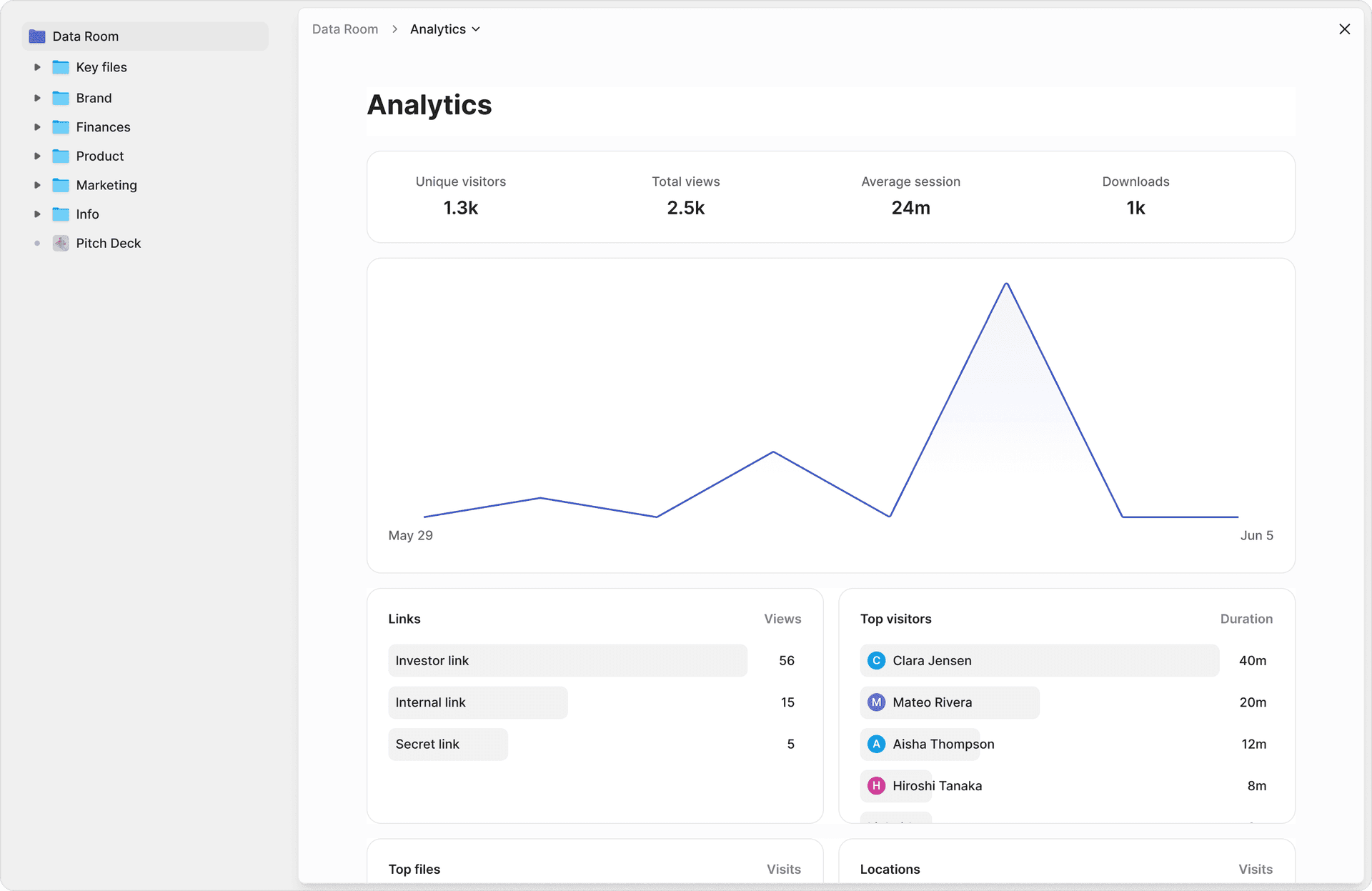
How it works with your editor: Draft in Google Docs, Word, Notion, or any tool on this list. Export to PDF. Upload to Peony. Share a secure link with identity verification, password gating, and link expiration. Then watch the analytics roll in.
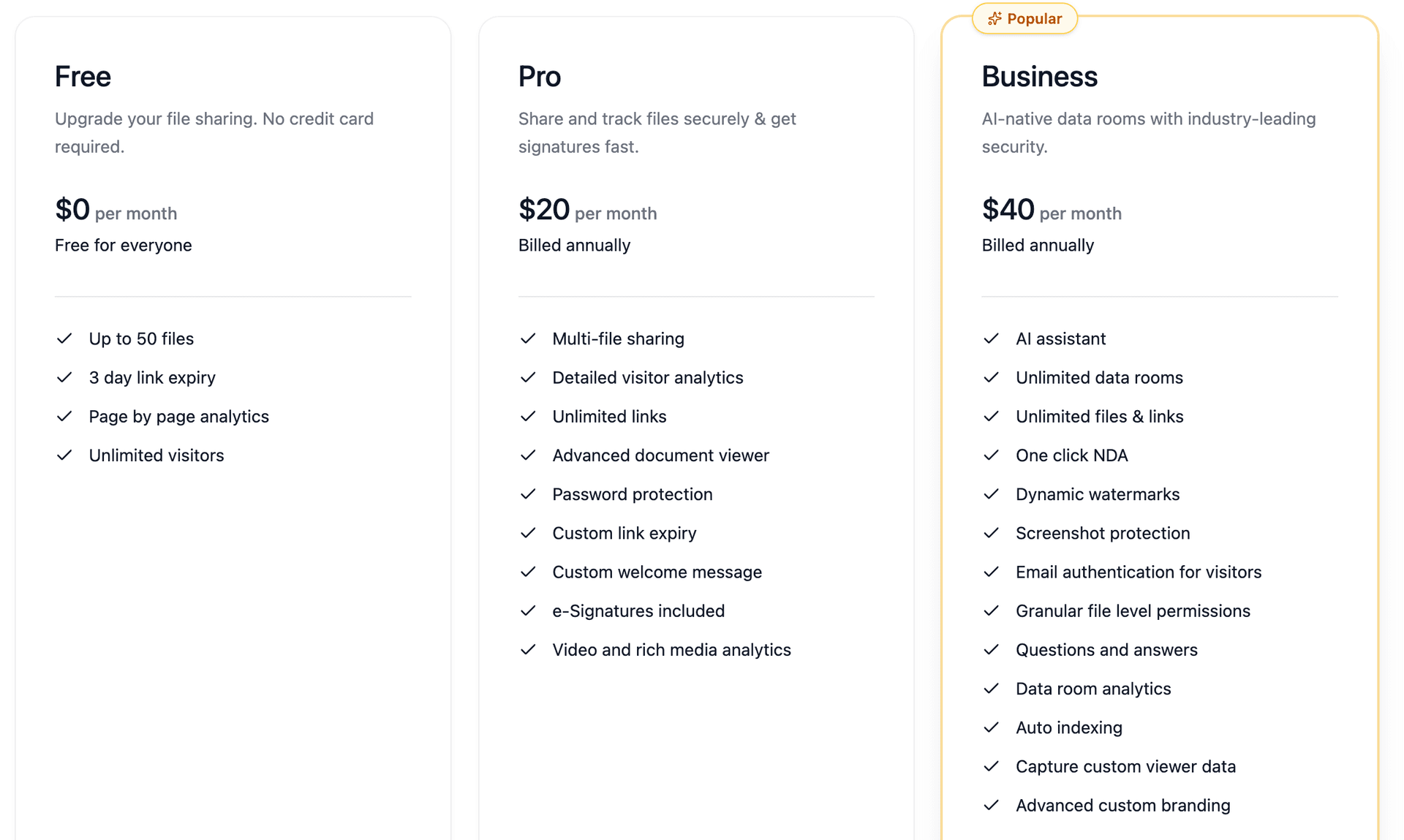
Pricing (March 2026): Free tier available. Pro at $20/month. Business at $40/month. That is under 10% of what legacy virtual data room providers charge — and you get AI features they are still roadmapping.
Who uses this pattern: Startup founders sharing pitch decks with investors, M&A teams running due diligence, PE firms managing portfolio company documents, legal teams sharing contracts with opposing counsel, and real estate teams running property due diligence.
By the Numbers: The Document Editing and Sharing Market
The scale of online document usage — and the security gaps within it — is staggering. Here are the numbers that shaped my thinking:
- $9.74 billion — Projected size of the global document management system market in 2026, growing to $29.78 billion by 2034 at a 15% CAGR (Fortune Business Insights)
- 1 billion+ — Monthly active users on Google Docs alone, making it the most widely used document editor on the planet (Google Workspace Blog, 2024)
- $4.44 million — Global average cost of a data breach in 2025, down 9% from 2024 but still devastating for mid-market companies (IBM Cost of a Data Breach Report, 2025)
- 30% — Percentage of all breaches in 2025 that involved third-party access, doubled from 15% the year before (Verizon DBIR, 2025)
- 22% — Share of breaches where stolen credentials were the initial attack vector, ahead of phishing at 16% (Verizon DBIR, 2025)
- 181 days — Average time to detect a data breach, with another 60 days to contain it — over 8 months of exposure (IBM, 2025)
- $178 per record — Average cost when intellectual property is breached, higher than the $160 per record for customer PII (IBM, 2025)
- 65% — Share of document collaboration revenue coming from cloud-based solutions, with the segment growing at 17% CAGR
- $31.62 billion — Size of the global team collaboration software market in 2026 (Fortune Business Insights)
- 43.7% — North America's share of the document management market, driven by regulatory compliance requirements (Fortune Business Insights)
The takeaway: billions of people edit documents online every day. The editing tools are mature. The gap is in what happens when those documents cross organizational boundaries — and that is where most breaches start.
Security Comparison: Editing vs. Sharing
Security means different things at different stages of a document's lifecycle. Here is how the tools compare across the two phases:
During Editing (Internal)
| Security Feature | Google Docs (Workspace) | Microsoft 365 | Notion (Business) | Peony |
|---|---|---|---|---|
| Encryption at rest | Yes (AES-256) | Yes (AES-256) | Yes | Yes (AES-256) |
| Admin audit logs | Yes | Yes | Yes | Yes |
| SSO / SAML | Enterprise plan | Business Premium+ | Business+ | Business plan |
| DLP rules | Yes | Yes | No | N/A (sharing layer) |
| 2FA | Yes | Yes | Yes | Yes |
During External Sharing
| Security Feature | Google Docs | Microsoft 365 | Notion | Peony |
|---|---|---|---|---|
| Per-page view analytics | No | No | No | Yes |
| Screenshot protection | No | No | No | Yes |
| Dynamic watermarks | No | No | No | Yes |
| NDA gate before access | No | No | No | Yes |
| Link expiration + revocation | Limited | Limited | No | Yes |
| Identity-bound access | No | No | No | Yes |
| AI redaction before sharing | No | No | No | Yes |
The first table looks competitive. The second table shows the gap. Document editors were built to help teams write together. They were not built to control what happens after the document leaves the organization. That is a fundamentally different engineering problem, and it is the one Peony was designed to solve.
Bottom Line: Match the Tool to the Job
For internal drafting and collaboration:
- Google Docs if speed and simplicity matter most
- Microsoft Word if formatting fidelity and compliance matter most
- Notion if your docs need to cross-link into a living knowledge base
- Zoho Writer if you already live in the Zoho ecosystem
- ONLYOFFICE if you need self-hosted deployment
For external sharing with control and visibility:
- Peony — Upload from any editor, share with page-level analytics, screenshot protection, dynamic watermarks, NDA gates, AI auto-indexing, and built-in e-signatures. Free tier available.
The best document workflow is not one tool — it is two. An editor for writing and a sharing layer for distribution. I use Google Docs for 90% of my drafting and Peony for 100% of my external sharing. That combination has never let me down.
Frequently Asked Questions
What is the best free online document editor in 2026?
Google Docs is the best free online document editor for real-time collaboration, with over 1 billion monthly active users and no cost for personal accounts. Microsoft Word for the web is a close second if you need high-fidelity formatting. Neither tracks who reads your shared documents after you send them. For that visibility, Peony adds page-level analytics showing exactly which pages each reviewer read and for how long, starting free.
Can I track who viewed my shared document?
Standard document editors like Google Docs and Notion show limited view history for internal collaborators but provide no analytics once a document is shared externally via link or PDF. Peony provides page-level analytics that show who accessed your document, which pages they read, how long they spent on each page, and whether they attempted a screenshot, giving you actionable follow-up intelligence.
Is Google Docs secure enough for confidential documents?
Google Docs with a paid Workspace plan offers strong organizational security including admin controls, audit logs, and DLP rules. However, once you share a document externally via link or export, you lose visibility and control. For confidential external sharing, Peony layers identity-bound access, dynamic watermarks with the viewer's name baked into every frame, screenshot protection that blocks and logs attempts, and instant link revocation on top of your existing editor.
What is the difference between a document editor and a data room?
A document editor like Google Docs or Notion is where you create and collaborate on content with your team. A data room like Peony is where you share finished documents externally with controlled access, audit trails, and engagement analytics. They solve different problems and work best together: edit in your preferred tool, then share through Peony for page-level tracking, NDA gates, e-signatures, and AI-powered document indexing.
Which online document editor has the best collaboration features?
Google Docs leads for real-time co-editing speed and commenting. Notion excels at wiki-style cross-linked documentation. Microsoft Word offers the deepest formatting and track-changes workflow. For the sharing phase after collaboration is done, Peony adds a secure layer with AI auto-indexing that organizes hundreds of documents in under 3 minutes and a Q&A workflow where counterparties submit questions and AI drafts answers for your team to review.
How much do online document editors cost in 2026?
Google Docs is free for personal use, with Workspace starting at $7 per user per month. Microsoft 365 Business Basic costs $6 per user per month, rising to $7 in July 2026. Notion Plus is $12 per user per month. Zoho Writer starts at $3 per user per month. Peony offers a free tier for secure document sharing with page-level analytics, with Pro at $20 per month and Business at $40 per month, which is under 10 percent of what legacy virtual data rooms charge.
Can I use multiple document tools together?
Yes, and most teams should. The best workflow is to draft in your preferred editor like Google Docs, Word, or Notion, then share externally through a secure layer. Peony accepts uploads from any editor and adds identity verification, password gating, dynamic watermarking, screenshot protection, and per-page analytics without changing your team's writing workflow.
What should I look for in a document editor for business use?
Prioritize real-time collaboration, formatting compatibility with your clients, version history, and admin controls. For external sharing, look for access revocation, viewer analytics, and leak prevention. Peony covers the external sharing side with USB hardware download for air-gapped environments, AI redaction that identifies PII and sensitive terms before sharing, and built-in e-signatures with AI-powered field detection.
Related Resources
- How to Share Files Securely — 7 methods I actually trust for sensitive documents
- How to Password Protect Google Docs — Step-by-step guide with workarounds for Google's missing feature
- Notion Data Room Guide — When Notion works for external sharing and when it does not
- Top 10 Virtual Data Room Providers — Scored comparison of the 10 most established platforms
- Document Tracking Software — How to see who reads your shared documents
- How to Send a Pitch Deck to Investors — The sharing workflow that gets replies
- What Is a Virtual Data Room? — Complete guide to VDR use cases across 7 industries
- How to Protect PDF from Screenshots — Prevent screen capture of your confidential PDFs