
Start, Extend, or Convert a Trial
The Data Room plan comes with a 7-day free trial you start yourself, with no credit card. Start it at the end of onboarding or from the upgrade screen.
Last updated October 2, 2026
The Data Room plan comes with a 7-day free trial. It is the only plan with a trial. You start it yourself, with no credit card and no need to email us. AI features aren't part of the trial. Everything you build during the trial — rooms, files, links, analytics, NDA settings — carries over when you convert to paid.
What's in the Trial
- Data Room features: screenshot protection, Screenshield, NDA gates, custom domain, dynamic watermarks, page-level analytics, index documents
- Not included: AI features, such as AI document Q&A and AI room generation. They're available once you upgrade to a paid plan
- No credit card to start
- Does NOT auto-charge at the end — you must explicitly upgrade
Start a Trial
You can start the trial in two places:
- At the end of onboarding. When you finish setting up your first data room after signing up, Peony offers the trial. See How to set up your first data room.
- From the plan cards, any time. Open the upgrade screen (click any paid feature, or Settings → View billing → Upgrade) and click Try 7 days for free under the Data Room plan.
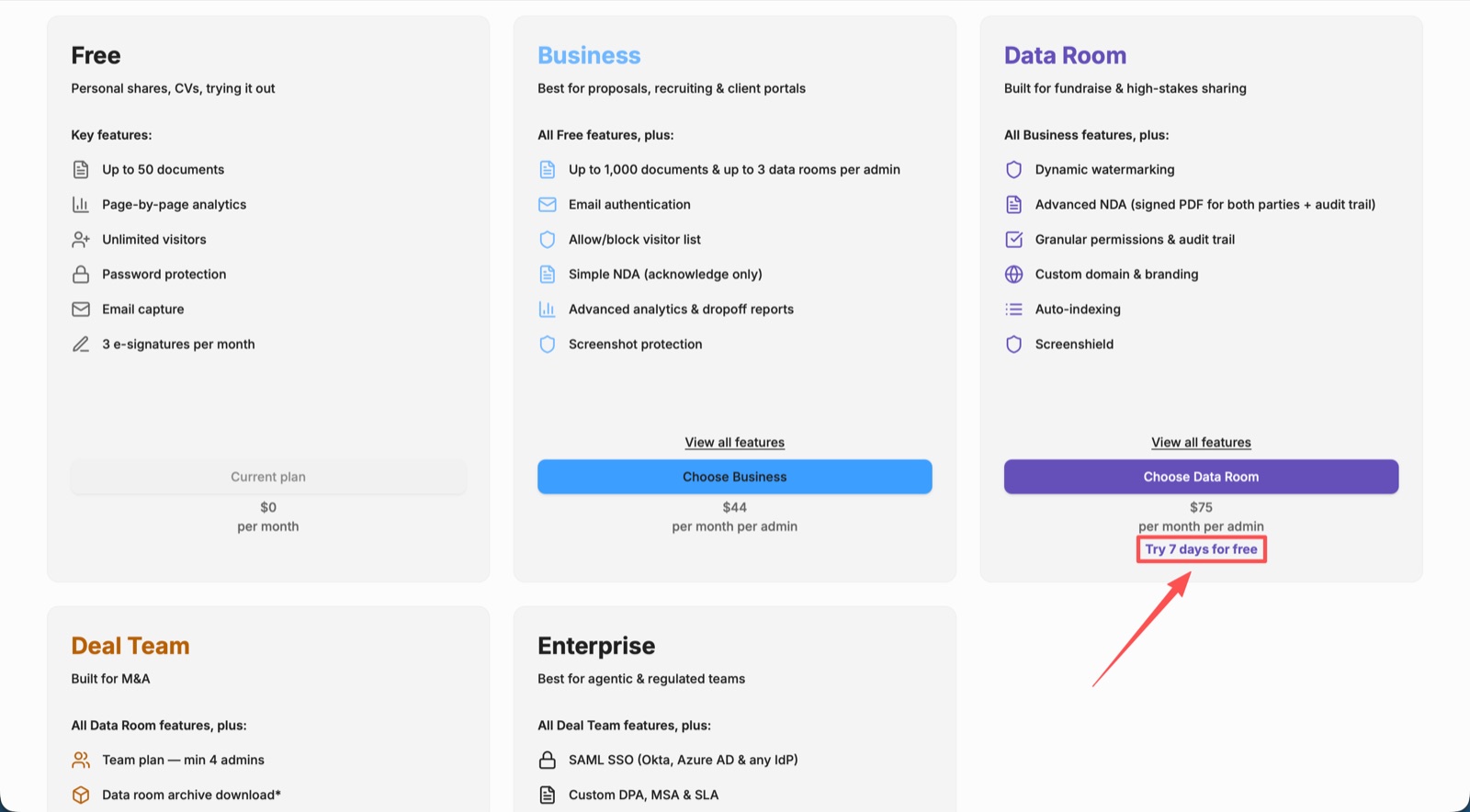
Then:
- Complete the Claim your 7 day Data Room trial form (all fields required, see below).
- Click Start free trial. You'll see Your 7 day Data Room trial is now active.
The claim form
Starting a Data Room trial requires completing a short form. Every field is required:
- Company name
- Company website
- Phone number — enter your country code and number, click Send code, then enter the SMS verification code. You cannot submit until the code is verified.
- How many seats do you plan to buy?
- What do you plan to use the data room for?
Phone verification by SMS is mandatory for every trial. If the code doesn't arrive, click Resend code — our SMS provider occasionally drops the first attempt and a retry usually works.
If you can't get past the SMS step at all, email sean@peony.ink with your account email and phone number (with country code) and we'll enable the trial from our side.
If the email OTP doesn't arrive within 60 seconds, check spam. Still nothing? See Can't Sign In: OTP Not Arriving or email sean@peony.ink.
AI Features and the Trial
AI features — AI document Q&A, AI room generation and other AI tools — aren't available during the trial. They switch on when you upgrade to a paid plan that includes them. If you'd like to see AI in action before buying, book a call and we'll demo it.
Extend a Trial
We do not offer trial extensions by default. If you have a specific reason — for example, you're mid-deal or need more time to evaluate a particular feature — email sean@peony.ink or deqian@peony.ink and explain your case. Extensions are considered individually, and re-enabling a trial reactivates your share links.
Cancel a Trial
There's nothing you have to cancel. You're never billed automatically, because the trial does not convert on its own. If you want written confirmation that you won't be charged, email sean@peony.ink.
Note: if you check Stripe during a trial, the billing page may display a longer trial window than the 7 days you were granted. Your access still ends on the agreed date — Peony avoids extended-trial coupons for exactly this reason. Any exception is charged upfront, on terms agreed in writing beforehand.
Convert to Paid
- Open Settings → View billing → Upgrade.
- Pick Business ($30/admin/mo), Data Room ($52/admin/mo), Deal Team ($64/admin/mo, min. 4 admins), or Enterprise (custom).
- Enter card and confirm.
Your workspace flips to paid immediately. Everything you built stays.
If Trial Expired Without Converting
Your workspace drops to Free. Nothing is deleted — rooms, files, and analytics history stay. Paid features are disabled until you upgrade: creating a real data room, allow/block visitor lists, screenshot protection, simple (acknowledge-only) NDA gates, and AI document Q&A require Business ($30/admin/mo); dynamic watermarks, Screenshield (advanced screenshot protection), advanced signed NDAs, custom domain, Visitor Q&A, audit trail, and index documents require Data Room ($52/admin/mo) or higher.
On Free, your demo data room and its analytics are shareable for 3 days only. A real, persistent data room needs Business or above.
Upgrade any time from Settings → View billing → Upgrade.
Adding Teammates During the Trial
Trial admins are free, and each becomes a billable admin once the trial converts; see Before you invite for what each seat costs.
Common Questions
How long is the trial?
Seven days. It's a 7-day Data Room trial, no credit card required. AI features aren't included.
Which plans have a free trial?
Only the Data Room plan. Business, Deal Team and Enterprise don't have a trial.
Do I need to email you to get a trial?
No. Start it yourself at the end of onboarding, or click Try 7 days for free under the Data Room plan on the upgrade screen.
Where's the button to start the trial?
At the end of onboarding, or on the upgrade screen (open any paid feature or Settings → View billing → Upgrade): click Try 7 days for free under the Data Room plan and complete the claim form.
Can I get a refund if I pay and change my mind?
Payments aren't refundable, so use the free trial to try the Data Room plan before you pay. See Upgrade, downgrade or cancel.
Will I be charged when the trial ends?
No. The trial never converts automatically. You have to explicitly upgrade and enter a card. If you want confirmation you won't be billed, email sean@peony.ink.
Stripe shows a longer trial than I was given — will I be charged extra?
No. Stripe's billing page can display a longer window than agreed. Your access ends on the agreed date. If a longer paid arrangement is ever set up, it's charged upfront, on terms agreed in writing beforehand.
I'm on the trial but some features show an upgrade prompt.
AI features aren't part of the trial, so anything AI-powered shows an upgrade prompt. If AI document Q&A is switched on for a group, switch it off. If a non-AI Data Room feature still asks you to upgrade, email sean@peony.ink.
Can I re-enable a trial I already used?
Email sean@peony.ink with your old and new email addresses. Re-enabling a trial reactivates your share links.
Troubleshooting
- Email OTP not arriving — Can't Sign In: OTP Not Arriving.
- SMS verification stuck — click Resend code; if it still fails, send your phone number (with country code) and account email to sean@peony.ink and we'll enable the trial manually.
- "Trial already used" — email sean@peony.ink with old and new email addresses.
- Checkout fails when converting — see Checkout Errors: What to Try First or email sean@peony.ink for a manual invoice link.