
Brand Card: Your Logo, Tagline and Links
Set up the brand card visitors open from your logo in a data room: your name, a short tagline, and buttons linking to your website or contact page.
Last updated September 26, 2026
The brand card is a small card about your company. It shows your logo, your name, a one-line tagline and up to a few buttons, such as Visit our website or Get in touch. Visitors open it from your logo inside a data room, so anyone reading your documents is one click from your site.
| At a glance | |
|---|---|
| Where to edit | Settings (bottom-left of the home screen) → Brand Card Settings |
| What you can change | Logo, name, tagline, and link buttons |
| Who sees it | Visitors, when they click your logo in a data room |
| Plan | Business and up. See Plans & pricing. |
Open Brand Card Settings
- On the Peony home screen, click Settings at the bottom-left.
- Choose Brand Card Settings.
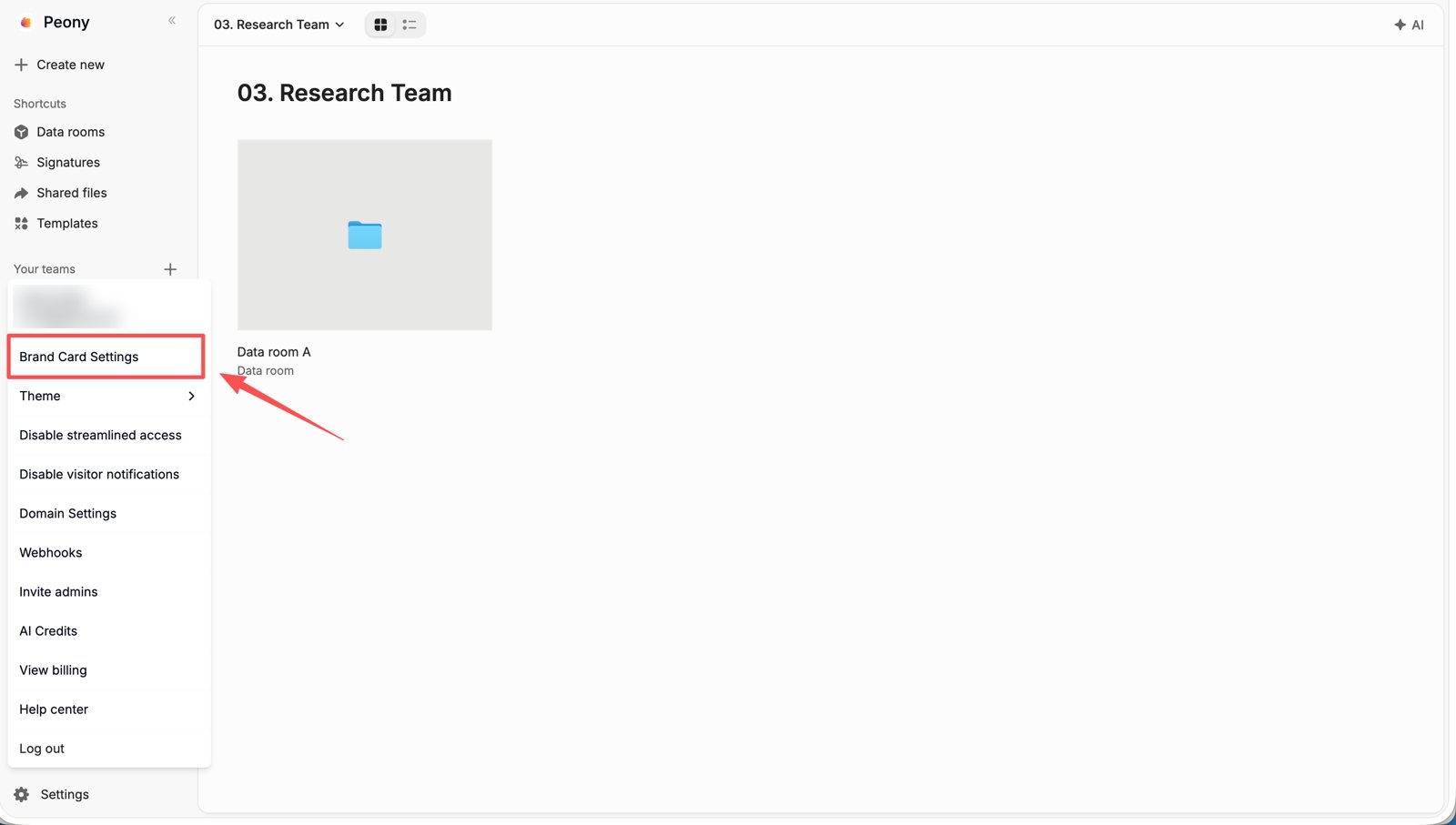
Edit the Card
The card opens in edit mode. Everything you change here is what visitors see.
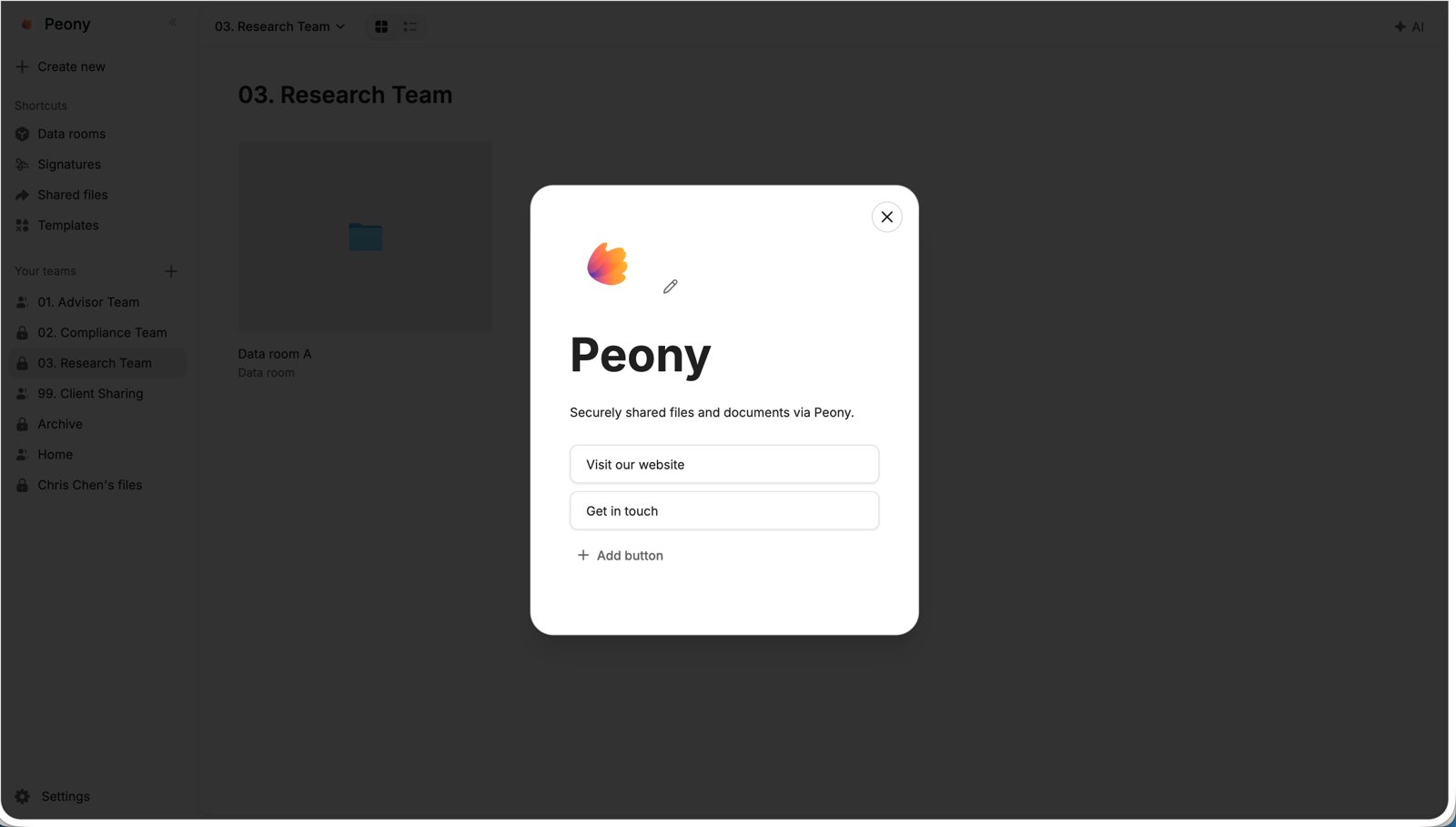
| To change | Do this |
|---|---|
| Logo | Click the pencil next to the logo and upload a new image. |
| Name and tagline | Click the name or tagline to edit it. Keep the tagline to one short line, such as a welcome or what you do. |
| Add a link button | Click + Add button, then enter the button label and its URL. |
| Change or remove a button | Click the button to open its menu (below). |
Click the × at the top-right to close the card when you're done.
Button options
Clicking a button in the editor opens a small menu:
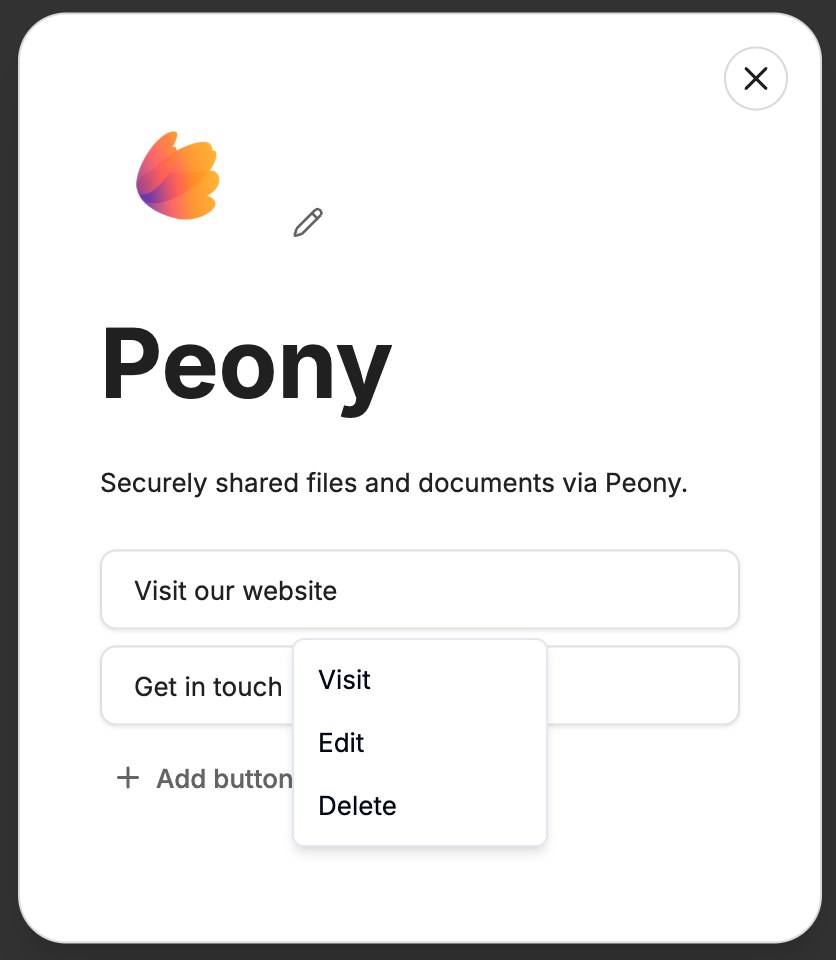
- Visit opens the link, so you can check it goes to the right page.
- Edit changes the button's label or URL.
- Delete removes the button from the card.
What Visitors See
Inside a data room, your logo sits on the cover image, above the room name. When a visitor clicks the logo, the brand card opens with your name, tagline and buttons.
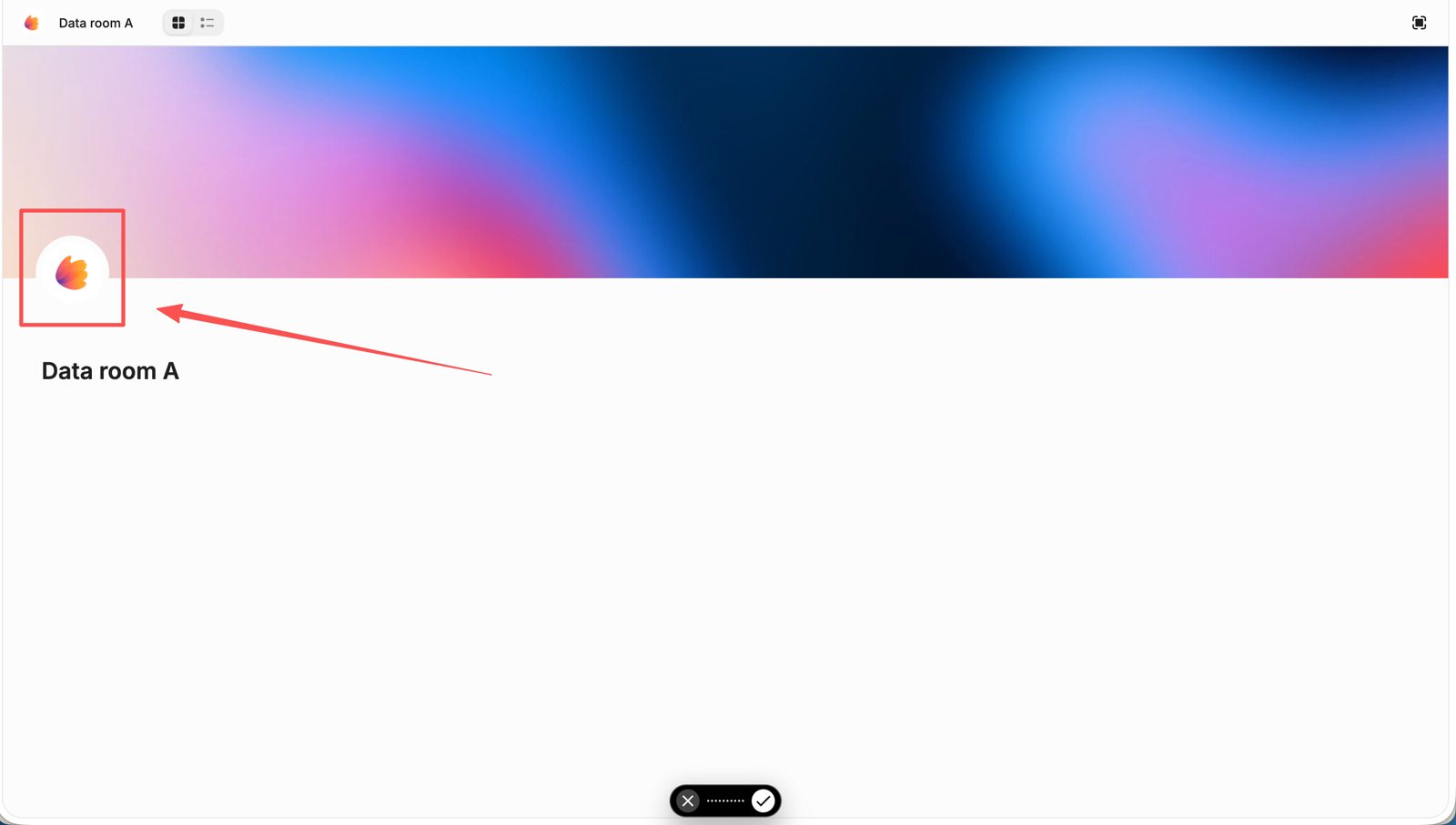
If the logo doesn't appear in a room, check that Show logo is on in that room's Settings tab. See How to brand your rooms: logo and cover image.
Common Questions
Where do I change the brand card?
Click Settings at the bottom-left of the home screen and choose Brand Card Settings. It's a workspace setting, not something inside a data room's Settings tab.
How do visitors see my brand card?
They click your logo on the data room's cover image. The card opens over the room.
How do I change where "Visit our website" goes?
Open Brand Card Settings, click the Visit our website button, choose Edit, and change the URL.
Can I add a "Book a call" button?
Yes. Click + Add button, name it (for example "Book a call"), and paste your scheduling link.
How do I remove a button?
Click the button in Brand Card Settings and choose Delete.
Is the brand card the same as the welcome message?
No. The welcome message is set per group in a room's Permissions → Appearance card and shows to that group's visitors. The brand card is set once for the workspace and opens from your logo.