
AI Artifacts: Claude, ChatGPT and Codex in a Data Room
How to put an AI artifact from Claude, ChatGPT or Codex in a Peony data room: save it as one .html file and upload it to preview it inside the room, or add a link, which previews only if the tool's page allows embedding.
Last updated October 27, 2026
An AI artifact is a page or small app that a model builds for you, usually as one HTML file: a calculator, a dashboard, a financial model. Peony previews an uploaded .html file inside the room with its JavaScript running. A link to the artifact on the tool's own site previews only if that site allows embedding: Claude's share links don't, so they open in a new tab, while a public Codex Site does. The route that works for every tool is the same: get the artifact as one .html file and upload it. What differs is how you get the file.
Get the File from Each Tool
| Tool | How to get one .html file |
|---|---|
| Claude | Save the artifact's code as a file ending in .html |
| ChatGPT | Use Download in the canvas, or copy the HTML into a file ending in .html |
| Codex | Codex saves its output as files in an outputs folder. Ask it for one self-contained HTML file with the CSS and JavaScript inside, and tell it to write the file directly with no browser preview. A Codex Site gives you a link instead, see below |
| Any other tool | Ask for a single HTML file with the CSS and JavaScript inside, and save it with the .html extension |
If the tool built a multi-file app, with separate CSS, JavaScript and image files, ask for it as one file first. Peony stores a ZIP as one file without opening it, so zipping the project doesn't give visitors a working page.
Upload the File
Uploading an .html file works on every plan, including Free. To add it to a data room, which needs the Business plan or above:
- In the data room, click Add content, then File upload, and pick the
.htmlfile. - Open the file once yourself to check that it runs.
- Set the group to View if visitors should use it but not download the source.
The room's NDA gate, permissions and analytics apply to the file like any other. For the full setup and the plan each control needs, see Sharing AI Artifacts (Live HTML) Securely. To replace the file later without changing the link, use Upload a new version.
Add a Share Link as a Web Link
Claude
- In Claude, open the artifact, click Share, set General access to Anyone with the link, and click Copy link.
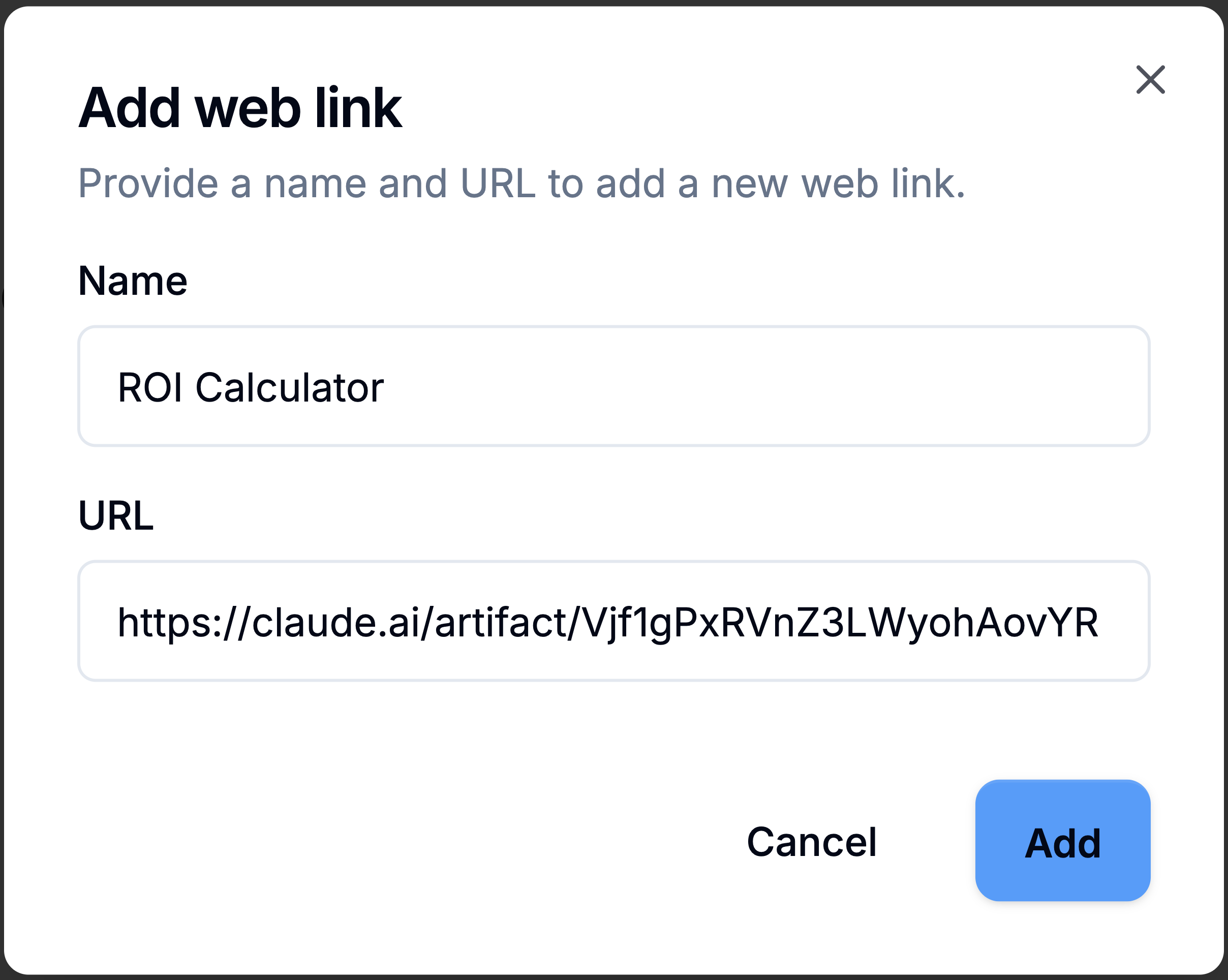
- In the data room, click Add content, then Web link.
- Enter a Name, paste the link into URL, and click Add.
The room lists the Web link as an item. Opening it shows a Click here to view the link button, and the artifact opens in a new tab outside the room.
A new tab is expected. Peony shows a Web link inside the room only when the site allows itself to be embedded. Claude's standard share link doesn't, so no setting in Peony changes it. Other pages differ: a published Google Sheet, for example, previews inside the room.
Claude's help article on sharing artifacts describes a Get embed code option with an Allowed domains field. The Share panel in current Claude, which offers Only people invited and Anyone with the link, doesn't show it. If your Claude account does show Get embed code, enter the domain your visitors use to open your room under Allowed domains, for example company.peony.ink or your own custom domain. Separate several domains with commas. Do this before you add the Web link. If you already added it, delete the Web link and add it again.
Codex Sites
In the Codex app, Sites lets Codex host what it builds at an address like site-name.account.chatgpt.site. A new Site is private: Link access is Just me. For your visitors to open it, click Share, set Link access to Public, and click Publish. On an Enterprise ChatGPT workspace an admin has to allow public publishing first.
Then add the address in the data room with Add content, then Web link, the same way as above. A public Codex Site previews inside the room and its JavaScript runs there, with no embed setting to change.
Notes and Limits
- Upload the file for anything confidential. A Claude share link or a public Codex Site stays public: anyone with the address can open it without going through your room, and a visitor can find the address from inside the room. NDA gates, permissions and revoke control who sees the Web link item, not the page behind it.
- Ask for HTML or PDF instead of Markdown. Codex often delivers a
.mdfile. It uploads and shows as a file card with a download link, so ask for HTML or PDF if visitors should read it in the room. - Live HTML runs under the room's screenshot protection, NDA gate, permissions, download block and analytics. The dynamic watermark covers the documents around it; to watermark the artifact itself, add a PDF export of it beside the live file. See Which files carry the watermark.
- Self-contained files work best. Links to files outside the HTML, or
target="_blank"links, can break rendering in the viewer. - Sharing and embedding are set in the tool. Whoever owns the artifact controls them in Claude, ChatGPT or Codex.
Common Questions
Why does my Claude artifact open in a new tab instead of inside the room?
Claude doesn't allow its standard share link to be shown inside another website, so Peony opens a Web link to it in a new tab. To preview the artifact inside the room, save it as an .html file and upload it.
Can I make a Claude Web link preview inside the room?
Yes, if your Claude account offers Get embed code: list your Peony domain under Allowed domains before you add the Web link. The standard Share panel in current Claude doesn't show it, so uploading the .html file is the reliable route.
Which domain goes in Allowed domains?
The domain your visitors see in the address bar when they open your room, such as company.peony.ink or your own custom domain. If visitors reach the room on more than one domain, list each one.
Can I put something I built with Codex in a data room?
Yes, two ways. Upload one self-contained HTML file, which always previews in the room. Or publish it as a Codex Site, set Link access to Public, and add the Site's address as a Web link. A public Codex Site previews inside the room with no extra setup, but anyone with its address can open it outside your room.
Can I preview a ChatGPT canvas in the room?
Upload it as an .html file. Download the HTML from the canvas, or copy it into a file ending in .html, and upload that. The file runs inside the room with its JavaScript running.
Should I upload the HTML file or add a link?
Upload the file for anything confidential. A link points to a page that anyone with the link can open outside your room. Use a link only when the artifact is fine for anyone to see.
Do I need a paid plan to upload an HTML artifact?
Uploading an .html file works on every plan, including Free, and visitors never need a plan. To put it inside a data room, you need the Business plan or above.