
Share a Single File from a Data Room
Send a link that opens one document directly, instead of the whole data room — where to create it in Peony and how it relates to the room's own links.
Last updated September 27, 2026
Sometimes a counterparty needs one document — a teaser, a signed LOI, the latest model — or one folder, not the whole room. Create a file link (or a folder link): it opens that file or folder directly, with its own security settings.
Steps
The steps are the same for a file and for a folder. In the screenshots below the item being shared is the folder IT Due Diligence.
-
Open the data room and click the file or folder you want to share. Its name appears in the breadcrumb at the top, next to the room name. Check it, so you know you're on the file or folder and not the room.
-
In the left sidebar, click Permissions. The panel is empty until you create a link.
-
Click Create link. The Create secure link panel opens. Give the link a Name (it starts as Quick link) and choose the Access: Link access, or Approved email only. Under Security, set it up the same way as a room link: require viewer info, verify email, allow or block list, password, auto-expiry timer, dynamic watermark, one-click NDA, screenshot protection and additional info. See Link settings.
-
Scroll down in the panel for more settings that don't fit on the first screen: Permissions and Appearance.
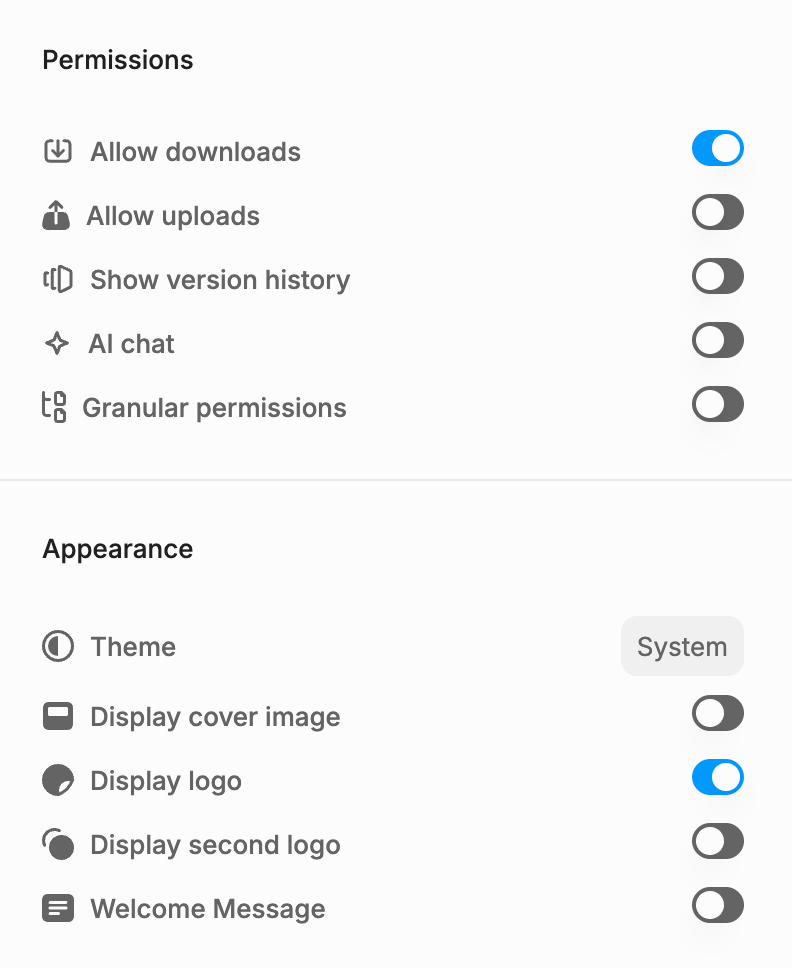
- Permissions: Allow downloads, Allow uploads, Show version history, AI chat and Granular permissions. In the screenshot only Allow downloads is on.
- Appearance: Theme, Display cover image, Display logo, Display second logo and Welcome Message. In the screenshot only Display logo is on.
- Click Create & copy link at the bottom of the panel and send the link.
File Link vs Room Link
| Room link | File link | |
|---|---|---|
| Opens | The whole room, filtered by the group's permissions | One document |
| Settings come from | The group in the room's Permissions | The file link itself |
| Best for | Diligence, multiple documents | A single document sent on its own |
A file link doesn't inherit the room's group settings. Set the security controls on the file link itself.
Change an Existing File Link
Open the file, click Permissions, and edit the link there — for example to switch downloads on or off. Changes apply to the same link, so there's nothing to re-send.
Common Questions
Can I send a link to one document instead of the whole room?
Yes. Open the document, click Permissions in the left sidebar, then Create link. That link opens only this file.
Does a file link follow the room's permissions?
No. A file link has its own settings. Set email verification, watermark, download and expiry on the file link itself.
Will the file link still work if I upload a new version?
Yes. Upload a new version keeps the file and its link.