
Failed to Authenticate. Invalid Password.
A visitor enters the password for your Peony link and sees Failed to authenticate. Invalid password. The password doesn't match the one set on their group. How the visitor and the admin fix it.
Last updated October 23, 2026
What They See
The link asks for the visitor's email and a password. If the password doesn't match the one set on their group, Peony shows this notice and stays on the same screen.
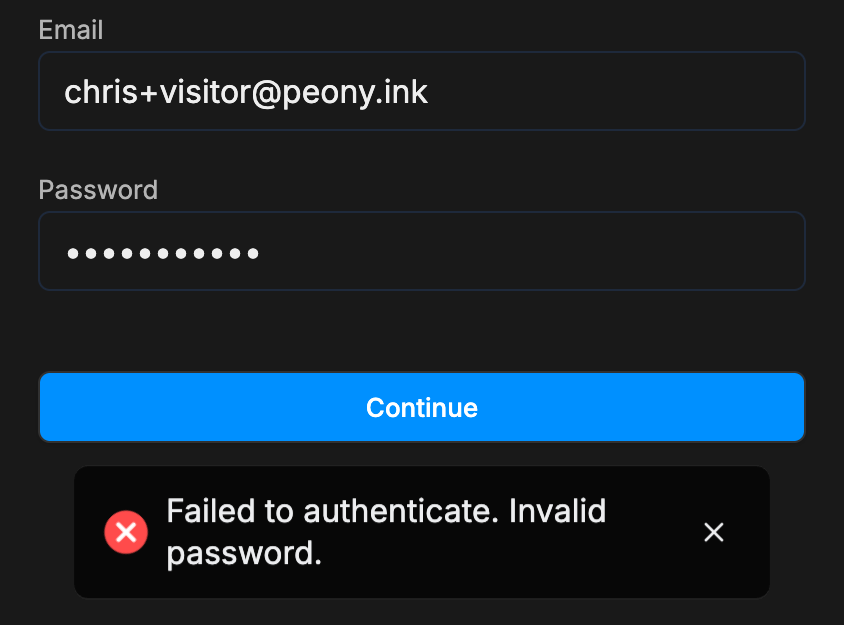
If the password field is empty, Continue stays greyed out until something is typed.
If You Are the Visitor
- Copy the password from the message the sender gave you and paste it, so a typo or a missing character can't creep in.
- Check that it's the password for this link. A sender who shares several rooms may use a different password for each one.
- Ask the sender to confirm the password if it still fails.
If You Are the Admin
Each group has its own password. Open the room's Permissions tab, select the visitor's group and click Password protection. The password is shown in the field.
- Send it again exactly as shown.
- Or set a new one: type it, click Done, then Save, and send the new password to everyone in that group.
See Link settings: email access vs link access for the other security controls on a group.
Common Questions
A visitor says the password I sent doesn't work. Where do I check it?
Open the room's Permissions tab, select the visitor's group and click Password protection. The current password is in the field. Send it again exactly as shown, or type a new one, click Done, then Save.