
Opening a Peony Data Room: A Guide for Visitors
What happens when you open a Peony data room link: the email, the sign-in link, the NDA, what you can see and download, what the sender can see, and what to do if the link or a code doesn't work. Written to be forwarded to investors and counterparties.
Last updated October 20, 2026
Someone sent you a link to a Peony data room. You don't need a Peony account and it costs you nothing. This page walks through what happens when you open it, and what to do if a step doesn't work.
Admins: forward this page to the people you invite
It answers the questions visitors ask most. For the setup side, see Share your data room.
Step 1: Open the Link
You will have either an invitation email or a link sent by the person who shared the room.
- An invitation email. The standard invitation comes from
invite@notification.peony.ink. It has a button to open the room, and the link written out underneath in case the button is blocked. - A link sent directly opens in any browser.
If the invitation never arrived, check your spam folder first, then ask the sender to resend it.
Step 2: Enter Your Email
Depending on how the sender set up the room, you may be asked for your email, and for your name as well. Names are asked for when the room has an NDA or a watermark that shows names.
If your email isn't on the sender's list for that link, no email is sent, and for security the room won't say why. Ask the sender to add you.
Step 3: Verify Your Email
If you were invited by email, the button in the invitation opens the room directly. Otherwise, if the sender turned on email verification, Peony emails you either a sign-in link or a code, depending on how the room is set up. On Check your email, click the link in the email. On Please verify your email, paste the code from the email and click Continue.
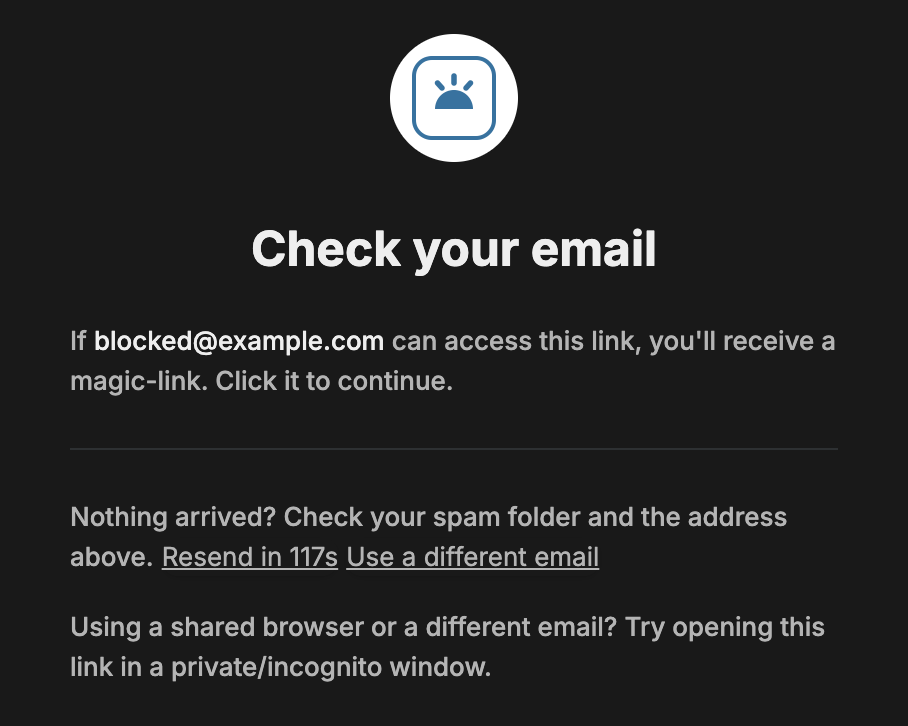
- Nothing arrived? Check spam and the address you typed. Resend unlocks after about two minutes, and Use a different email lets you start again.
- Still nothing? Ask your IT team to allow
notification.peony.ink. See A visitor didn't get the sign-in email.
Once you've verified, you skip this step for 7 days on the same browser. A new device, a different browser, an incognito window or cleared cookies means verifying once more.
Step 4: Sign the NDA, if the Room Has One
Some rooms ask for an NDA before any file loads. There are two kinds.
A standard NDA. On the page titled Please enter your info to continue, enter your email and name, click Read non-disclosure agreement to open the full text, tick the box saying you have reviewed and agree to the terms, and click Continue.
An e-signature NDA. On the page titled Please sign the NDA, enter your name and click Read and sign non-disclosure agreement. Then:
- Fill in every field the sender set up for you, such as your legal name, title, address or the date. Required fields are marked with an asterisk, and Next field jumps to the next blank.
- Sign with a drawn or typed signature, and initial where asked.
- Tick I agree to using e-signature for this agreement, then click Confirm. Until you tick the box, Confirm stays grey.
- Click Submit, then Continue to enter the room.
With an e-signature NDA, you and the sender both receive a signed copy by email. The NDA step adds roughly 30 to 60 seconds to your first visit, and later visits on the same link don't ask you to sign again.
Step 5: Read the Room
The room opens with folders and files. You see only what the sender gave your group. An item you have no access to isn't shown at all, so if you expected a folder and it isn't there, ask the sender.
- Downloading. Open a file and click the download icon in the top-right corner of the viewer. If there is no download icon, the sender gave you view-only access to that file.
- Watermarks and screenshots. Some rooms overlay your email address on every page and block screen captures. The person who shared the room sets this, not you.
- Video. Video plays in the viewer. You can download it only if the sender gave your group Download access.
- Questions. If the sender turned on Q&A for the room, you get a Q&A tab. Click New question, type your question, and submit it. Questions and answers are scoped to your question team.
- AI chat. If the sender turned on AI document Q&A for your group, you can ask questions about the documents from inside the room.
What the Sender Can See
The moment you open the room, you appear in the sender's analytics: when you opened it, for how long, and which pages you read. If the link asked for an email, they see it's you. If it didn't, they see an anonymous visit.
If Something Doesn't Work
| What you see | What to do |
|---|---|
| Failed to load link. Link not found. | The sender switched your access off, or regenerated or deleted the link after sending it. Ask them for a new link. See Link not found. |
| No sign-in email arrives | Check spam, then see A visitor didn't get the sign-in email. |
| The room opens but downloads fail | Your office network may be blocking Peony's file storage. Ask your IT team to allow www.peony.ink, app.peony.ink and the file-storage domain shown in the browser's network error. See A visitor can open a file but can't save a copy. |
| The Confirm button on the NDA is grey | Tick I agree to using e-signature for this agreement. |
| The page looks broken | Clear the site's cookies and reload, or open the link in an incognito window. |
| You want to reset a room password | You can't. Access is controlled by the sender, so use the credentials they gave you or ask them. |
Common Questions
Do I need a Peony account to open a data room?
No. Visitors never sign up. You enter your email at the gate, click the sign-in link Peony emails you if the room asks for one, and read the room in your browser. It is free for you.
Can I forward the link to a colleague?
Ask the sender to add your colleague instead. With Email access, a colleague who wasn't added is blocked. With Link access, they have to pass the sender's allow and block lists, and they appear to the sender under their own email.
Why does the room ask me to verify every time I open it?
Once you've verified your email, you skip verification for 7 days on the same browser. A new device, a different browser, an incognito window or cleared cookies means verifying once more. The sender can also turn this off.