
Quick Start: Your First Data Room in 5 Minutes
Create a Peony data room, upload files, and share a secure link in under five minutes.
Last updated October 2, 2026
Sign up, set your company name, create a room on Business or above, drag in files, toggle the protections you want, and send the link. On the Data Room plan, AI auto-indexing finishes in the background while you configure the rest.
1. Sign Up
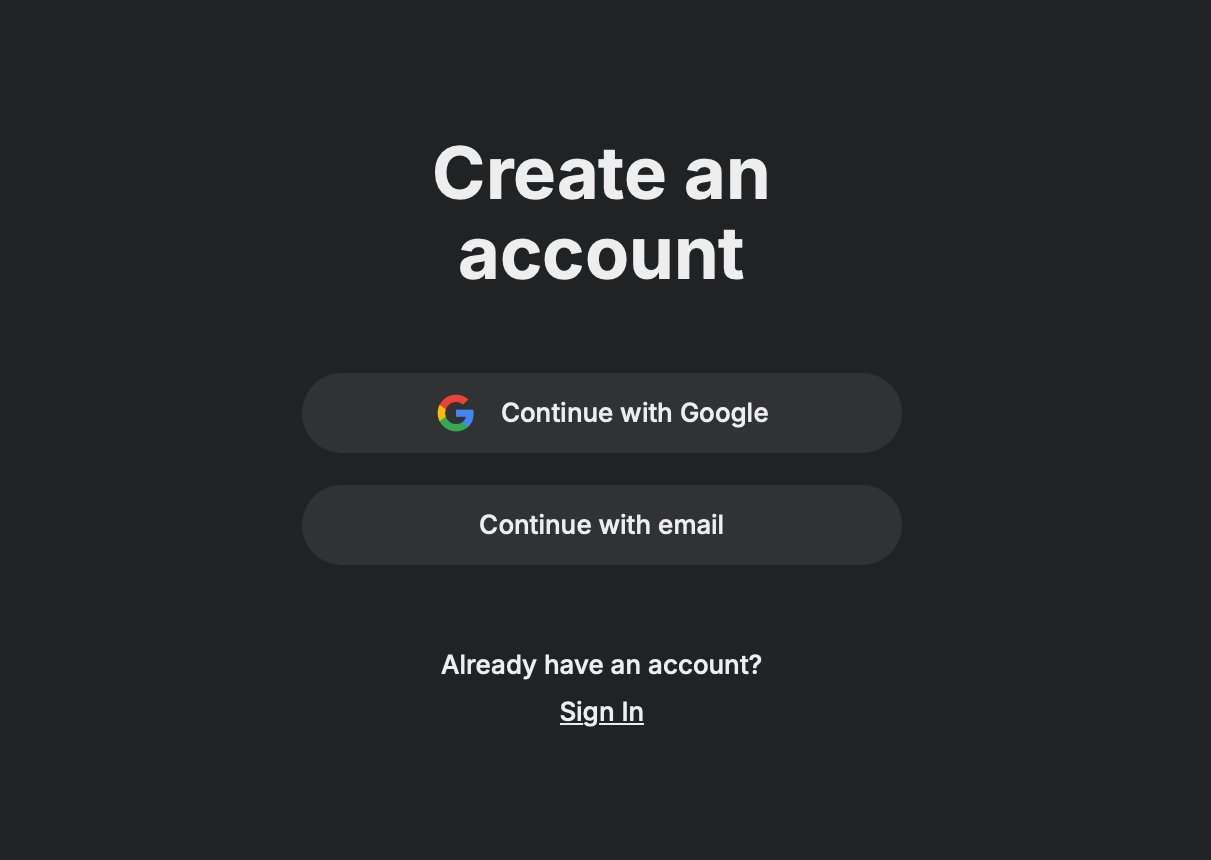
Go to app.peony.ink and click Continue with Google, or Continue with email and enter your work email. With email, Peony sends you a one-time code (OTP), so there's no password to remember. Your workspace is created on first sign-in.
Onboarding
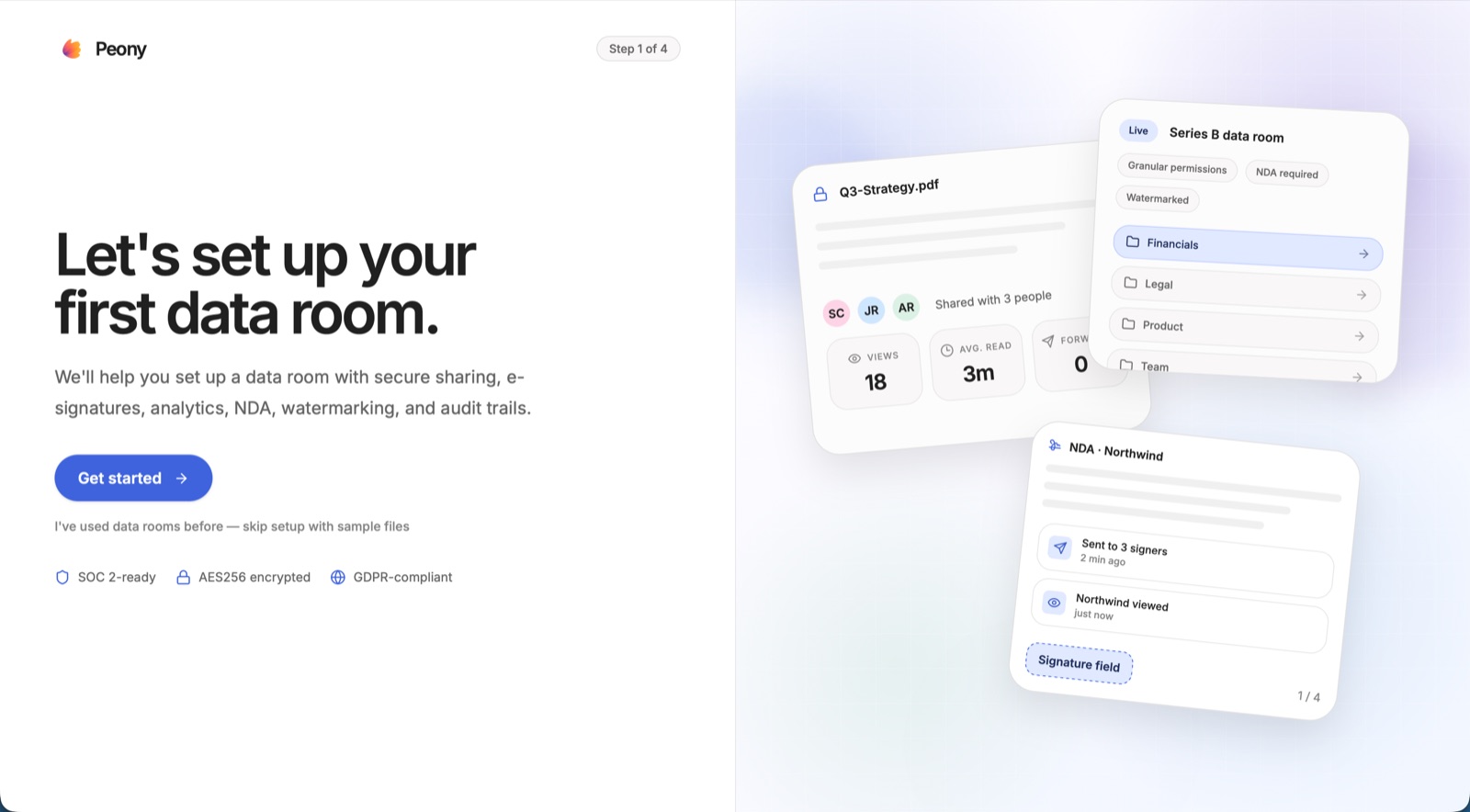
Right after you sign up, a short 4-step setup starts with Let's set up your first data room. Click Get started to be walked through creating a room with secure sharing, NDA, watermarking and analytics. If you've used data rooms before, click I've used data rooms before — skip setup with sample files instead.
At the end of onboarding, Peony offers the 7-day free trial of the Data Room plan.
Your new workspace starts named Peony with a default logo. Click the workspace name at the top of the left navbar to open Edit workspace branding and set your Company name — editable on every plan. Replacing the logo requires the Business plan or above.
The Free plan lets you share single files as tracked links. Creating a full data room requires Business+ — on Free, the Create new data room button shows an upgrade prompt.
- Plans and Pricingwhat each tier includes, side by side
- How the free trial works7 days of the Data Room plan, no credit card, also started from Try 7 days for free on any upgrade screen
2. Create a Data Room
On the send screen, click Create new data room ("Best looking data room with enterprise security"). From the data-rooms list you can also use Create data room in the top bar. Both open the create dialog. (This action requires the Business plan or above.)
Name it something your counterparty will recognize — "Acme Series A" or "Project Falcon Diligence." The name appears in the viewer's browser tab. You can rename later without breaking the link URL.
If your workspace has branding defaults (logo, cover image), the new room inherits them. Room-level display is controlled from the data room's Settings tab — see Custom Branding for logo and banner edits. Once the room exists you can also rename it and change its logo and banner right inside the room; the step-by-step is in Custom Branding: Name, logo and banner inside a specific room.
3. Upload Files
Drag and drop files — or a whole folder — into the room. Peony accepts PDFs, Word, Excel, PowerPoint, images and HTML on every plan. Video and audio uploads require the Business plan (on Free these are rejected). Folder structure is preserved on folder upload.
If a folder uploads fewer files than you expected, that's usually macOS hidden files (like .DS_Store) that Peony skips by design — re-upload and choose "only the missing ones" to merge. For large-file or video upload errors, see Upload Issues.
On the Data Room plan, AI auto-indexing runs in the background so your documents become searchable. Keep going — you can configure the link while it indexes. AI auto-indexing — the background indexing that makes your documents searchable — is a Data Room tier feature and does not run on Free or Business rooms. The separate per-group AI document Q&A toggle, which lets viewers ask questions inside the room, is available from the Business plan.
4. Configure the Link
Click Share securely in your data room. A new room has no groups yet — click Create new group to create your first shareable group, then set who can see it and how it's protected. (This opens the link/permissions editor, not a "copy link" shortcut.)
- Share securely
- Create new group
- Visitors
- Document permissions
- Security cards
- Save
The link editor has a Security control card grid, with a Permissions table below it:
- Security control (card grid) — Email-gated access, Password protection, Expiry, Dynamic watermark (Data Room tier), One-click NDA, Screenshot protection, Access questions (Data Room tier — click the card to set the questions viewers must answer), AI document Q&A (the in-room AI Q&A toggle, available from Business), and Appearance (theme and an optional welcome message for this group). Click any card to open it and set its inner toggle — for example, Password protection opens a Secure password toggle and Expiry opens an Auto-expiry timer.
- Permissions (the table below the grid) — per-folder and per-file control over what this group can view, download, or upload; granular per-file overrides are Data Room tier.
Typical fundraise stack: dynamic watermark plus screenshot protection, with downloads turned off in the Permissions table. For live M&A, add a One-click NDA.
An upgrade pop-up when you save usually means a higher-tier control is switched on; see why a higher-tier feature triggers an upgrade prompt.
Full walkthrough of access modes, security controls, and per-folder permissions: Permission & Security Settings.
5. Share the Link
Copy the link and send it — email, Slack, LinkedIn, whatever.
The moment a viewer opens the link, their activity shows up in the Analytics tab — pages read, dwell time, exact file order. Click into any viewer's name to see their full activity timeline, location, device, total view time, and downloads. You can also create a separate link per counterparty (using email access, domain gating, or plain links) to isolate their analytics cleanly.
Your data room sidebar has more tabs than just Analytics:
| Tab | What's there | Plan |
|---|---|---|
| Documents | The file tree. | — |
| Analytics | Per-viewer activity. | — |
| Audit trail | A compliance event log. | Data Room+ |
| Q&A | The investor Q&A module; you can enable or disable it per room from Settings. | Data Room+ |
| Permissions | Groups and their link settings. | — |
| Settings | Room-level toggles: Index documents Data Room+, Visitor Q&A Data Room+, Show cover image, Show logo, and New file notifications Deal Team+ | Per toggle |
The room's Settings tab is not your workspace settings; see Two Settings Menus.
Common Mistakes
- Trying to create a data room on Free. Full data rooms require Business or above. Free supports single-file tracked links.
- One link for all investors. Per-viewer analytics still work (click into each name), but separate links make it easier to filter, revoke, and watermark per counterparty.
- Forgetting to toggle protections. The default link is open. Turn on dynamic watermark and screenshot protection from the link's Security control cards.
- Expecting AI features on Free. AI auto-indexing is a Data Room tier feature; the AI document Q&A toggle that lets viewers ask questions inside the room is available from Business. Neither runs on Free.
- Using "Invite Team" when you meant "Invite Viewer". Team invites add paid admins. Viewer invites are free. See Invite Your Team.
Common Questions
I'm on the Free plan and everything asks me to upgrade — what's included?
Sharing a single file as a tracked link works on Free; full data rooms require Business or above. The full list is in What's on the Free plan.
Can I rename my workspace or company name later?
Yes. Click the workspace name at the top of the left navbar to open Edit workspace branding and edit the Company name on any plan. This name shows next to your logo. If you need the name changed on counterparty emails as well, that's part of the Deal Team tier — contact support.
Do I get charged per viewer, per click, or for storage?
No. Billing is per admin seat only. There are no viewer or click charges, there are no size fees (storage is unlimited from the Data Room plan), and external viewers never need a Peony account.
My uploaded folder shows fewer files than the original — did some fail?
Usually not. macOS counts hidden files (like .DS_Store) that Peony skips by design. Re-upload the same folder and choose "only the missing ones" to merge just the skipped items. For genuine upload failures, see Upload Issues.
Can I sign up with a personal email?
Yes. You can sign up with a personal or a business email, but a business email is recommended so your team, billing and share links carry your company's identity. If you started with a personal address, you can move the workspace to a work address later. See Move Your Subscription to a New Account.
Can I manage my data rooms from a phone or tablet?
Visitors can open and read rooms on phones and tablets. Setting up rooms — uploading, permissions, links — works best on a laptop or desktop browser, so do setup there.
Next Steps
- Upload and Organize Filesfolders, supported types and upload limits
- Custom Brandinglogo, cover image, brand card and theme
- Share a Data Room Linkthe whole sharing flow, start to finish
- Permission & Security Settingsaccess modes and every security control
- Access Control Layerswhat each protection does, and its limits