
Set a Data Room's Theme and Welcome Message for Visitors
Set the theme (System, Light or Dark) visitors see on a Peony data room link, and add a welcome message on Business+ that greets them when they open it.
Last updated November 15, 2026
In Peony, a virtual data room for fundraising, M&A and due diligence, each link to a data room has its own Appearance settings: a Theme for how the room looks to visitors (System, Light or Dark) and an optional Welcome Message Business+ that greets them when they open it. Because they are set per link, an investor's link and a buyer's link can greet each group differently.
Set the Theme and Welcome Message
- Open the data room, go to its Permissions tab and select the group whose link you want to change.
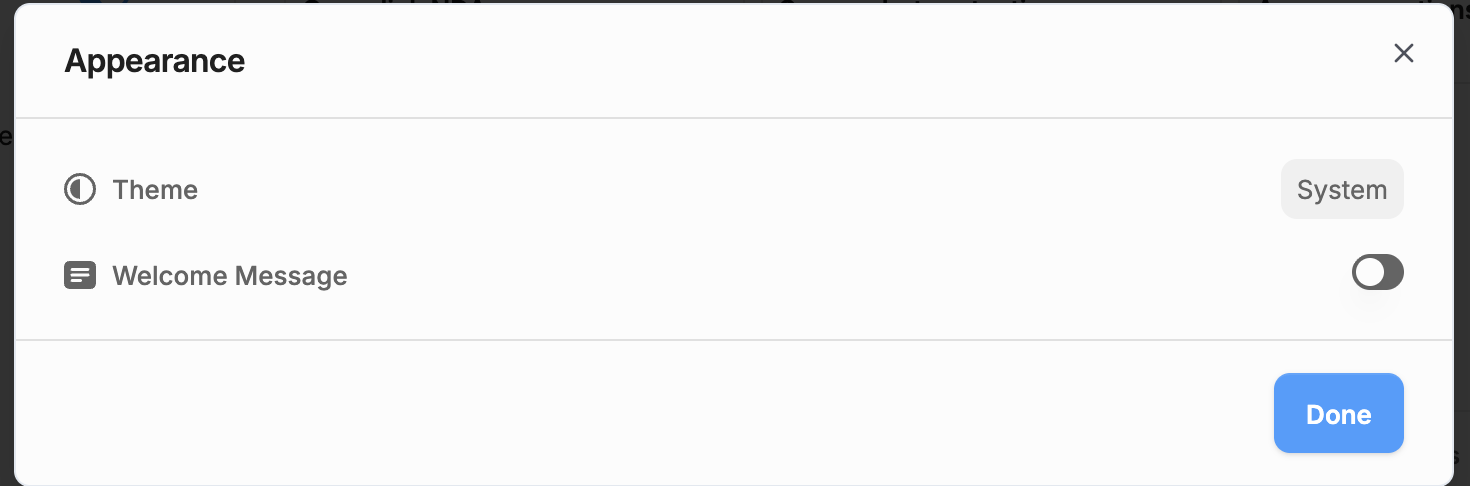
- Click the Appearance card. It reads Theme only, or Custom once a welcome message is set.
- Pick a Theme: System follows each visitor's device setting, Light and Dark fix the look. New links start on System.
- Turn on Welcome Message and type your message in the Enter welcome message field.
- Click Done, then save the link.
What Visitors See
When a visitor opens the link, the welcome message appears in a window with your brand card logo, the heading Greetings!, your text and a Let's go button. It shows on every kind of link: a data room, a folder, a single file or an NDA.
After the visitor closes it, Peony doesn't show it again in that browser for 3 days. A visitor on another device or browser sees it once more.
Good uses: who the room is for, what's in it, the deadline for indications of interest, and who to contact with questions.
Your Own App Theme Is Separate
The Theme item in the Settings menu at the bottom-left (System, Light or Dark) only changes how the Peony app looks to you. It's saved in that browser, and it doesn't change what visitors see. To change the visitor view, use the link's Appearance settings above.
Notes and Limits
- The welcome message is plain text in a single paragraph, up to 10,000 characters. Formatting, links and images aren't rendered.
- On Free, the Welcome Message switch shows an upgrade prompt. It needs Business+.
- Theme and welcome message are set per link, so each group of visitors can get its own.
- Your logo, cover image and brand card are set elsewhere; see Custom Branding.
Common Questions
Does the Theme item in my Settings menu change what visitors see?
Visitors see the theme set in each link's Appearance settings. The Theme item in the Settings menu changes how the Peony app looks for you, in that browser.
How often do visitors see the welcome message?
When they open the link. After a visitor closes it, Peony doesn't show it again in that browser for 3 days.
Can I format the welcome message?
The welcome message is plain text in a single paragraph, up to 10,000 characters. Keep it to a few sentences so visitors read it.