
What's in the Peony Settings Menu
Every item in Peony's bottom-left Settings menu: your name, brand card, app theme, visitor notifications, anomaly alerts, domains, webhooks, admins and billing.
Last updated November 13, 2026
Click Settings at the bottom-left of Peony, a virtual data room for fundraising, M&A and due diligence, to open the workspace menu. It holds settings for you and for the whole workspace. It is different from a data room's own Settings tab, which holds room-level options such as OneDrive sync and visitor Q&A; see Two Settings Menus.
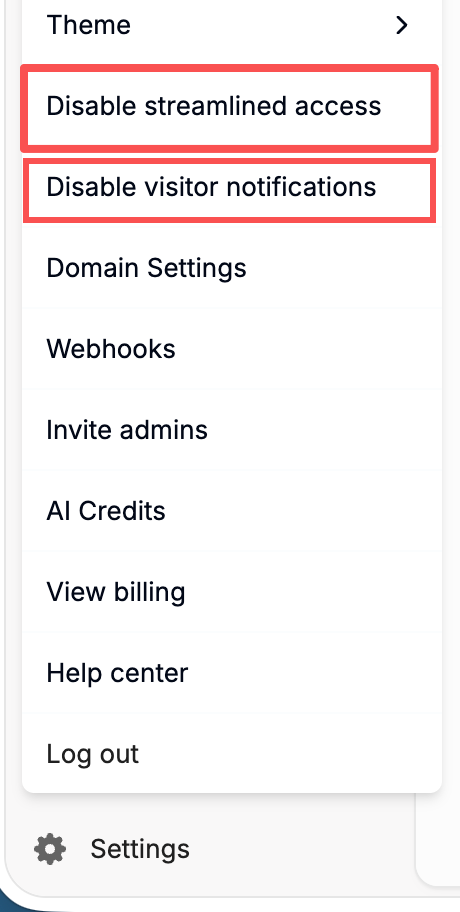
Menu Items, Top to Bottom
| Item | What it does | Applies to |
|---|---|---|
| Your name and email, with Edit | Change the name shown in emails you send. See Change your name | You, in this workspace |
| Upgrade to … | Move to the next plan. Shown when a higher self-serve plan exists | Workspace |
| API key settings | Create and manage API keys. Shown when the API is on for your workspace. See API & SDKs | Workspace |
| Brand Card Settings | The card visitors open from your logo. See Brand card | Workspace |
| Theme | System, Light or Dark for the Peony app. Saved in this browser only; visitors aren't affected. See Theme and welcome message | You, in this browser |
| Enable / Disable streamlined access | Whether verified visitors skip email verification for 7 days. See Streamlined access | Workspace |
| Enable / Disable visitor notifications | Whether admins get emails about visitor activity. See Visitor notifications | Workspace |
| Enable / Disable anomaly alerts | Emails about unusual locations and VPN, Tor or proxy access. Enterprise. See Anomaly alerts | Workspace |
| Domain Settings | Your Peony link name and your own domain. See Custom Domains | Workspace |
| Webhooks | Send link views and NDA acceptances to your systems or Slack. See Webhooks | Workspace |
| Invite admins | Add teammates as admins. See Invite your team | Workspace |
| Manage SSO | Set up or connect single sign-on. Shown when SSO applies to you. See SAML SSO | Workspace |
| AI Credits | See your workspace's AI usage and credits. Shown when AI is on for the workspace. See AI Q&A | Workspace |
| View billing | Plan, payment method and invoices. See Invoices and receipts | Workspace |
| Help center | Opens these docs | |
| Log out | Signs you out of Peony | You |
Reading the Enable and Disable Items
The three switches (streamlined access, visitor notifications, anomaly alerts) name the action they will take, not the current state. Disable visitor notifications means they're on now; Enable visitor notifications means they're off. Clicking one changes it for the whole workspace, and Peony confirms with a short message such as Visitor notifications disabled.
Common Questions
Why does the menu say Disable when I want to know if something is on?
Switch items name the action they will take. Disable visitor notifications means notifications are on now; Enable visitor notifications means they're off.
Why don't I see some of these items?
A few items only appear when they apply: Upgrade when a higher self-serve plan exists, API key settings when the API is on for your workspace, Manage SSO when SSO applies to you, and AI Credits when AI is on for the workspace.