
A Signer Can't Fill In the Fields
Your recipient opens a Peony e-signature request but can't type into any field or sign. The fields are assigned to someone else, usually you. How to check who each field belongs to and send a corrected request.
Last updated October 23, 2026
What They See
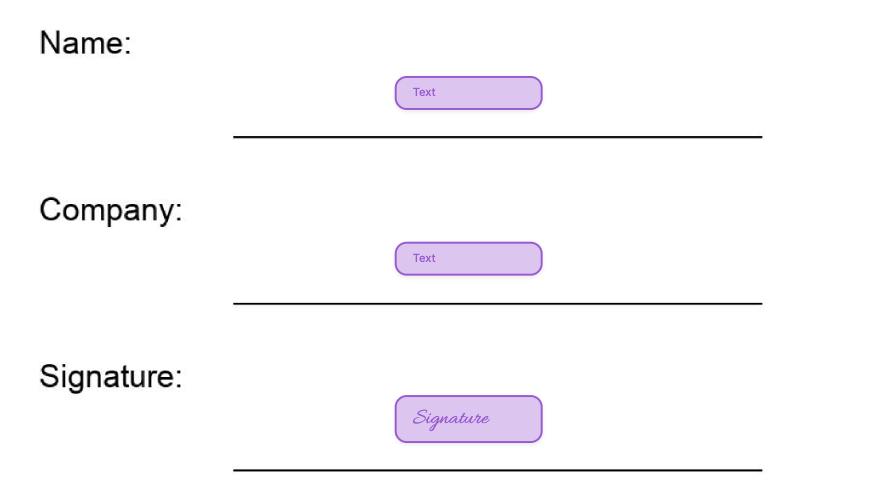
The signer opens the request and sees the document with its fields, but clicking a field does nothing and there is no Sign button. The fields show a different recipient's color.
Why It Happens
Each field belongs to the recipient who was selected in the Signer panel when the field was dropped onto the document. If you added yourself as a recipient, or had a colleague selected, every field you placed went to that person. The signer has nothing assigned to them, so there is nothing for them to fill in.
Check Before You Send
Click Send to open the Recipients panel. A recipient marked (viewer) has no fields. They can open the document but can't sign it.
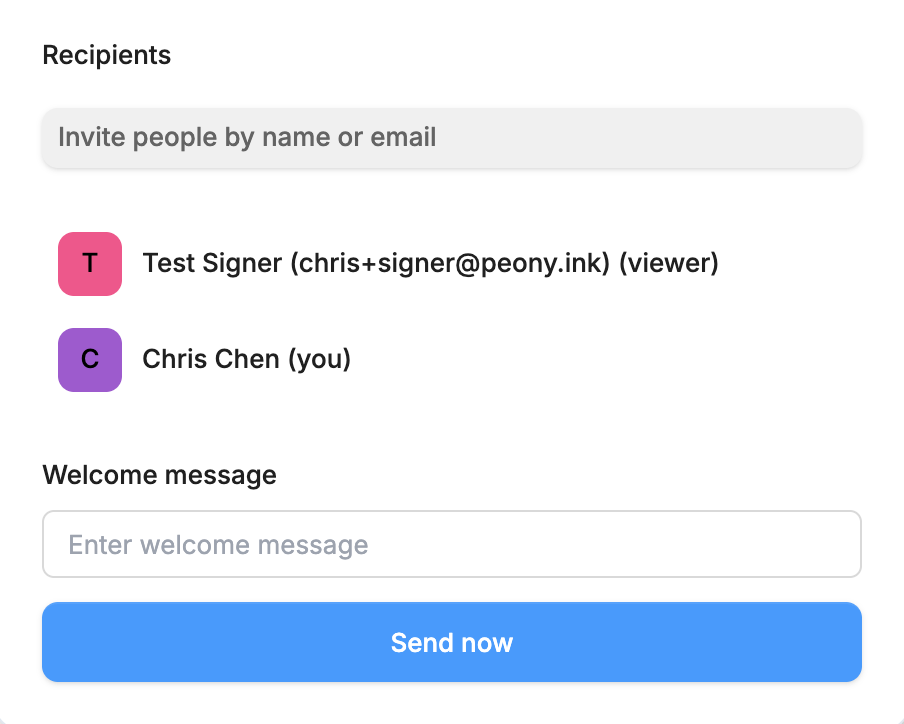
If the person who should sign shows (viewer), close the panel and fix the fields first.
Fix It
- Start the e-signature again: Create new and e-Signatures, or Add content and e-Signatures inside a data room, and upload the same document.
- In the Signer panel on the right, pick the person who has to sign from the recipient picker at the top.
- Drag that person's Text, Signature and Initial fields onto the document. Their fields take their color.
- If you sign too, pick yourself in the picker and place only your own fields.
- Click Send and confirm nobody who has to sign is marked (viewer), then click Send now.
To remove a field you placed for the wrong person, right-click it and choose Delete, then place it again with the right recipient picked. See E-Signatures.
Fields Assigned to You
If the fields on a request are assigned to you, you can fill them in yourself: open the agreement and click Sign at the top right.
Common Questions
My signer says there is no way to enter text in the signature field. Why?
The fields on that request are assigned to a different recipient, usually you. A signer can only fill in the fields assigned to them. Build the request again with their fields placed while they are selected in the Signer panel, and send it again.