
My Sign-In Code Doesn't Arrive
Your Peony sign-in code isn't arriving by email or SMS. Try these fixes in order: wait a minute, check spam, sign in with Google, use an incognito window, then ask support for a manual sign-in.
Last updated October 23, 2026
You chose Continue with email on the sign-in screen and the code never came. Work down this page in order. Most people are in by step 3.
What You'll See
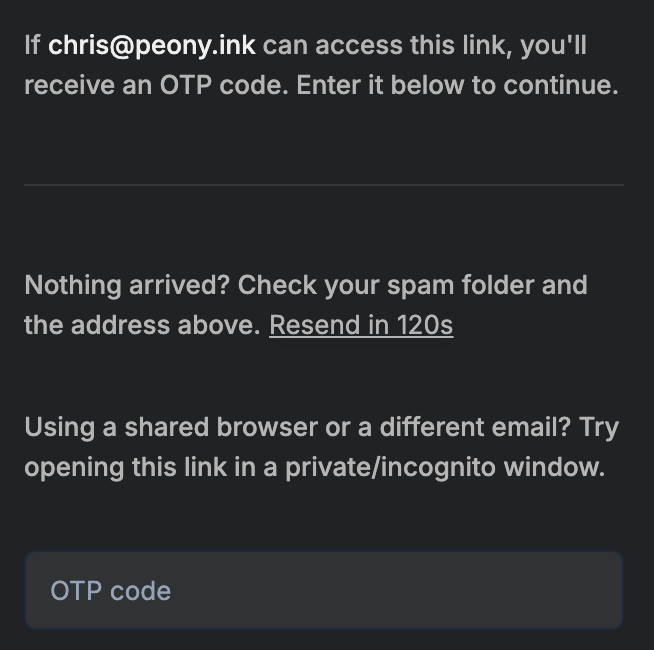
After you enter your email and click Send code, Peony shows the code screen and a short countdown before you can ask for another code.
1. Wait 60 Seconds
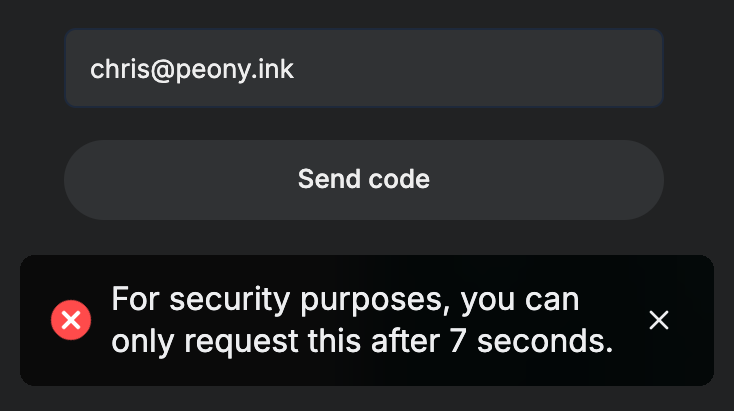
Codes usually arrive in seconds, but company mail servers can take 30 to 60 seconds. Resend unlocks when the countdown ends. Each new request replaces the previous code, so don't request several in a row. If you do, Peony asks you to wait a few seconds:
2. Check Spam
Codes come from verify@notification.peony.ink. Search your inbox for Peony, then check Spam, Junk and Gmail Promotions, and the address shown on the code screen. Mark the message as not spam. On a company mailbox, ask your IT team to allow notification.peony.ink.
3. Sign In With Google Instead
If your account email is a Google account, click Continue with Google on the sign-in screen. Admins can sign in with an email code or with Google, and Google needs no code at all.
4. Try an Incognito Window
On a shared computer, or if you're signed in to Peony with a different email in the same browser, open an incognito window, go to app.peony.ink/signin, and try again. The code screen suggests the same thing.
5. Check the Email on Your Account
- A typo such as
gmial.comsends every code to an address that doesn't exist. - A changed email doesn't move your account. It stays tied to the old address. See Contact Support for the email-migration path.
6. Ask Support for a Manual Sign-In
If nothing works, Peony can whitelist your email or send a one-time sign-in link. Email sean@peony.ink or deqian@peony.ink with your account email, company name, a screenshot of the error, and your device and browser. Support runs 24/7. We aim to reply within 12 hours on Deal Team, 24 hours on Data Room, 48 hours on Business and 2 business days on Free, and on Enterprise we can assign a dedicated, always-on agent. Priority support is included on Deal Team and Enterprise, and available on other plans at custom rates.
SMS Codes at Sign-Up and Trial
SMS codes are used when you sign up and when you claim the 7 day Data Room trial.
- Mobile carriers can take a minute to deliver a text. If it hasn't come, click Resend code.
- Use a regular mobile number. Carriers often don't deliver verification texts to VOIP numbers such as Google Voice.
- Check the country code.
If the SMS never arrives, support can enable the trial for you. See The claim form.